Perform Time Job Aid:
Course Overview and Installation
Updated: 5/26/15 Copyright © Paycor Inc. All Rights Reserved Page 9
Enrolling Employees
When assigning physical badge numbers to employees use the first set of numbers
without preceding Zeroes.
Example: Physical Badge lists 0012345678 222,22222 on the card. Badge to be
added to the employee in Perform would be 12345678.
Proximity Badge Enrollment
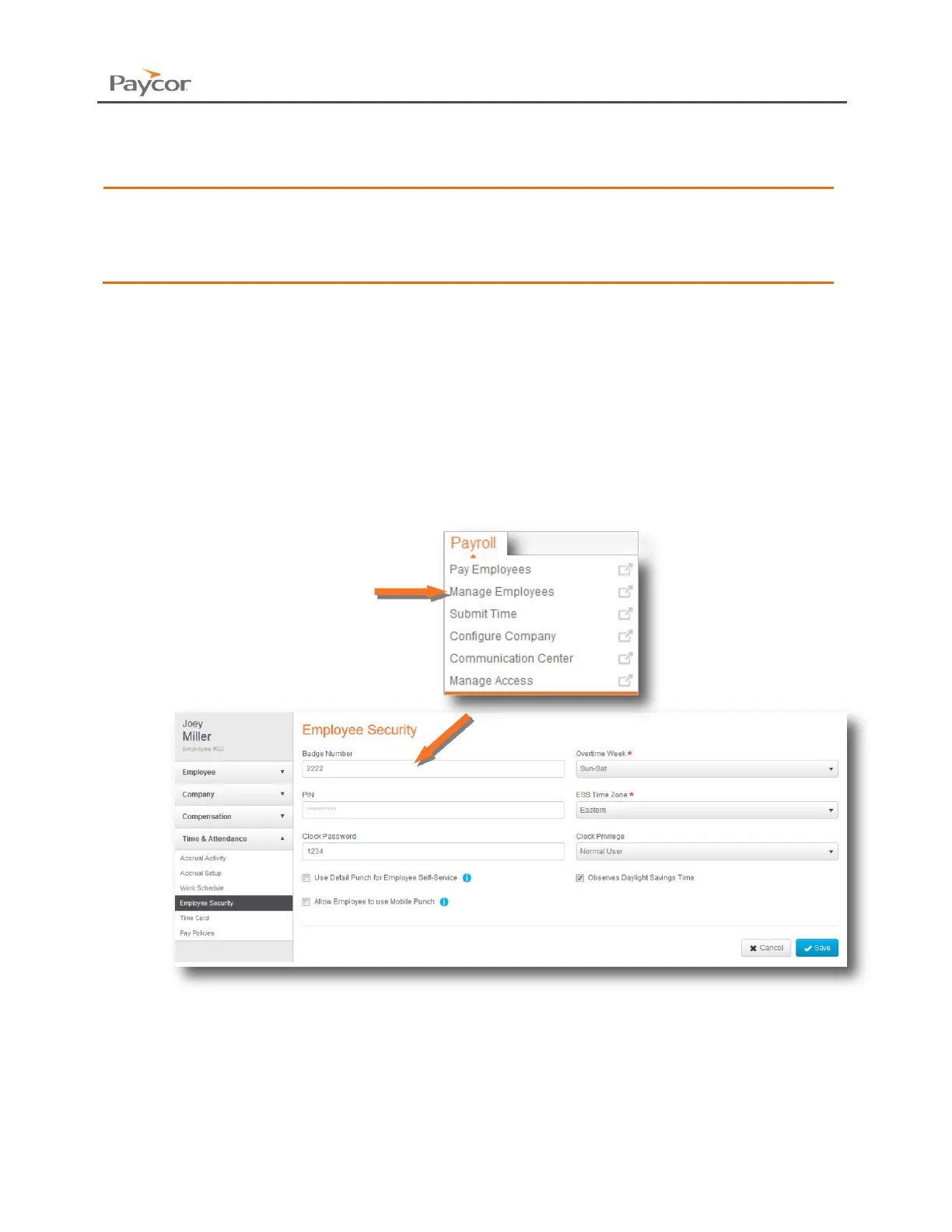
The employee’s proximity badge number must be entered on the employee’s profile in Perform.
1. Sign in through paycor.com. Hover over the Payroll menu, and click on Manage
Employees. Select the necessary employee.
2. Using the left navigation menu, open Time & Attendance. Then click on Employee
Security.
3. Once the Badge Number is added to the employee, they will be automatically sent to
the clock.
4. Click Save if any changes have been made.


 To Next Page