Perform Time Job Aid:
Course Overview and Installation
Page 12 Copyright © Paycor Inc. All Rights Reserved Updated: 5/26/15
Managing the Clock
Once an Admin is added, only that user can change settings on the clock or
employees.
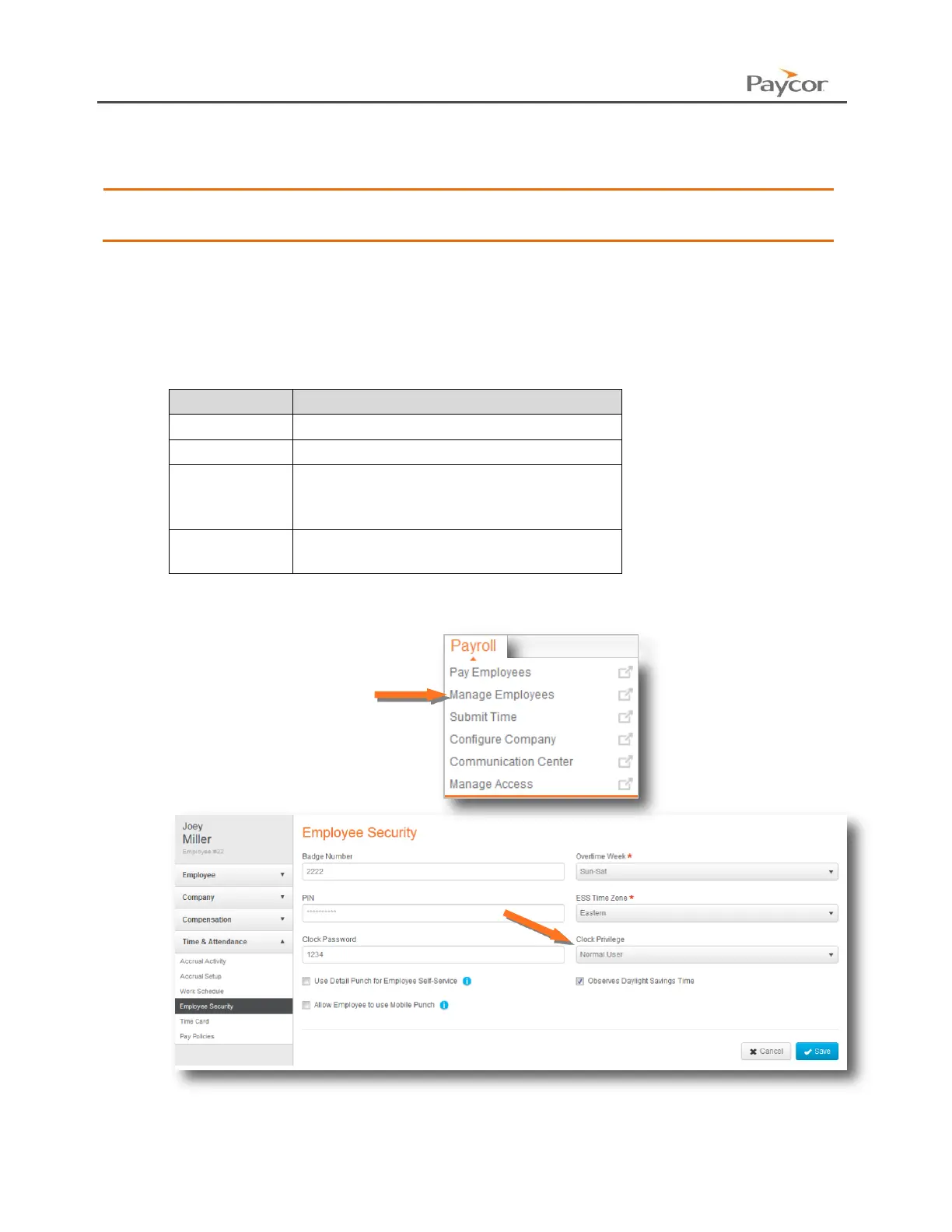
1. Sign in through paycor.com. Hover over the Payroll menu, and click on Manage
Employees. Select the necessary employee.
2. Using the left navigation menu, open Time & Attendance. Then click on Employee
Security.
3. Once the Clock Privilege is added to the employee, they will be automatically sent to
the clock.
Allows a user to punch at a clock
Restricts a user from using the clock
Gives the employee the ability to enroll
other employee fingerprints at a
biometric clock
Gives the employee full access to
change the settings of a clock
4. Click Save if any changes have been made.



 To Previous Page