Need help?
Do you have a question about the PayFacto PAX A35 and is the answer not in the manual?
Details the steps to enable and connect the terminal to a wired Ethernet network for communication.
Outlines the procedure for turning on Wi-Fi and connecting the terminal to a wireless network.
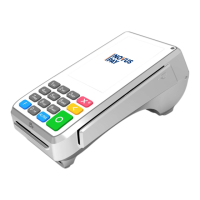
The PAX A35 is a countertop payment terminal designed for retail and restaurant environments, facilitating secure and efficient transaction processing. This device serves as a comprehensive solution for accepting various forms of payment, integrating both traditional and modern payment methods. Its design emphasizes ease of use for both terminal operators and customers, featuring a combination of physical and on-screen input options.
The primary function of the PAX A35 is to process payment transactions. It acts as an interface between the customer's payment card and the payment processor server. The terminal supports multiple communication methods, including wired Ethernet and wireless Wi-Fi, ensuring reliable connectivity for transaction authorization. It is designed to be a stationary unit, typically placed on a countertop, and requires an external AC power source for operation. The device does not feature a dedicated power on/off button, instead powering on automatically when connected to an AC supply and powering off when disconnected. This streamlined power management simplifies daily operation.
The terminal is equipped to handle various card payment options. It includes a chip card reader for EMV transactions, requiring customers to insert their chip card and enter a PIN for verification. For older card types, a magnetic stripe reader allows for swiping cards. Additionally, the PAX A35 supports contactless payments, enabling customers to simply tap their card or compatible device for quick transactions. This versatility ensures that a wide range of payment cards can be accepted, catering to diverse customer preferences.
Beyond payment processing, the PAX A35 also offers configuration capabilities to adapt to specific operational needs. Users can adjust the terminal's display language, ensuring that prompts and information are presented in a language familiar to the operator or customer. Network settings, including both Ethernet and Wi-Fi connections, can be configured to integrate the terminal seamlessly into existing network infrastructures. These configuration options allow for customization to suit different business environments and regional requirements.
The device's multi-function cable is central to its connectivity, providing access to essential ports. This cable allows for a wired network connection, including Power over Ethernet (PoE) if available, simplifying cabling by delivering both data and power through a single cable. It also features a DB9 RS-232 connector for integration with a Point of Sale (POS) system, enabling communication between the terminal and the POS for transaction data exchange. An external USB host connector is also available, offering further expansion or connectivity options.
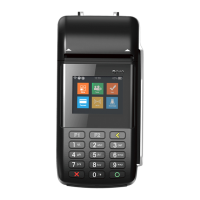
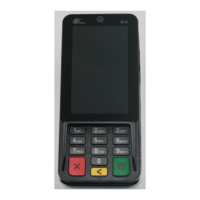
The PAX A35 is designed for intuitive interaction, featuring both a color touchscreen and a physical keypad. The touchscreen serves as the primary interface for navigating menus, selecting options, and displaying transaction information. The physical keypad complements the touchscreen, providing tactile feedback for entering numerical data such as transaction amounts or PINs. This dual-input approach offers flexibility, allowing users to choose their preferred method of interaction.
For numerical input, the physical keypad includes standard number keys (0-9) and three distinct colored function keys: green, yellow, and red. The green key (O) is used to confirm an entry or operation, analogous to an "OK" or "Enter" function. The yellow key (<) serves as a "Back" or "Correction" key, allowing users to correct mistakes during input. The red key (X) is designated for canceling a function or transaction. These color-coded keys provide clear visual cues for common operations, enhancing usability.
The terminal's display language can be easily configured through the settings menu. This feature is particularly useful in multilingual environments or regions, allowing the terminal to display information in the operator's or customer's preferred language. The process involves navigating through system settings, selecting "Languages & input," and then adding or prioritizing the desired language. If localized variants exist for a language, the terminal allows for selection of the appropriate regional option.
Network connectivity is a key usage feature, with options for both wired and wireless connections. For wired connections, the multi-function cable's Ethernet adapter connects to a network jack or hub. The terminal's settings menu allows for enabling Ethernet and, if necessary, manually configuring network parameters such as the connection type. For wireless connectivity, the terminal supports Wi-Fi, enabling it to connect to available wireless networks. Users can turn Wi-Fi on or off, select from a list of available networks, and enter the password to establish a connection. A "Show password" option is available during Wi-Fi setup to help ensure correct entry.
The terminal's automatic power-on and power-off mechanism simplifies daily operations. By eliminating a manual power button, the device is ready for use as soon as it's connected to an AC power source. This design reduces the steps required to start the terminal, making it more efficient for busy retail and restaurant environments. However, it's important to note that disconnecting the AC power supply immediately powers off the terminal, canceling any in-progress transactions.
While the PAX A35 is designed for robust daily operation, certain aspects relate to its maintenance and setup. The multi-function cable, which provides critical connectivity, is designed for secure attachment to the terminal. The process involves loosening two screws on the back cover, inserting the USB Type-C connector of the multi-function cable into its slot, and then ensuring the strain relief sleeve is properly seated. The screws are designed to remain attached to the cover, preventing loss during installation. Re-tightening the screws secures the cover and completes the cable installation. This design facilitates straightforward cable management and ensures a stable connection.
The terminal's internal slots for MicroSD and SAM cards are accessed by removing the back cover. While the manual does not detail specific maintenance for these cards, their accessibility suggests that they can be replaced or serviced if needed. The design allows for easy access to these components, which might be relevant for system updates, data storage, or security module management.
Software configuration, such as setting the display language and network connections, can be considered a form of maintenance, ensuring the terminal operates optimally and meets current operational requirements. The settings menu, protected by a password ("pax9876@@"), allows authorized personnel to make these adjustments. This password protection helps prevent unauthorized changes to critical terminal configurations.
The terminal's reliance on an external AC power adapter means that power supply issues can often be resolved by checking the adapter and its connection to both the multi-function cable and the AC outlet. The modular nature of the power components simplifies troubleshooting in case of power-related problems.
Overall, the PAX A35 is built for reliability in demanding commercial settings, with its maintenance features focused on secure and accessible connectivity components and user-configurable software settings to ensure continuous and efficient operation.
 General
| Operating System | Android |
|---|---|
| Connectivity | 4G, Wi-Fi, Bluetooth |
| Card Readers | Magstripe, EMV Chip, NFC Contactless |
| Battery | 4000mAh |
| Certifications | PCI PTS 6.x, EMV L1/L2 |
| Security | PCI PTS 6.x approved |
| Payment Methods | Credit/Debit Cards, Contactless, Mobile Payments |

 To Next Page