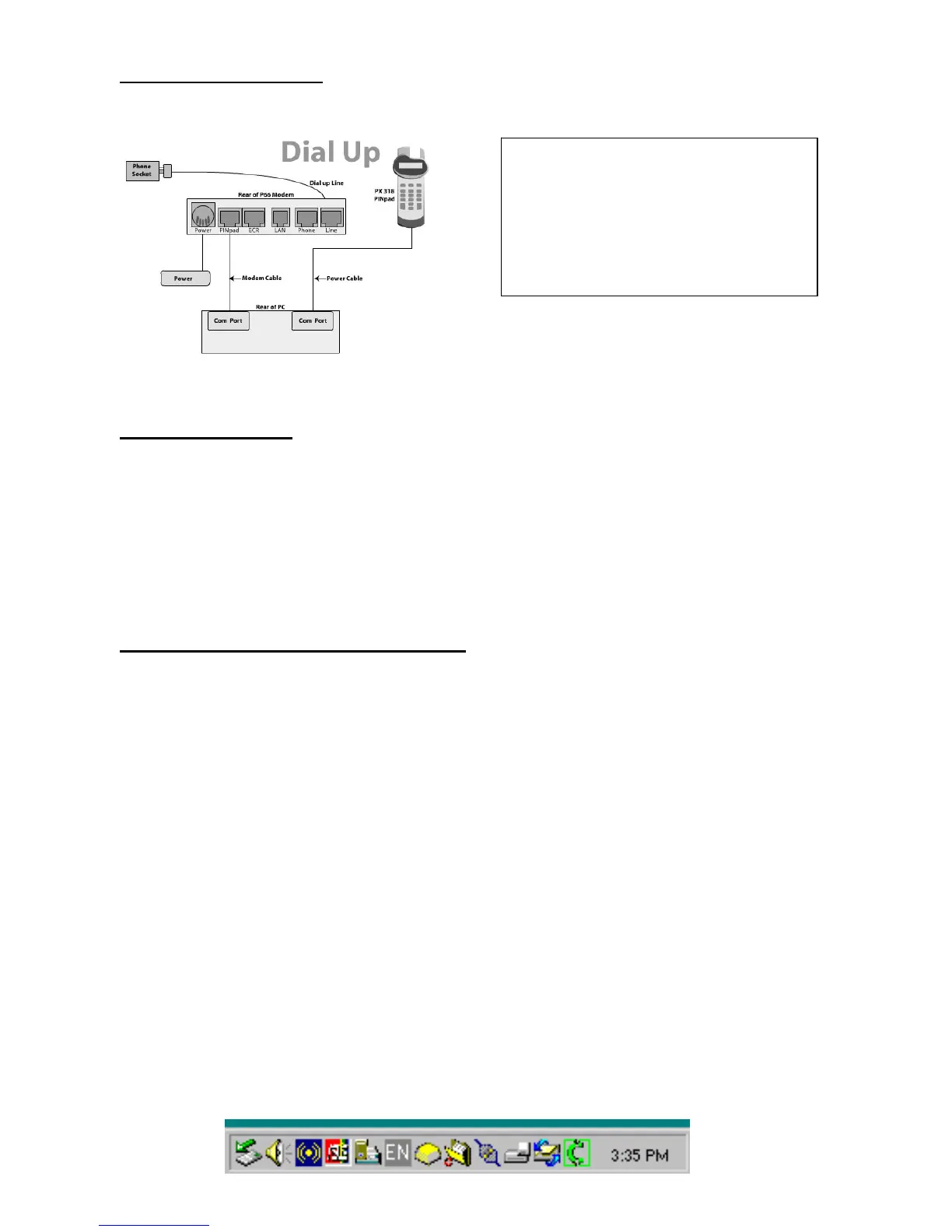
P66 Dial Up Modem
Supplied Equipment:
• P66 Modem
• Power brick and cord
• P60 Load Cable (Modem cable)
• Dial Up Phone Cable
Installation Steps
1. Power the P66 modem
2. Connect the power adaptor to the power socket on the back of the modem, and plug the cord into
a power socket.
3. Connect the P60 Load cable (modem cable) into the “pinpad” slot and the other end to the com
port on the pc.
4. Connect the Dial Up phone cable into the “Line” slot and the other end into the phone socket in
the wall.
PC-EFTPOS Software Installation
1. Install Terminal
See Hardware Installation for pinpad (page 6)
2. Install Software
If the POS does not have the latest PC-EFTPOS software installed, install the software from the PC-
EFTPOS installation CD, or the setup file available for download from our website.
Follow installation wizard closely
3. Configure Terminal
To configure the terminal, either
• Press Function 7410 and then enter the Terminal ID (8 digits) and Merchant ID (15 digits)
supplied by Commonwealth Bank)
• From the Client Control Panel, go to the setup page and enter the details and press APPLY. The
confirmation password is 7410.
Confidential Page 6 5/23/2007



 To Next Page