PDi Communication Systems, Inc. ▪ 40 Greenwood Ln ▪ Springboro, Ohio 45066 USA ▪ www.pdiarm.com and www.mymedTV.com ▪ Phone 800.628.9870
INSTALLING THE TELEVISION
Installation Precautions
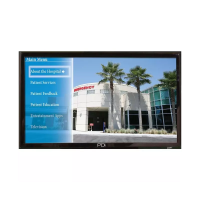
For Power over Coax, use only a power source from PDi suitable for use in a healthcare facility. The single coaxial cable on top of
the TV is used to supply both low voltage AC or DC power (28VAC or 24VDC) and RF signal to the television, UNLESS the unit is
powered over ethernet.
Coax Cable Specifications
When using a central power supply, cable selection is crucial. Due to long coax cable runs encountered in hospital installations,
coax cable employing a solid copper center conductor and copper shield is required. Cable run lengths MUST NOT exceed 150 feet.
Required coaxial cable numbers include Alpha 9804C (non-plenum), Belden 9248 (non-Plenum), West Penn 806 (non-Plenum), or
West Penn 25806 (Plenum), which have been tested with coax-powered TVs.
Arm Mounting
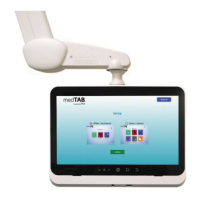
This television is designed to attach to a PDi suspension arm.
Arm Recoil Hazard: The safety brake pin must remain in the SAFETY BRAKE PIN HOLE whenever the television is removed from
the arm or when the arm is removed from the wall bracket to prevent INJURY from the arm springing open. Note: Contact PDi for
additional information on arm compatibility and cable requirements.
INTRODUCTION
The medTAB
®
complete, personal patient television system delivers a touchscreen experience that patients understand and enjoy
as soon as they touch it. Built-in tv, games and relaxation apps, no internet required, no subscription fees, and no ADT integration
necessary. When ready to connect to the internet via WIFI or Ethernet, patients enjoy access to a web browser and URL links direct
to news, social or other online information. Contact PDi to create a customized user interface with custom applications, for example
patient education, movies, surveys or facility services apps.
HOME SCREEN SETUP
The first time you use the Android™ based medTAB
®
patient television, you will have the option to select the desired user interface
(UI). The choices include a 3-icon image with no internet connection or the 6-icon with Internet apps for a browser, news links and
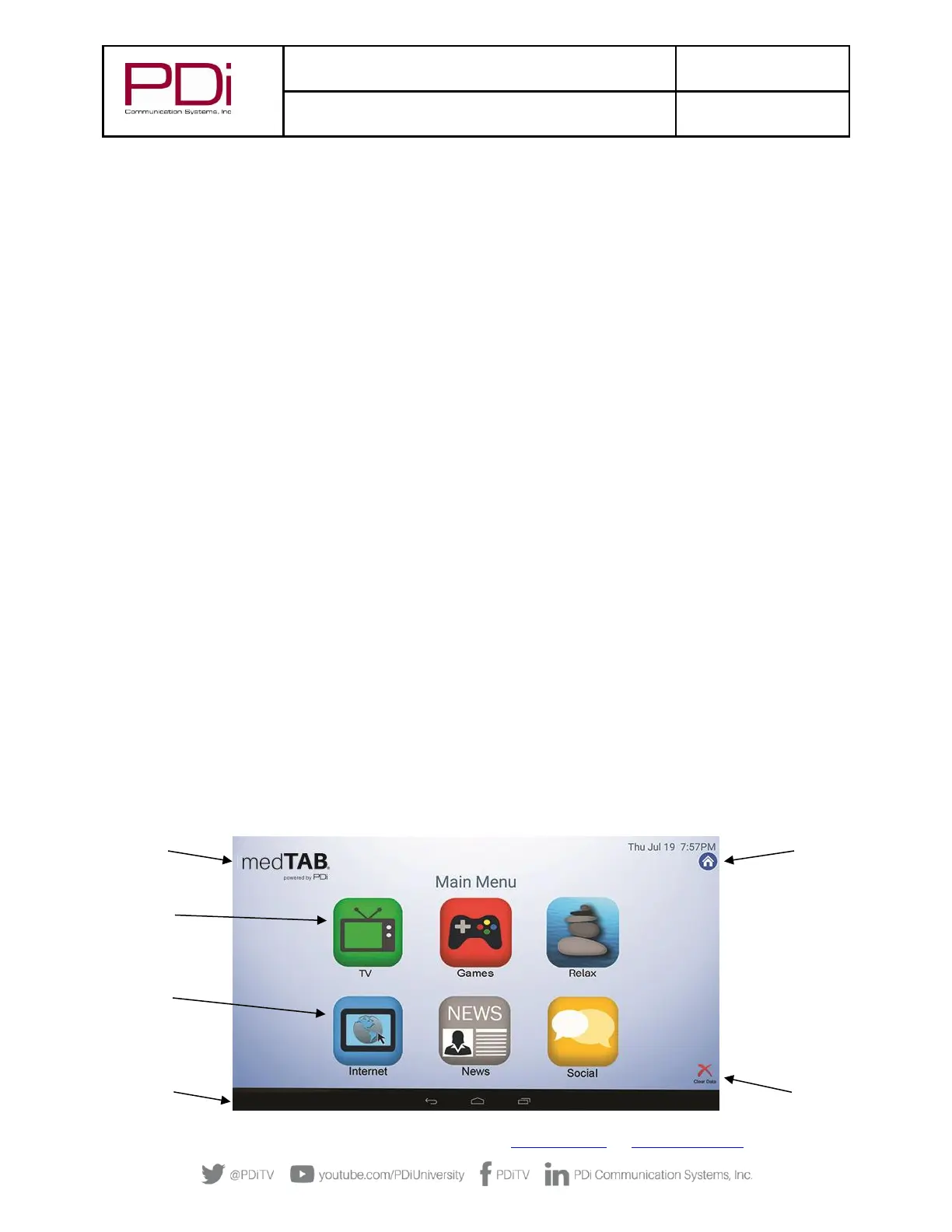
social sites. A description of the HOME screen follows (Main Menu).
1. TV-Games-Relaxation apps are all active without internet connection.
2. Internet Browser – News – Social are browser links available on 6-icon UI once you connect to WIFI or Ethernet.
3. Clear Data – Patients can choose to clear cache memory on-demand using the Clear Data feature. Cache is automatically
erased when the device powers OFF or times out.
4. Blue Home Button – this is a floating button that when pressed, will return to this Home screen. Patients or users can
move it around on the Home screen. When touched outside of the Home screen, it will return to the Home screen.
5. Black Toolbar – This provides shortcuts for BACK – HOME – OPEN APPS. The BACK arrow is also used during setup.
6. medTAB Logo in top left corner is used to access system settings.


 To Next Page