Page 27
electrical fields and against strong mechanical loads and vibrations.
Do not place the equipment near fire, heat or in areas of high
temperature.
Only use the equipment with the supplied original parts or original
accessories.
Do not connect any damaged device (e.g. damage in transit). Repairs to
the equipment must only be performed by specialists.
Remove the mains adapter from the mains outlet when the device is not
required for a longer time.
Before mounting the camera check the wireless reception from the desired
location. Check the operation of the camera and the connection in the
proposed location.
Observe the following points:
Position the camera so that no direct light or sunshine falls on the lens
otherwise the picture may become overexposed. Remember that the
position of the sun changes. Check the camera image before mounting.
Provisionally connect and commission the device and hold the camera in
the desired position. If necessary, change the camera position until you
have found the desired view.
Select the distance between the camera and the subject according to the
level of detail desired.
The camera has infrared illuminat
You can improve the quality of the
image at night by using additional illumination. The camera
automatically switches to black and white in low light conditions and in
artificial light.
Ensure that there is a possible cable routing at the installation location.
If you want to install the camera outdoors, then protect the camera
against direct rainfall if possible. The mains adapter must be in a dry
location and it must be protected from tampering. The plug connections
must be protected from moisture.
The connections (especially the reset button [16]) and the mains adapter
must be located such that they are protected from tampering, ideally
indoors.
Choose the location for suitable cable connection.
For night time viewing do not point the camera through window glass as
the infrared light will be reflected into the image.
If motion dection is to be used, ensure that that there is no visible
background motion eg. tree branches which may move in the wind.
By self- heat generation of the camera , no additional heating is usually
required . However, to avoid condensation in the winter , the camera
must be always powered.
When using WiFi:
Ensure that the camera has a good WiFi connection with the WiFi
router. If the camera is mounted for example on an outside wall, it is
possible to improve the wireless reception by locating the antenne at
a distance from the camera, for example on the inside of the wall. An
antenne extension cable is available as optional accessory (see
chapter 15).
The maximum range of the WiFi is dependent on the environment
!
!
!
!
!
!
!
!
!
!
!
!
!
!
!
#
#
7. Location
ion for the close range. This is
activated by the daylight sensor.
and on the WiFi router. The transmission range is reduced through
walls and floors (particularly those with steel reinforcement). Metal
surfaces eg. blinds, shutters, refidgereators, shelving and mirrors and
also rain and snowfall will block the wireless transmission.
The WiFi transmissioncan also beaffected by strongelectric fields and
other wirelessequipment. Ensure an adequate distance of the camera
and receiver to microwave ovens, cordless phones, mobile phones,
devices using the same or similar frequency, electric motors and high
voltagedevicesorpowercables.
viewedfrom a smartphone /tablet, withnewer devices
upto12camerascanbepossible.
Download the App„OMGuard“ toyour smartphone ortablet (seeQR code
ontitlepage).
If the recording function is required, insert a readable and unlocked
microSDHC card (max. 32 GB,quality brandcard recommended)with the
contactsupwards, into theslot[10] (see Fig x).Leave the rubbergrommet
open, until the camera is powered for approx. 20 minutes and insert it
afterwards in order to let possibly existing humidity disappear. When
operatedoutdoors,thecameramustalwaysbepowered.
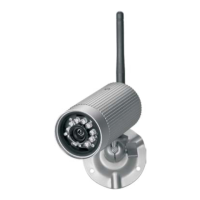
Screw the antenna [6] into the antenna connection [12] so that it points
upwards.
Connect the camera to a WiFi router with the network plug [14] (LAN
connection). The encryption standard WPA/WPA2/ WPA2-PSK and DHCP
protocolmustbeactivatedontheWiFirouterandtheSSIDmustbeopen.
Connect the mains adapter with a suitable mains outlet. The power-LED
[3]illuminatesredandtheconnectionLED[5]green.
LaunchtheApp„OMGuard“.
Tapthebutton“Presstoaddnewsystem”.
Enteranameforyourcamerainthe„SystemName“field.
Enter the DID code (from the label on the camera) in the „DID“ field.
Alternativelytap „Search“ andifthe DID codeappearstap on thisnumber
(iOS:alsotap„JOIN“)anditwillbetransferredtothe„DID“field.
Enterthedefaultsecuritypassword123456intothe„securitycode“field.
Confirmwith„Save“(Android:andagainwith „Yes“).
Confirm with „OK“. The camera name and „connected“ now appear top
left,thecameraimageisshownandthegreenconnectionLED[5]flashes.
Taponiconwiththeconnectioncable.Theliveimageisshown.
Tapon„Back“[35]toclosetheliveimage.
NowyoucanproceedwiththesettingsthroughtheApp.
Tap „operation“ [27] and then „settings“ [22] to enter System
Information.
To access the settings tap the „Advanced“ [46] field. Enter your Admin
password(defaultpassword123456)andconfirmbytapping„OK“.
Thefollowingsettingscanbemade( ):
(foriOSadditionally:confirmeachselectedsettingwithOK
#
!
!
!
!
!
!
!
!
!
!
!
!
!
!
!
!
!
*=compulsarysettings
Connect a smartphone/tablet with the local WiFi network. Ensure that the
cameraandthesmartphone/tabletareconnectedwiththesameWiFirouter.
9. Settings (see Fig H)
8. Operation
Upto 6 cameras canbe
GB - 27


 To Next Page
 Loading...