127
9
Settings
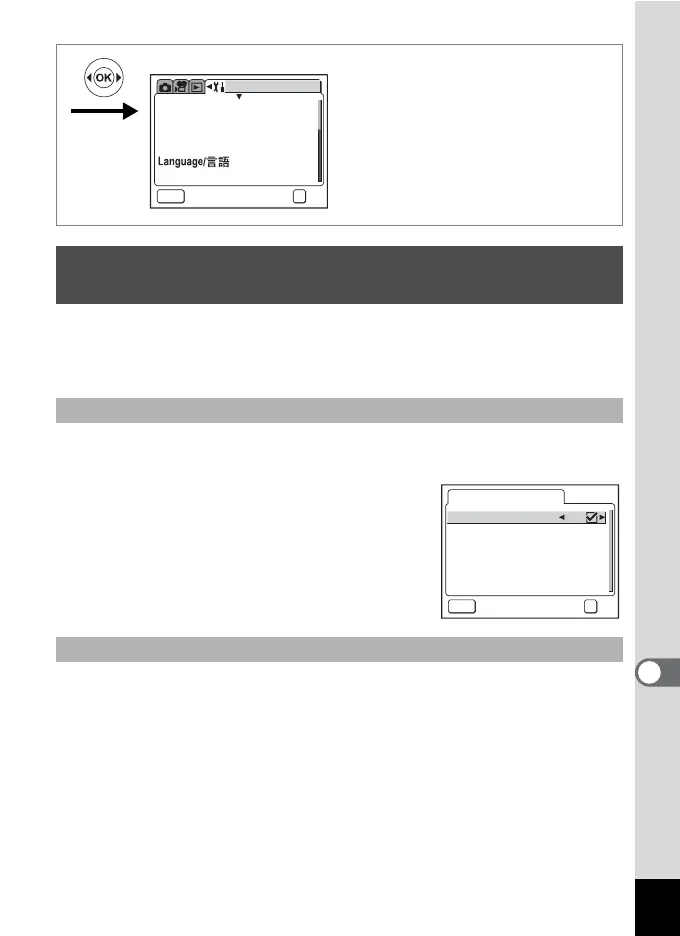
1 Select [Screen Setting] on the [B Set-up] menu.
2 Press the four-way controller (5).
The Screen Setting screen appears.
Selecting O (On) lets you display various animated effects when you
change the image displayed on the LCD monitor.
3 Use the four-way controller (23)
to select [Screen effect].
4 Use the four-way controller (45)
to select O (On) or P (Off).
5 Press the OK button twice.
The camera is ready to take or play back images.
You can choose the background color of the menus displayed on the
LCD monitor.
3 Use the four-way controller (23) to select
[Background color].
4 Use the four-way controller (5) to open the sub menu
and choose a background color with the four-way
controller (2345).
5 Press the OK button twice.
The camera is ready to take or play back images.
Changing the Background Color and Screen
Effects
Using Screen Effects
Changing the Background Color
Set-up
MENU
Norm.Norm.
EnglishEnglish
DISPLAY
Exit
OK
OK
Format
Sound
Date Adjust
World Time
OffOff
Screen Setting
MENU
Screen effect
Background color
Exit
OK
OK



 To Next Page