EasyManua.ls Logo

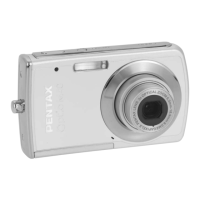
Pentax OPTIO M90 - User Manual

Pentax OPTIO M90
63 pages
Print Icon
To Next Page IconTo Next Page
Loading...
To ensure the best performance
from your camera, please read
the Operating Manual before
using the camera.
EN
Digital Camera
Operating Manual
Downloaded from ManualsCamera.com Manuals

Table of Contents

Questions and Answers

  • H
    Heather LiAug 14, 2025
    Why won't my Pentax Digital Camera turn on?
    • J
      Juan WillisAug 14, 2025
      Your Pentax Digital Camera might not be turning on because the battery is exhausted or not correctly installed. Try charging or replacing the battery. Also, make sure the battery is inserted with the correct polarity.
  • N
    Nicole VillanuevaAug 17, 2025
    What to do if my Pentax Digital Camera LCD screen displays ‘Card is Full’?
    • J
      jodimillerAug 17, 2025
      If your Pentax Digital Camera's LCD screen shows 'Card is Full', it means the memory card has reached its storage limit. You can either replace the memory card with a new one or delete unnecessary images from the existing card to free up space.
  • V
    Valerie RogersAug 21, 2025
    Why does my Pentax OPTIO M90 show an empty battery icon and then turn off?
    • C
      Christopher WallaceAug 21, 2025
      If your Pentax Digital Camera displays an empty battery icon and then turns off, it means the battery is exhausted. You should charge or replace the battery.
  • D
    David DownsAug 26, 2025
    What does it mean when my Pentax OPTIO M90 Digital Camera LCD screen displays ‘Card Requires Formatting’?
    • C
      Christina WhiteAug 26, 2025
      If the LCD screen of your Pentax Digital Camera displays 'Card Requires Formatting', it indicates that the memory card is not recognized. Try reformatting the memory card.
  • M
    Michael JonesAug 28, 2025
    How to free up space on my Pentax Digital Camera?
    • M
      Mary RojasAug 28, 2025
      To free up space on your Pentax Digital Camera, delete unnecessary images from the memory card.
  • A
    Alexis MunozSep 1, 2025
    What to do if my Pentax OPTIO M90 Digital Camera LCD screen displays ‘Card is Locked’?
    • T
      Todd CookSep 1, 2025
      If your Pentax Digital Camera's LCD screen displays 'Card is Locked', it means the card is protected by a protect switch mechanism. Move the switch to the unlock position.
  • L
    Lynn MasseySep 5, 2025
    Why does the LCD screen on my Pentax OPTIO M90 turn dim automatically?
    • C
      Christopher MooreSep 5, 2025
      If the LCD on your Pentax Digital Camera dims automatically, it is likely due to the POWER SAVING setting being activated (30 SEC or 1 MIN). Press any button to turn the LCD back on.
  • S
    Sara KennedySep 9, 2025
    What to do if there is insufficient memory to rotate an image or divide a video on my Pentax OPTIO M90 Digital Camera?
    • D
      danielbutlerSep 9, 2025
      If you have insufficient memory space to rotate an image or divide a video on your Pentax Digital Camera, it means there is not enough space in the memory. Delete unnecessary images and videos to free up space.

Summary

Preface

About this Manual

Details about the manual's content and purpose.

Regarding Copyrights

Explains copyright laws regarding images taken with the camera.

Trademark Recognition

Lists trademarks and their owners for PENTAX and related software.

To users of this camera

Provides important notes and warnings for camera users.

Regarding Product Registration

Encourages users to register their product for better service.

USING YOUR CAMERA SAFELY

Highlights safety precautions and symbols for product usage.

About the Camera

Contains specific warnings about handling and potential hazards of the camera.

Introduction

System Requirements

Lists the necessary computer specifications for using the camera's software.

Package Contents

Details all the items included in the camera package.

Main Features

Highlights the key technical specifications and capabilities of the camera.

Camera Views

Illustrates and labels the front and rear views of the camera.

LED Indicators

Explains the meaning of different LED light statuses on the camera.

Camera Buttons

Describes the functions of the camera's navigation and OK buttons.

The SCENE Button

Explains how to use the SCENE button to access various shooting modes.

Function Buttons

Details the functions of the MENU, Playback, Delete/Face Beautification, Zoom In/Out buttons.

LCD screen

Describes the information displayed on the camera's LCD screen.

Capture;Video Mode Display

Shows the icons and indicators displayed during capture and video modes.

Camera Setup

Attaching the Wrist Strap

Provides instructions on how to attach the camera's wrist strap securely.

Inserting the Battery

Guides users on how to properly insert the Li-ion battery into the camera.

Inserting an SD;SDHC Memory Card

Explains the procedure for inserting an SD/SDHC memory card for storage.

Charging the Battery

Details the process of charging the camera's battery using the provided charger.

Turning On

Instructs how to power the camera on and off using the power button.

First Time Use

Guides new users through initial camera setup, including language and date/time settings.

Getting Started

Taking Photos

Explains the basic steps for capturing still photographs with the camera.

Anti-Shake Function

Describes how to enable and use the Anti-Shake feature for clearer images.

Using Macro Mode

Details how to activate Macro mode for close-up photography.

Setting the Flash Mode

Explains the different flash modes available for various shooting conditions.

Using the Zoom in;out Function

Guides users on how to operate the optical and digital zoom features.

Using the Self-timer and Burst Photography

Explains how to use the self-timer and burst shooting modes.

Using the AEB (Auto Exposure Bracketing) Function

Describes how to use AEB to capture multiple exposures of the same scene.

Face detection AF;AE Function

Explains the automatic face detection and focus/exposure adjustment feature.

Face Beautification Function

Details the function that enhances skin tone and appearance in photos.

Setting the SCENE Mode

Guides users on selecting preset scene modes for optimal shooting conditions.

Using Auto scene Mode

Explains how the camera automatically selects scene modes.

Using the Smile Catch Mode

Describes the mode that automatically captures smiles.

Using the Self Portrait Mode

Details how to use the self-portrait mode for taking pictures of oneself.

Using Frame Composite Mode

Explains how to add decorative frames to photos.

Taking Auto Panoramic Pictures

Guides on capturing wide panoramic photos by stitching multiple images.

Recording Videos

Explains how to record video clips using the camera.

Recording Audio Files

Details how to record audio files separately.

Recording Voice Memos

Describes how to add short voice memos to still images.

Capture Settings

The Capture Menu

Introduces the menu for adjusting photo and video capture settings.

Image Resolution

Explains how to select the pixel dimensions for photos.

Image Quality

Details the settings for JPG compression affecting image quality and file size.

Focus Zone

Describes how to select the area the camera focuses on.

EV Compensation

Explains how to adjust the exposure level for brighter or darker photos.

AEB

Details the Auto Exposure Bracketing function for capturing varied exposures.

White Balance

Guides on adjusting color temperature for accurate colors under different lighting.

ISO Speed

Explains how to adjust the camera's light sensitivity.

AE Metering

Describes methods for measuring light in the scene.

Color

Explains how to apply color effects or tones to images.

Sharpness

Details how to adjust the clarity and fine details in photos.

Contrast

Explains how to adjust the difference between light and dark areas in photos.

Video Capture Menu

Introduces the menu for video recording settings.

Video Resolution

Guides on selecting the resolution for video recordings.

Photo, Video & Audio Playback

Playback Mode Display

Shows the information displayed in playback mode on the LCD screen.

Viewing Photos;Videos on the LCD Screen

Explains how to navigate and view photos/videos on the camera's LCD.

Viewing M-Burst Photos

Details how to view multi-burst sequential photos.

Listening to Audio Files

Guides on playing back audio files recorded by the camera.

Listening to Voice Memo

Explains how voice memos play back with images.

Viewing Photos;Videos on your TV

Provides instructions for connecting the camera to a TV for viewing.

Zooming In;Out During Playback

Describes how to zoom in and out on saved photos during playback.

Deleting Images;Videos;Audios

Explains how to delete unwanted files from the camera's storage.

Using the Playback Menu

Introduces the menu for managing playback functions like slideshow, resize, etc.

DPOF

Explains how to set up Digital Print Order Format for printing photos.

Slideshow

Guides on viewing photos as an automatic slideshow.

Resize

Details how to change the resolution of existing photos.

Rotate

Explains how to change the orientation of saved photos.

Protect

Guides on how to lock photos or videos to prevent accidental deletion.

D-Lighting

Describes how to apply lighting compensation to photos.

Red-Eye Removal

Explains how to remove red-eye effect from photos.

Fish Eye

Details how to apply a fish eye effect to photos.

Frame Composite

Guides on adding decorative frames to photos.

Move

Explains how to move images between internal memory and an SD card.

Divide

Details how to cut and trim video clips.

Transferring Photos;Videos to your PC

Provides instructions for copying files from the camera to a computer.

Camera Settings

The Setup Menu

Introduces the menu for configuring general camera settings.

LCD Brightness

Explains how to adjust the brightness of the camera's LCD screen.

File Number

Describes how to manage file numbering and folder creation.

Digital Zoom

Guides on enabling or disabling the digital zoom feature.

Quick View

Explains the function to quickly view the last taken photo.

Camera Sound

Details how to adjust camera sounds like shutter and startup.

Power Saving

Explains how to configure power saving settings for the LCD screen.

Auto Power Off

Guides on setting the time for automatic camera shutdown when inactive.

Video Out

Details how to select the video output format for TV connection.

Date Stamp

Explains how to format and enable date stamping on photos.

Date and Time

Guides on setting and adjusting the camera's date and time.

Language

Describes how to select the language for the camera's OSD menu.

Image Storage

Explains how to specify where photos and videos are stored.

Format

Guides on erasing all data from memory cards or internal memory.

Reset

Explains how to reset camera settings to factory defaults.

Voice Memo

Guides on enabling or disabling the voice memo recording function.

About

Allows checking the camera's current firmware version.

Specifications

General

Provides general physical and display specifications for the camera.

Optics

Details the lens specifications, aperture, and focal length.

Camera Features

Lists key features like flash modes, scene modes, and ISO equivalents.

Troubleshooting

Pentax OPTIO M90 Specifications

General IconGeneral
Megapixel12.1 MP
Camera typeCompact camera
Sensor typeCCD
Image sensor size1/2.3 \
Digital zoom5 x
Optical zoom- x
Focal length range5.1 - 25.3 mm
Number of aspheric elements3
InterfaceUSB 2.0, AV out
Color depth12 bit
Digital SLRNo
Built-in flashYes
Aperture range (F-F)3.5 - 5.9
Camera shutter speed1/1000 - 1/8 s
Compatible operating systemsWindows 2000/XP SP2/VistaTM/7 Mac OS X 10.4 +
Focal length (35mm film equivalent)28 - 140 mm
FocusTTL
Normal focusing range0.5 - ∞ m
Auto focusing (AF) modesmulti point auto focus, spot auto focus
Macro focusing range (tele)1 - 2.1 m
Macro focusing range (wide)0.1 - 0.8 m
Flash modesFlash off, Red-eye reduction
Flash range (tele)1 - 1.8 m
Flash range (wide)0.3 - 3 m
Internal memory32 MB
Compatible memory cardssd, sdhc
Motion JPEG frame rate30 fps
Video formats supportedAVI
Display diagonal2.7 \
Display resolution (numeric)230000 pixels
USB version2.0
Product colorBlack
Battery typeD-LI108
Scene modesBacklight, beach, Children, Fireworks, Museum, Night landscape, Night portrait, Panorama, party (indoor), Portrait, self-portrait, Sports, Sunset, Landscape (scenery)

White balanceauto, Cloudy, daylight, Fluorescent, Tungsten
Weight and Dimensions IconWeight and Dimensions
Depth22.9 mm
Width98.9 mm
Height58.5 mm
Weight116 g

Related product manuals