CCTVSETW1
V. 02 – 07/01/2014 8 ©Velleman nv
You can also schedule video recording. See the full manual on www.velleman.eu for details (search for
product code CCTVSETW1).
Using the menu
The display has an on screen display menu (OSD).
This menu gives access to the device settings.
To show or hide the menu, shortly press the power button.
The menu remains displayed for 30 seconds.
Playback
To view recorded video:
1. On the display, tap and then .
2. Select the day you want to view on the calendar.
The days containing video are highlighted.
3. If necessary, use the scroll bar on the right to browse through the recordings.
4. Tap on the recording you want to view.
The recording displays on the screen.
o Tap any empty area of the screen to bring up the progress bar.
o Drag the progress bar to fast forward or rewind the video.
o Tap any empty area of the screen to hide the progress bar.
Remote surveillance
• You can use access the camera remotely from your mobile device with the OMGuard app (available
for iPhone, iPod, iPad and Android devices).
• Remote viewing only works of the monitor is in the cradle and if the Internet connection type is set to
"Connect to Internet".
• See the full manual on www.velleman.eu for details (search for product code CCTVSETW1).
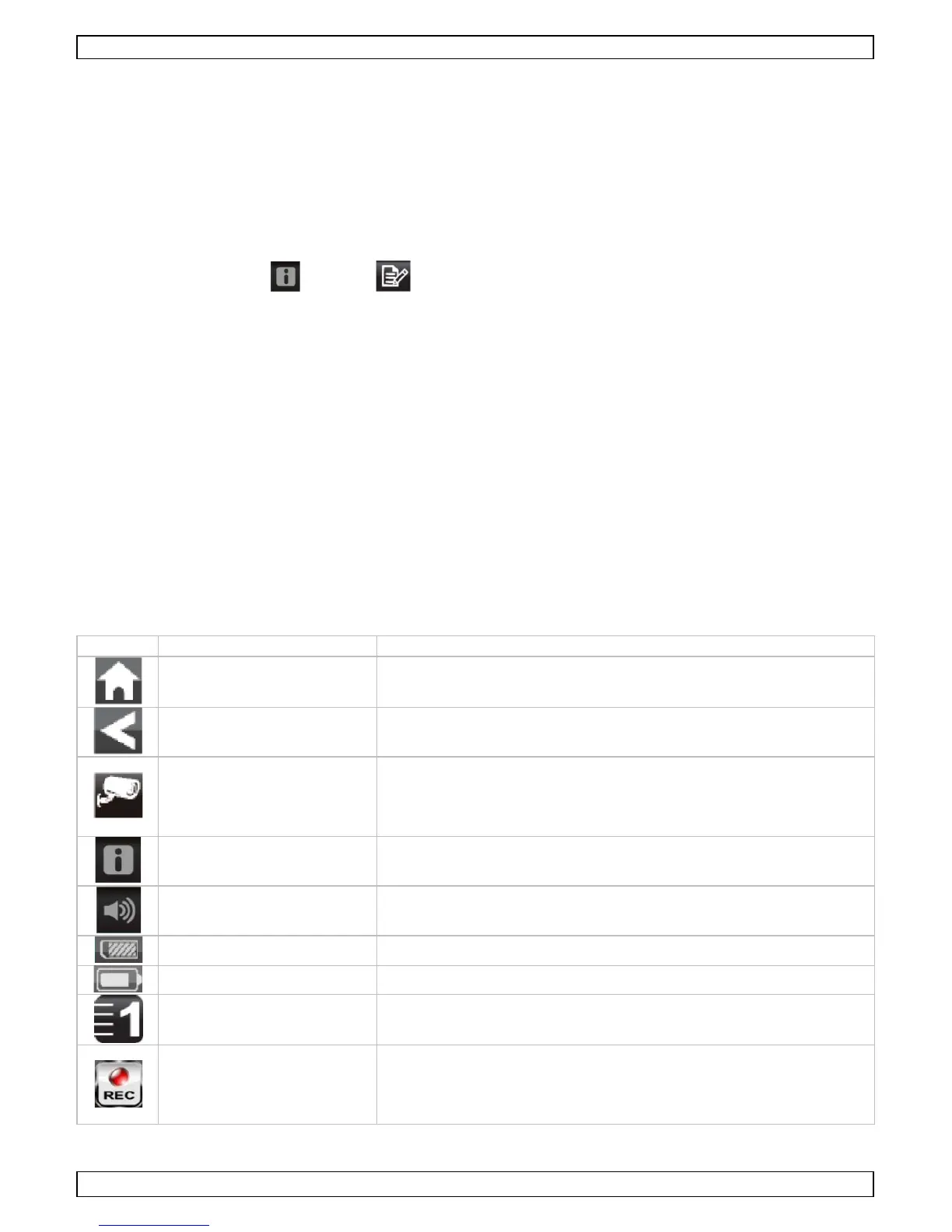
Icons and buttons
The screen has several icons and buttons:



 To Next Page