100, then the first converted frame will have the name: image_-00100.jpg.
The ‘+’ annotator will add frame numbers starting from 1.
Example: image_+5.jpg
This will cause the first converted frame to have the name: image_00001.jpg.
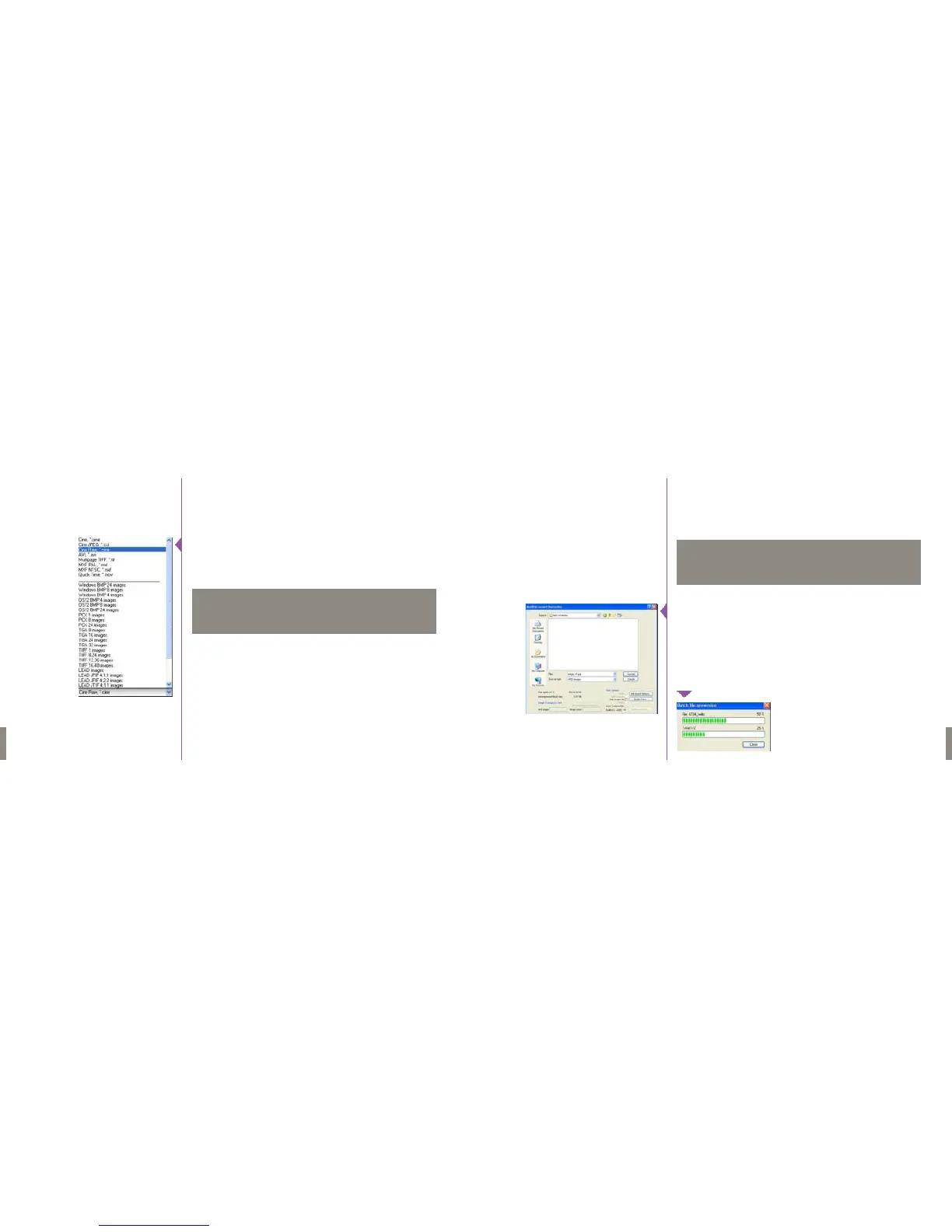
Batches of cine files can be converted by choosing “Batch Convert Files…”
from the “Cine” menu. In the “Open Cine(s)” dialog that opens, select the
clips you want to convert. Use the shift and/or control keys to select multiple
files and click the “Open” button. In the “Multifile Convert Destination” dialog
that follows, navigate to a destination folder and choose a file format as you
would if converting a single file. Choose a file name in the same manner, but
make it somewhat generic since it will apply to all of your source files.
Upon clicking the “Convert” button, a progress window will appear. Each con-
verted clip will end up in it’s own folder named after the original cine file.
77
Phantom Flex Manual
It is possible to use the PCC software to convert cine files to a number of other
formats.
A single cine file can be converted by opening it from the “Cine” menu, then
saving it using either the “Save CineTo File” option on the “Cine” menu or
clicking the “Save Cine…” button in the “Play” tab.
There is a long list of formats in the “Save asType” selector.The formats
above the separator line are clip-per-file formats (meaning the entire clip gets
saved as a single file) while those below are frame-per-file formats (meaning
clips get saved as frame sequences.)
Saving a clip in a clip-per-file format is quite straightforward. Simply choose
the format, navigate to a destination folder, name the clip and save.
Saving to a file sequence requires one extra step to ensure that the individual
files are properly named with sequential frame numbers. When specifying the
file name, add one of the following annotations to the end of the name: “!5”
or “+5”.
Example: image_!5.jpg
The ‘!’ annotator will cause the software to append the cine’s image number
(relative to the trigger point) to the file name. If the first frame in the clip is -
File Operations
76
Phantom Flex Manual
It is even possible to resave a clip in the “Cine Raw” format. This is
useful for creating sub-clips with no loss in image quality or meta-
data.
NOTE
Once clips are converted to any non-raw format, any metadata (gain,
gamma, saturation, etc.) will be permanently “baked in” to the im-
ages. Before converting clips, make sure that you are applying ap-
propriate image corrections for your use.
NOTE


 To Next Page
 Loading...