28
Phantom Ultrahigh-speed Camera Manual
pvp software
PVP (Phantom Video Player) is a streamlined application
used to control the video playback of the camera, and can
be used to quickly capture, review, edit and save to or
from the CineMag.
PVP can be opened directly from the desktop or by
clicking the ‘Video Out’ toolbar button in the PCC software.
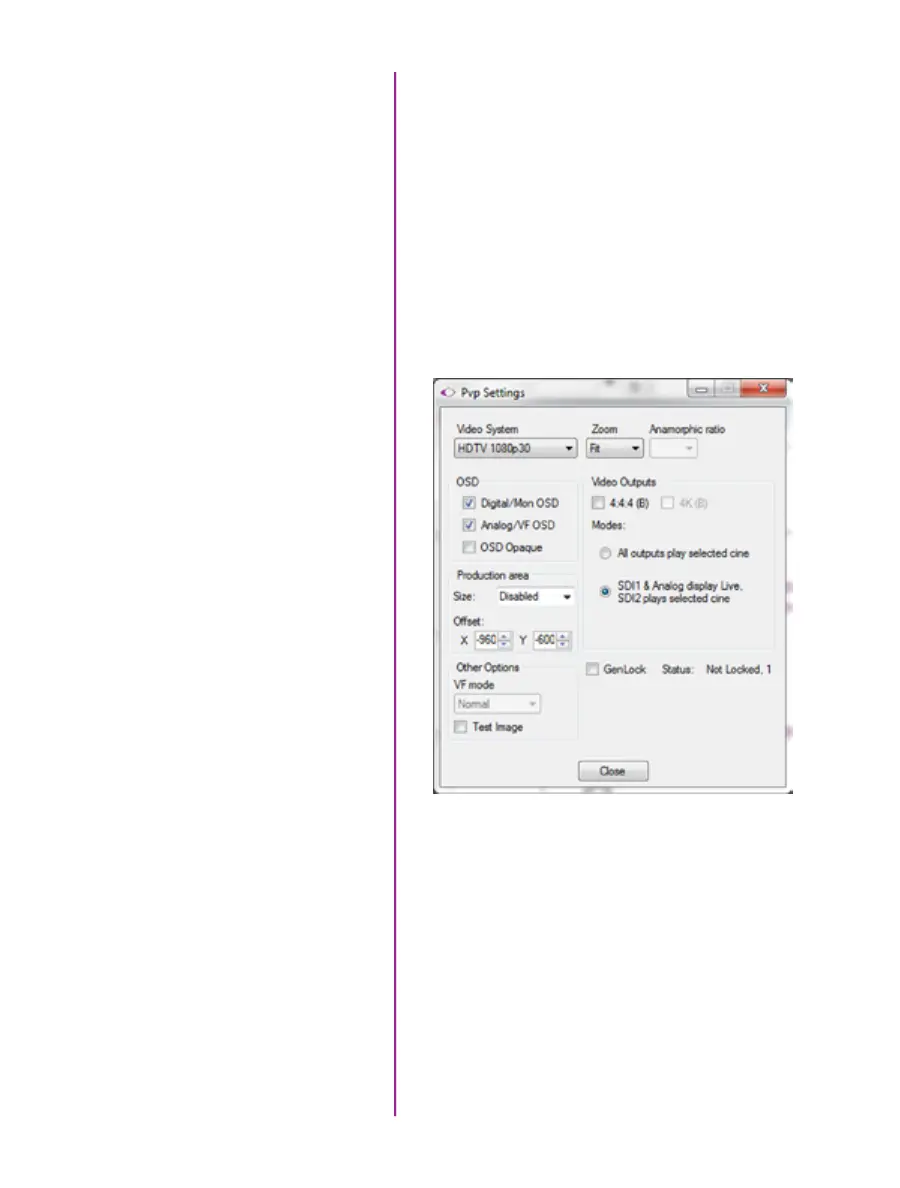
Video output parameters are set by opening the ‘Pvp
Settings’ windows. This includes control for the video
system, 4K video and on-screen display parameters
including production area rectangles.
Using PVP
(Phantom Video Player)
PVP Settings
Click on the palette from the main PVP window to activate
the ‘Image Tools’ menu. It is basically the same as the
equivalent menu in PCC. It can be used to adjust image
processing parameters including; brightness, gain,
gamma, toe, saturation, white balance and more.
Any image tools adjustments will also apply to the PCC
live image and the metadata in saved Cine Raw files.
Image Tools



 To Next Page