Chapter 6: Phantom PCC Software | 41
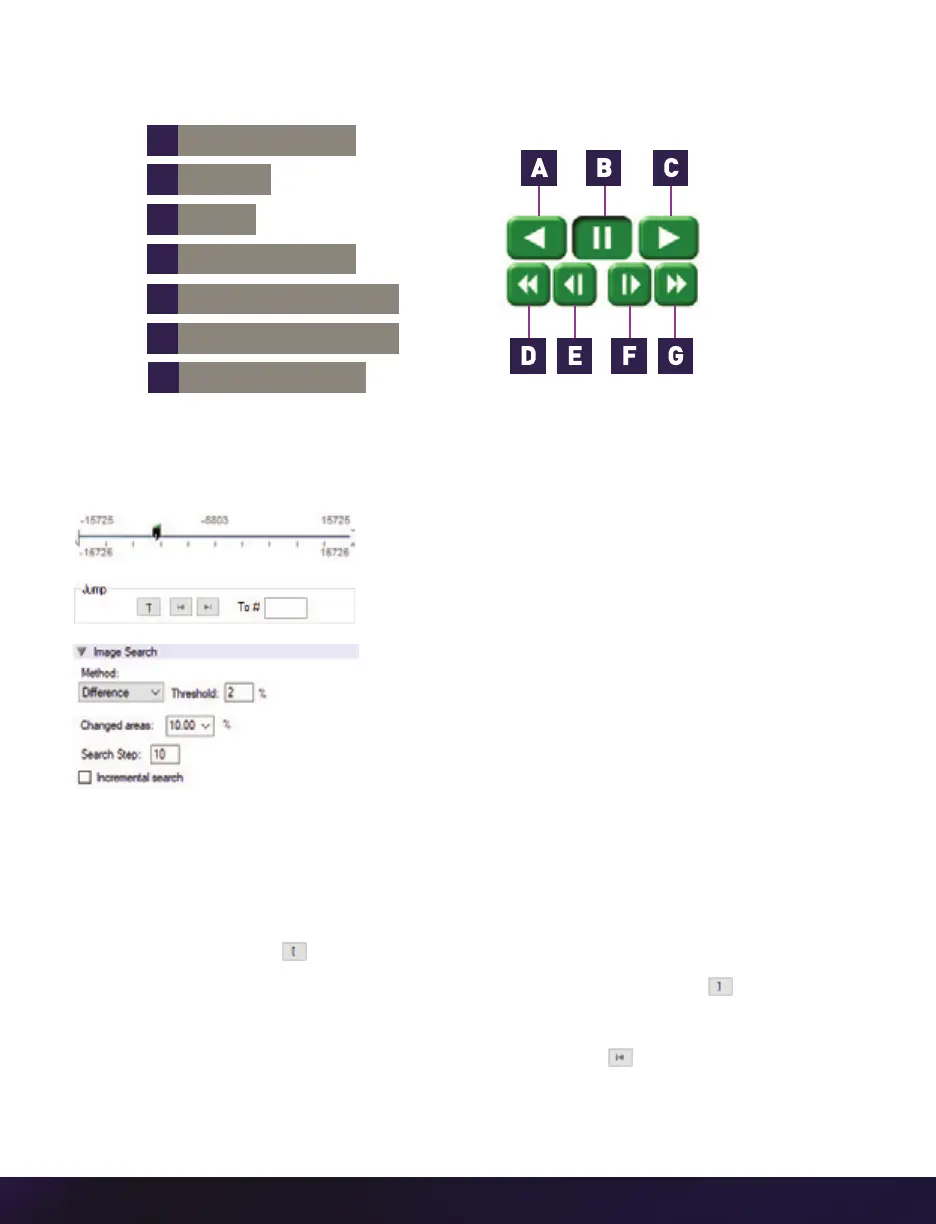
Use the ‘Video Control’ buttons to review the Cine:
PERFORMING A QUICK SEARCH THROUGH A CINE
Quickly search through Cine files to find the points of
interest:
‘Scroll’ (scrub) through the clip using the ‘Image
Location’ slider or click anywhere on the timeline to jump
to points in the Cine quickly.
‘Jump’ to the trigger frame by clicking on the ‘T’ button,
or jump to specific frames by entering the frame number
into the jump ‘#’ data entry field, then hit the enter key.
‘Image Search.’ The goal is to search or find an image
change in the recording, based on the differences
between image content. Right-click on the ‘Play’ button
to begin the image search. Besides image content
changes, ‘Image Search’ can also look for images that
are tagged as ‘Event’ images.
EDITING A CINE
Using the following ‘Video Control’ buttons, locate the first image of the Cine to be saved
and click the ‘Mark-In’ button.
Locate the last image of the Cine to be saved and click the ‘Mark-Out’ button.
Click ‘Play, Speed & Option’ and enable (check) ‘Limit to Range.’
Under the ‘Video Control’ buttons, click the ‘Jump to Start’ button and review the
edited Cine.
A
B
C
D
E
F
REVERSE PLAY
PAUSE
PLAY
REVERSE 1-FRAME
FAST REVERSE
ADVANCE 1-FRAME
G
FAST FORWARD


 To Next Page
 Loading...