Chapter 6: Phantom PCC Software | 43
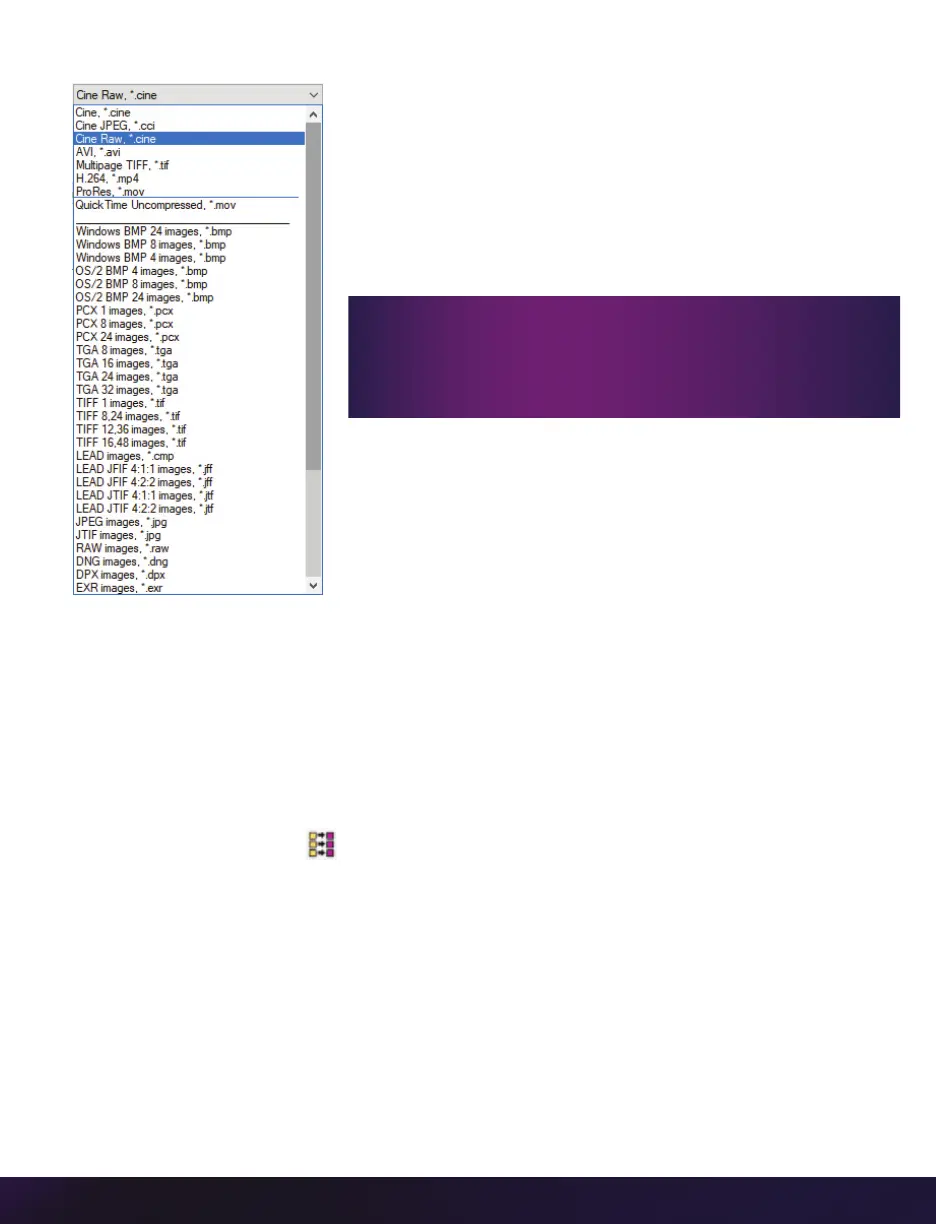
To convert a Cine to a ‘movie-like’ format, select the desired
format from the list, navigate to the destination folder,
assign a file name to the clip and save.
Some valuable parameters can be found in the ‘Advanced
Settings’ window, such as the particular codec.
Other formats, like .avi and .mp4, allow the compression
ratio to be entered. The lowest compression is the default.
CONVERTING TO A SERIES OR STACK
OF IMAGES
To convert a Cine clip into a sequence of images (frames), you
must add one of the following annotations to the end of the file
name: ‘!n’ or ‘+n’ (where n is a number between 1 and 8). This
will assign the sequential frame numbers to the file name for
each frame being created. Example: image_!5.tif
The ‘!’ annotator instructs the software to append the Cine’s image number (relative to the
trigger point) to the file name. If the first frame in the clip is -100, then the first converted
frame will have the name: image_-00100.tif
The ‘+’ annotator will add frame numbers starting from 1. Example: image_+5.tif. This will
cause the first converted frame to have the name: image_00001.tif
BATCH CONVERT
The ‘Batch Convert Files’ toolbar button can be used to convert a single saved Cine file,
or multiple saved Cine files, into any one of the supported file formats.
Use the shift and/or control keys to select the Cine files you wish to convert in the ‘Open
Cine’ dialogue window, then click the ‘Open’ button.
Navigate to the destination folder in the ‘Multifile Convert Destination’ dialogue window
and select the file format. The ‘File Name’ will depend on the type of file format you are
converting to.
Ensure all image adjustments have been applied prior
to initiating the conversion process. All metadata
(gain, gamma, saturation, etc.) will be embedded into
the converted images.


 To Next Page
 Loading...