Chapter 8: Measurements | 55
DEFINE POINT PARAMETERS
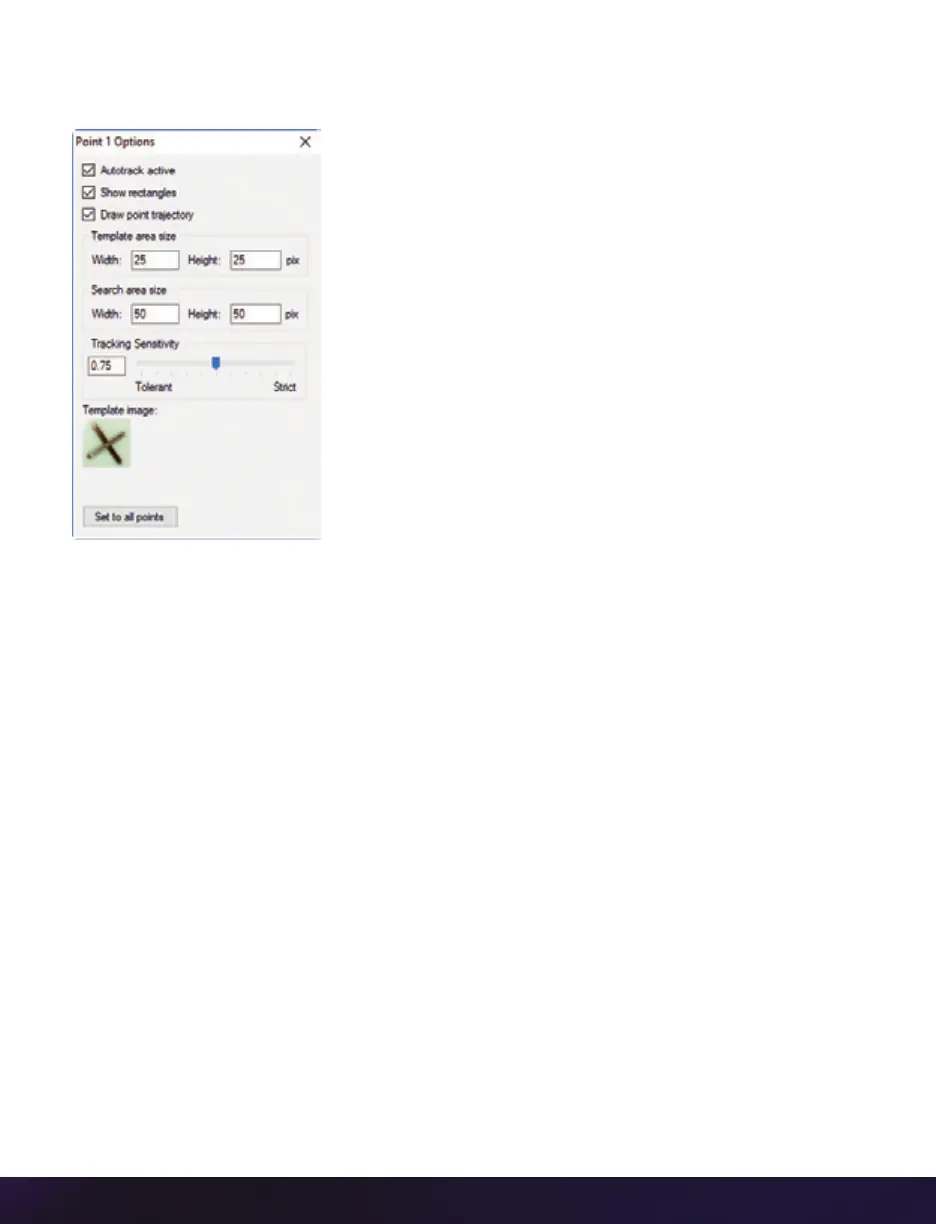
Once the points are selected, click the ‘Current Point’/
‘Options’ button to further define each point:
Autotrack active: Turns on and off autotracking of the
selected point.
Show rectangles: Displays the ‘Target Area’ and ‘Search
Area’ rectangles for the point. The region sizes are defined by
the ‘Template area size’ and ‘Search area size’ parameters.
Draw point trajectory: Turns on and off the ability to graph
and display the path over the image area.
Template area size: Defines the width and height (in pixels)
of the ‘Template Image’ to search for and track. The
center of the ‘Template Image’ was determined when the
point was specified.
Search area size: Defines how large of an area in relation
to the ‘Template area’ to search in the next image for point
matches. A value equal to the ‘Template area size’ indicates that the tracking algorithm
should search in a region of the same size. Larger values will result in larger search areas,
which will take a longer time to search. Typically these values are set two to three times
the size of the ‘Template area size.’
Tracking sensitivity: Defines the acceptable level of difference between the template
and the occurrence in the new image. A strict matching algorithm is used to avoid false
matches. However, this may lead to more frequent loss of targets during tracking. To
compensate for this, you can adjust the ‘Tracking sensitivity’ to be more tolerant.
Template image: Displays an image of the point used for tracking once ‘Autotracking’ has
been enabled under the ‘Collect Points’ selector.
Set to all points button: Used to apply the ‘Point Options’ settings to all currently defined
points.
Once point settings are defined, enable “Autotracking’ to activate the feature. In the event
a ‘Template Image’ (tracking point) cannot be tracked or is lost, the ‘Autotracking’ feature
will disable itself.
Optionally, enable (check) ‘Update Template’ to update (change) the ‘Template Image’ to
the image (point) presently marked by the ‘Template area size’ rectangle. Due to rotations,
shadows, etc., the point can be lost. If ‘Auto update’ is enabled, PCC will attempt to restrict
the selective disabling of this feature.


 To Next Page
 Loading...