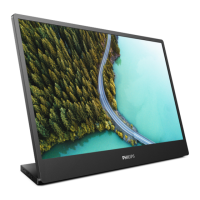
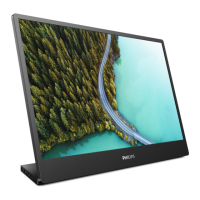
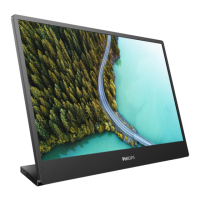
This document is the user manual for the Philips 3000 Series Portable Monitor, model 16B1P3300.
Function Description:
The Philips 16B1P3300 is a portable monitor designed to extend or mirror a computer's display. It supports various input sources, including Micro HDMI and USB-C, and can receive both power and video signals through its USB-C port. The monitor is designed for optimal performance at its native resolution of 1920 x 1080 @ 60 Hz. It features several image optimization technologies like SmartImage and SmartContrast, and supports HDR content. The monitor is also equipped with a LowBlue Mode for eye comfort during extended use. Its portable design allows for flexible positioning, including tilt and pivot modes, making it suitable for various work or entertainment scenarios.
Important Technical Specifications:
- Monitor Panel Type: IPS Technology
- Backlight: W-LED
- Panel Size: 15.6" (39.6 cm)
- Aspect Ratio: 16:9
- Pixel Pitch: 0.17925 (H) mm x 0.17925 (V) mm
- Contrast Ratio (typ.): 700:1
- Optimum Resolution: 1920 x 1080 @ 60 Hz
- Maximum Resolution: 1920 x 1080 @ 75 Hz
- Display Screen Coating: Anti-Glare 3H, Haze 25%
- Viewing Angle: 170° (H) / 170° (V) @ C/R > 10 (typ.)
- Flicker free: YES
- Monitor Colors: 16.2M (6 bit+FRC)
- Picture Enhancement: SmartImage
- Vertical Refresh Rate: 48 Hz - 75 Hz
- Horizontal Frequency:
- Landscape mode: 30 KHz - 140 KHz (HDMI); 30 KHz - 85 KHz (USB-C)
- Portrait mode: 30 KHz - 150 KHz
- sRGB: YES
- LowBlue Mode: YES
- HDR: YES
- EasyRead: YES
- Connectors:
- 1 x Micro HDMI 2.0 (HDCP 1.4/ HDCP 2.2)
- 1 x USB-C (HDCP 1.4/ HDCP 2.2)
- 1 x Audio out
- Signal Input: Micro HDMI, USB-C
- Sync input: Separate Sync
- USB Port: USB-C: DisplayPort Alt mode
- Power Delivery:
- USB-C (output): PD version 3.0, up to 15W (5V/3A)
- USB-C (input): PD version 3.0, up to 65W (5V/3A, 7V/3A, 9V/3A, 10V/3A, 12V/3A, 15V/3A, 20V/3.25A)
- USB SuperSpeed: USB-C: USB3.2 Gen1, 5 Gbps
- Stand: Tilt (0 / +90 degree), Pivot (+90 degree)
- Power Consumption:
- Normal Operation: 9.1 W (typ.)
- Sleep (Standby mode): 0.3 W
- Off mode: 0.3 W
- On Mode (ECO mode): 5.5 W (typ.)
- Power LED indicator: On mode: White, Standby/Sleep mode: White (blinking)
- Power Supply: External, 100-240V AC, 50-60Hz
- Dimensions (with stand): 359 x 232 x 119 mm (WxHxD)
- Weight (with stand): 1.03 kg
- Operating Temperature: 0°C to 40°C
- Operating Humidity: 20% to 80%
- VESA mount: 75 mm
- Plug & Play Compatibility: DDC/CI, sRGB, Windows 11/10/8.1/8/7, Mac OS X
Usage Features:
- Installation: The monitor comes with a base for desktop use and supports VESA mounting (75mm) for alternative setups. It includes a Micro HDMI-HDMI cable and a USB C-C cable for connectivity.
- Connectivity: The monitor can connect to a PC via Micro HDMI or USB-C. The USB-C port is versatile, supporting video signal input, power delivery (up to 65W input, 15W output), and USB 3.2 Gen1 data transfer.
- On-Screen Display (OSD): A user-friendly OSD allows for various adjustments. Control buttons at the base of the monitor enable navigation and selection within the OSD menu.
- Image Optimization (SmartImage): This feature offers presets like EasyRead, Office, Photo, Movie, Game, Economy, LowBlue Mode, and Off, dynamically adjusting brightness, contrast, color, and sharpness based on content. When HDR signals are detected, specific HDR modes (HDR Game, HDR Movie, HDR Photo, Normal, Off) become available.
- SmartContrast: This technology dynamically analyzes displayed content to optimize contrast ratio, adjusting backlighting for clearer images or dimming for dark backgrounds, enhancing visual clarity and reducing power consumption.
- HDR Support: The monitor supports HDR content, with settings configurable through Windows 10 Display settings. Users can adjust brightness for SDR content when HDR is enabled.
- LowBlue Mode: Designed for eye comfort, this mode reduces harmful shortwave blue light emissions from the LED display.
- Physical Adjustments: The monitor supports tilt (0 to +90 degrees) and pivot (+90 degrees) for flexible viewing angles and orientation, including portrait mode.
- Power Management: The monitor automatically reduces power consumption when not in use, complying with VESA DPM standards.
Maintenance Features:
- Safety Precautions: Users are advised to keep the monitor away from direct sunlight, strong lights, heat sources, and oil. Proper ventilation should be maintained, and the power cable and signal cable should be protected from damage. The monitor should not be subjected to severe vibration or high impact.
- Cleaning: The monitor should be unplugged before cleaning. A slightly damp cloth can be used for cleaning, but organic solvents, alcohol, or ammonia-based liquids should be avoided. The screen can be wiped with a dry cloth when power is off.
- Burn-in/Ghost Image Prevention: To prevent "burn-in" or "ghost imaging" on the LCD panel, users should always activate a moving screen saver program when leaving the monitor unattended and activate a periodic screen refresh application if static content is displayed for extended periods. Damage from failure to do so is not covered under warranty.
- Storage: The monitor should not be stored or used in locations exposed to heat, direct sunlight, or extreme cold. It should be kept within specified temperature (0-40°C) and humidity (20-80% RH) ranges for optimal performance and longevity.
- Disposal: The product and its packaging materials are designed for recycling. Users should dispose of the equipment through designated waste electrical and electronic equipment collection points, in accordance with European Directive 2012/19/EU.
- Customer Care and Warranty: Philips provides a warranty and customer support. Information on warranty coverage, extended warranty options, and troubleshooting is available on the Philips website or through local service centers. Pixel defect policies are clearly defined, outlining acceptable levels for bright and black dot defects to qualify for repair or replacement.


 To Next Page
 General