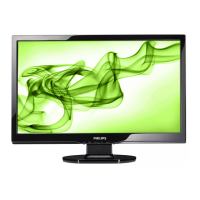
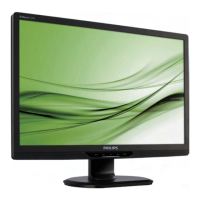
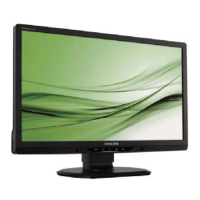
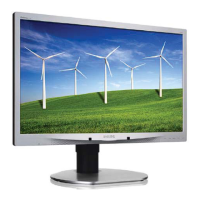
220CW8 LCD
Connection to PC
5
1. Connection to PC
c. Accessory Pack
Please follow the steps to connect your LCD Monitor to PC.
a. Assembly LCD Monitor with base
b. Connect to PC
(1) Turn off your computer and unplug its power cable.
(2) Connect the monitor signal cable to the video connector
on the back of your computer.
(3) Plug the power cord of your computer and your monitor
Into a nearby outlet.
(4) Turn on your computer and monitor. If the monitor
Displays an image, installation is complete.
Port definition:
(1) USB downstream port
(2) AC power input
(3) DVI-D input(Available for selected countries)
(4) VGA input
(5) USB upstream port
(6) Kensington anti-thief lock
Set your Monitor at 1680*1050@60Hz for best performance.
It is also strongly recommended to use DVI input(may require
the optional DVI cable) for the true digital enjoyment.
2. Function key definition
3. Description of the On Screen Display
UP DOWN
MENU
(1) To switch monitor’s power on and off
(2) To access OSD menu
(3) To adjust the OSD menu
(4) To adjust brightness of the display
(5) To change the signal input source
(6) Automatically adjust the horizontal position, vertical position,
phase and clock Settings/Return to previous OSD level
(7) SmartImage. There are five modes to be selected: Office
Work, Image Viewing, Entertainment, Economy and Off.
On-Screen Display(OSD) is a feature in all Philips LCD
monitors. It allows and end user to adjust screen performance
or select functions of the monitors directly through an on-screen
instruction window. A user friendly on screen display interface is
shown as below:
Basic and simple instruction on the control keys.
According to the above OSD structure, users can :
press or buttons to move the cursor,
press button to confirm the choice or change,
press button to adjust the value,UP DOWN
MENU
AUTO
or
press button to save the changes.
press button to automatically adjust the horizontal
position, vertical position, phase and clock setting.
Power cord VGA cable EDFU CD
DVI cable (Optional)
5
6
5
http://www.wjel.net



 To Next Page