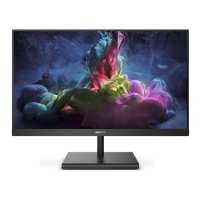
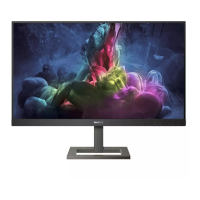
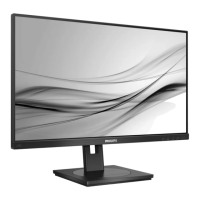
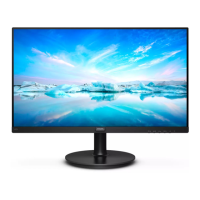
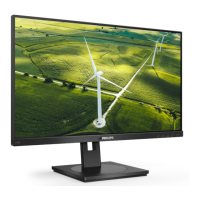
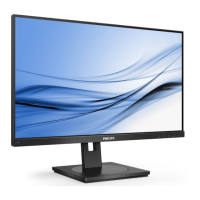
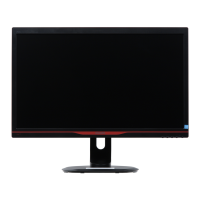
This document describes the Philips 242E1 series Gaming Monitor, specifically models 242E1GSJ and 242E1GAJ. It serves as a user's guide, providing essential information on safety, setup, operation, technical specifications, and troubleshooting.
Function Description
The Philips 242E1 is a gaming monitor designed to deliver optimized display performance for various content types, including text applications, images, and videos. It features SmartImage technology, which dynamically adjusts brightness, contrast, color, and sharpness in real-time based on selected presets. The monitor also incorporates SmartContrast, a unique technology that dynamically analyzes displayed content to optimize the contrast ratio for maximum visual clarity and viewing enjoyment. This involves stepping up backlighting for clearer, crisper images or dimming for dark backgrounds. The monitor supports AMD FreeSync Premium, which eliminates screen tearing and stuttering by synchronizing the monitor's refresh rate with the GPU's frame rate, ensuring smooth, responsive, and tear-free gaming.
Important Technical Specifications
The monitor features a VA panel type with a W-LED backlight system, offering a wide viewing angle of 178° (H) / 178° (V) at a contrast ratio greater than 10. The panel size is 23.8 inches wide (60.5 cm) with a 16:9 aspect ratio and a pixel pitch of 0.2745 x 0.2745 mm. The typical contrast ratio is 3,500:1.
For optimal performance, the recommended resolution is 1920 x 1080 at 60Hz, though the maximum resolution supported is 1920 x 1080 at 144Hz. It boasts a vertical refresh rate ranging from 48Hz to 144Hz and a horizontal frequency of 30KHz to 160KHz. The display supports 16.7 million colors and includes flicker-free technology for comfortable viewing.
Connectivity options include one HDMI 1.4 input and one DisplayPort 1.2 input, along with an audio out port. The 242E1GAJ model also features built-in 3W x 2 speakers. Both models come with a Kensington Lock for security and support VESA mount (100 x 100mm) for flexible installation.
The monitor incorporates several eye-care features:
- LowBlue Mode: This setting uses smart software technology to reduce harmful shortwave blue light, which studies have shown can cause eye damage and affect vision over time.
- EasyRead: This mode improves the readability of text-based applications like PDFs and e-books by increasing contrast and boundary sharpness, and adjusting brightness, contrast, and color temperature for a stress-free reading experience.
Power consumption varies by model and operating mode:
- 242E1GSJ:
- Normal Operation: 22.7 W (typ.)
- Sleep (Standby mode): 0.3 W
- Off mode: 0.3 W
- Heat Dissipation (Normal Operation): 77.47 BTU/hr (typ.)
- Heat Dissipation (Sleep/Off mode): 1.02 BTU/hr
- 242E1GAJ:
- Normal Operation: 22.6 W (typ.)
- Sleep (Standby mode): 0.3 W
- Off mode: 0.3 W
- Heat Dissipation (Normal Operation): 77.13 BTU/hr (typ.)
- Heat Dissipation (Sleep/Off mode): 1.02 BTU/hr
The power LED indicator is white during normal operation and blinks white in standby/sleep mode. The monitor uses an external power supply (100-240VAC, 50-60Hz).
Dimensions with stand:
- 242E1GSJ: 540 x 414 x 195 mm (WxHxD)
- 242E1GAJ: 540 x 414 x 207 mm (WxHxD)
Product without stand: 540 x 325 x 43 mm (WxHxD)
The monitor operates in temperatures from 0°C to 40°C (32°F to 104°F) with relative humidity between 20% and 80%. For non-operation, the temperature range is -20°C to 60°C with relative humidity between 10% and 90%. It is RoHS compliant, uses 100% recyclable packaging, and features 100% PVC BFR free housing. The cabinet is black with a textured finish.
Usage Features
- OSD (On-Screen Display) Menu: The monitor features a user-friendly OSD interface for adjusting screen performance and selecting functions. Navigation is done using buttons on the front bezel to move the cursor and confirm choices.
- Main Menu Options: Input, Picture, Audio, Color, Language, OSD Setting, Setup.
- Picture Settings: Includes MPRT (Motion Picture Response Time) for blur reduction (requires 75Hz or higher refresh rate, cannot be enabled simultaneously with AMD FreeSync Premium or SmartImage), Picture Format (Wide Screen, 4:3), Brightness, Contrast, Sharpness, SmartResponse (Off, Fast, Faster, Fastest), SmartContrast (On, Off), SmartFrame (On, Off, with adjustable size, brightness, contrast, H/V position), Gamma (1.8, 2.0, 2.2, 2.4, 2.6), Pixel Orbiting (On, Off), and Over Scan (On, Off).
- Color Settings: Offers Color Temperature (Native, 5000K, 6500K, 7500K, 8200K, 9300K, 11500K), sRGB, and User Define (adjust Red, Green, Blue).
- OSD Setting: Allows adjustment of Horizontal and Vertical OSD position, Transparency (Off, 1, 2, 3, 4), OSD Time Out (5s, 10s, 20s, 30s, 60s), and Resolution Notification (On, Off).
- SmartImage Presets: Accessible via a dedicated hotkey, SmartImage offers multiple selections to optimize display for different content:
- FPS (First Person Shooters): Improves dark theme black level details.
- Racing: Provides fastest response time and high color saturation.
- RTS (Real Time Strategy): Allows highlighting a user-selected portion for RTS games (through SmartFrame) and adjusting picture quality for that portion.
- Gamer 1 / Gamer 2: User-defined preference settings.
- LowBlue Mode: Reduces harmful shortwave blue light for eye comfort.
- EasyRead: Optimizes display for reading text-based applications.
- Off: No optimization applied.
- Tilt Adjustment: The monitor stand allows for tilt adjustment from -5° to +20°. Users are advised not to tilt downward by more than -5° to avoid panel damage.
- Hot Key Lock/Unlock: The OSD can be locked or unlocked by pressing and holding the /OK button while the monitor is off, then pressing the power button to turn it on.
- Power Management: The monitor automatically reduces power consumption when not in use if a VESA DPM compliant display card or software is installed. It wakes up automatically upon detecting input from a keyboard, mouse, or other input device.
Maintenance Features
- Cleaning:
- For normal cleaning, use a clean, soft cloth.
- For extensive cleaning, use isopropyl alcohol.
- Do not use organic solvents such as ethyl alcohol, ethanol, acetone, hexane, or ammonia-based liquids, as these can damage plastic parts and void the warranty.
- Unplug the monitor before cleaning with a damp cloth.
- The screen can be wiped with a dry cloth when power is off.
- Handling:
- Avoid excessive pressure on the LCD panel.
- When moving, grasp the frame, not the LCD panel.
- Do not knock or drop the monitor.
- Ensure the monitor does not tilt downward by more than -5 degrees to prevent panel peeling.
- Do not press the screen while adjusting the angle; grasp only the bezel.
- Environmental Protection:
- Keep the monitor out of direct sunlight, strong bright lights, and away from heat sources to prevent discoloration and damage.
- Keep the display away from oil, as it can damage the plastic cover and void the warranty.
- Do not block ventilation holes.
- Avoid exposing the monitor to dust, rain, water, or excessive moisture. If it gets wet, wipe it dry immediately. If foreign substances or water enter, turn off power, disconnect the cord, and send it to a maintenance center.
- Do not store or use in locations exposed to heat, direct sunlight, or extreme cold.
- Burn-in/Ghost Image Prevention:
- Always activate a moving screen saver program when leaving the monitor unattended.
- Activate a periodic screen refresh application if the monitor displays unchanging static content. Uninterrupted display of still images can cause "burn-in" or "after-imaging," which may not disappear and is not covered under warranty.
- Service:
- The casing cover should only be opened by qualified service personnel.
- For repair or integration documentation, contact your local service center.
- For transportation, refer to "Technical Specifications."
- Do not leave the monitor in a car/trunk under direct sunlight.
- Consult a service technician if the monitor does not operate normally after following instructions.
- Pixel Defect Policy: Philips guarantees repair or replacement if the number of pixel defects on a TFT Monitor panel exceeds acceptable levels. This policy covers bright dot defects (always lit pixels/subpixels) and black dot defects (always dark pixels/subpixels), as well as their proximity. Specific tolerances are outlined in the manual.

 Need help?

 To Next Page
 General