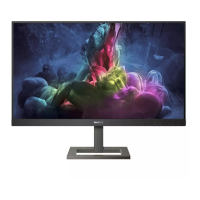
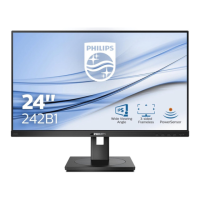
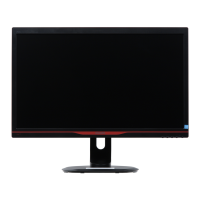
This document serves as a comprehensive user guide for the Philips E Line 242E2 monitor, providing essential information on its operation, setup, maintenance, and troubleshooting. It is intended for anyone using the Philips monitor and emphasizes the importance of reading the manual before use to ensure proper handling and to understand the monitor's features and safety precautions.
Function Description
The Philips E Line 242E2 is a flat panel LCD monitor designed for optimal visual performance and user comfort. It offers a range of features aimed at enhancing the viewing experience, particularly for gaming, productivity, and general media consumption. The monitor supports various input sources, including VGA, HDMI, and DisplayPort, making it versatile for connecting to different computer systems and devices.
Key functionalities include:
- Image Optimization with SmartImage: This feature provides preset modes that dynamically adjust brightness, contrast, color, and sharpness in real-time to optimize the display for different types of content. Whether you're working with text, viewing images, or watching videos, SmartImage aims to deliver an optimized monitor performance. The available modes include FPS (First Person Shooters), Racing, RTS (Real Time Strategy), Gamer 1, Gamer 2, LowBlue Mode, EasyRead, and Off.
- SmartContrast: A unique technology that dynamically analyzes displayed content and automatically optimizes the LCD monitor's contrast ratio. This function enhances visual clarity and viewing enjoyment by stepping up backlighting for clearer, crisper, and brighter images or dimming it for clear display of images on dark backgrounds. It also contributes to reduced power consumption and extended monitor lifetime.
- AMD FreeSync™ Technology: Designed to eliminate screen tearing and reduce stuttering, FreeSync ensures a smooth, responsive, and tearing-free gaming experience. It synchronizes the monitor's refresh rate with the GPU's frame rate, allowing for fluid gameplay without visual artifacts.
- LowBlue Mode: This setting is developed for user well-being, specifically for easy on-the-eyes productivity. It uses smart software technology to reduce harmful shortwave blue light, which studies have shown can cause eye damage and affect vision over time.
- EasyRead Mode: Optimizes the display for reading text-based applications like PDF ebooks. It employs a special algorithm to increase the contrast and boundary sharpness of text content, adjusting brightness, contrast, and color temperature for a stress-free reading experience.
- MPRT (Motion Picture Response Time): A gaming-optimized mode that reduces motion blur by strobing the LED backlight synchronously with screen refresh. This feature requires a 75Hz refresh rate or higher and cannot be enabled simultaneously with AMD FreeSync™. It's recommended to turn off MPRT when not using gaming functions.
- Power Management: The monitor is VESA DPM compliance, meaning it can automatically reduce its power consumption when not in use. It will 'wake up' automatically upon detection of input from a keyboard, mouse, or other input device.
Usage Features
The Philips E Line 242E2 is designed for user-friendly operation with intuitive controls and adjustable settings.
- Installation: The setup process involves attaching the base stand to the monitor. The monitor should be placed face down on a soft cushion to prevent scratching or damage during installation. The base is secured with a screw, and the stand attaches to the VESA mount area until it locks.
- Connecting to PC: The monitor connects to a PC via various signal cables (VGA, HDMI, DisplayPort) and requires a power cord connection. Users are advised to turn off their computer and unplug its power cable before connecting the monitor's signal cable.
- Control Buttons: The monitor features a single toggle button on the rear side that functions like a joystick. This button allows users to:
- Switch power on/off (press for more than 3 seconds to switch off).
- Access and navigate the OSD (On-Screen Display) menu.
- Confirm OSD adjustments.
- Adjust volume (242E2FA model) or brightness (242E2F/242E2FE models).
- Change the signal input source.
- On-Screen Display (OSD) Menu: The OSD provides an interface for adjusting screen performance and selecting monitor functions. Users can navigate through main menus like Game Setting, Low Blue Mode, Input, Picture, Audio, Color, Language, OSD Setting, and Setup.
- Physical Adjustments: The monitor offers tilt adjustment, allowing users to angle the screen from -5 to +20 degrees for optimal viewing comfort. The 242E2FE model also includes height adjustment up to 100mm.
- Resolution Notification: The monitor is designed for optimal performance at its native resolution of 1920 × 1080. An on-screen alert will be displayed if the monitor is powered on at a different resolution, advising users to switch to the native resolution for best results. This alert can be disabled in the OSD.
- VESA Mounting: The monitor supports a 75mm x 75mm VESA-Compliant mounting interface, allowing for wall-mount installation. Users must remove the base assembly by pressing a release button and tilting the stand out.
Maintenance Features
Proper maintenance is crucial for extending the monitor's lifetime and ensuring optimal performance.
- General Care:
- Keep the monitor away from direct sunlight, strong bright lights, and heat sources to prevent discoloration and damage.
- Ensure ventilation holes are not blocked to allow proper cooling of the electronics.
- Position the monitor so that the power plug and outlet are easily accessible.
- Use only the approved power cord provided by Philips.
- Protect cables from pulling, bending, or heavy objects to prevent damage, fire, or electric shock.
- Avoid subjecting the monitor to severe vibration or high impact conditions.
- Do not tilt the monitor downward by more than -5 degrees to prevent panel peeling.
- Do not press the screen when adjusting the monitor's angle; grasp only the bezel.
- Cleaning:
- Unplug the monitor before cleaning.
- For normal cleaning, use a clean, soft cloth.
- For extensive cleaning, use isopropyl alcohol.
- Avoid using organic solvents such as ethyl alcohol, ethanol, acetone, or hexane, as these can damage the monitor.
- If the monitor gets wet, wipe it with a dry cloth as soon as possible.
- If foreign substances or water enter the monitor, turn off the power immediately, disconnect the power cord, remove the substance, and send it to a maintenance center.
- Pixel Defect Policy: Philips maintains stringent quality control, but pixel or sub-pixel defects on TFT Monitor panels can sometimes be unavoidable. The warranty covers repair or replacement if the number of pixel defects exceeds specified acceptable levels, which are detailed in the manual.
- Burn-in/Ghost Image Prevention:
- Always activate a moving screen saver program when leaving the monitor unattended.
- Activate a periodic screen refresh application if the monitor will display unchanging static content for extended periods.
- Failure to do so may result in severe "burn-in," "after-image," or "ghost image" symptoms that are not covered under warranty.
- Service and Repair:
- The casing cover should only be opened by qualified service personnel.
- For repair or integration documentation, contact the local service center.
- If the monitor does not operate normally after following operating instructions, consult a service technician.
- Environmental Considerations: The monitor is designed with environmental sustainability in mind, using 100% recyclable packaging and 100% PVC BFR-free housing. Information on product disposal and recycling programs is provided.
- Warranty: The Philips guarantee applies if the product is handled properly, used according to instructions, and accompanied by the original invoice or cash receipt. Extended warranty options are available through certified service centers.

 Need help?
 General

 To Next Page