25BDL4050I
9
5.2. Troubleshooting
Problem Possible reason Solution
No screen update. 1. The power cord is disconnected or the
battery may be dead.
2. The main power switch is not turned on.
1. Replace four fully charged batteries or plug
in the power cord.
2. Please press the power key.
Unable to boot. 1. The battery may be dead.
2. The power cord may be abnormal.
3. The incorrect booting may be due to the
micro USB being plugged in rst.
1. Replace four fully charged batteries or plug
in the power cord.
2. Conrm the connection between the
power adapter and the wire socket.
3. Please unplug the wire and power supply
(battery and power cord) connected to the
PC rst, wait 40 seconds, and then connect
the power cord (if the battery is inserted,
press the power key again).
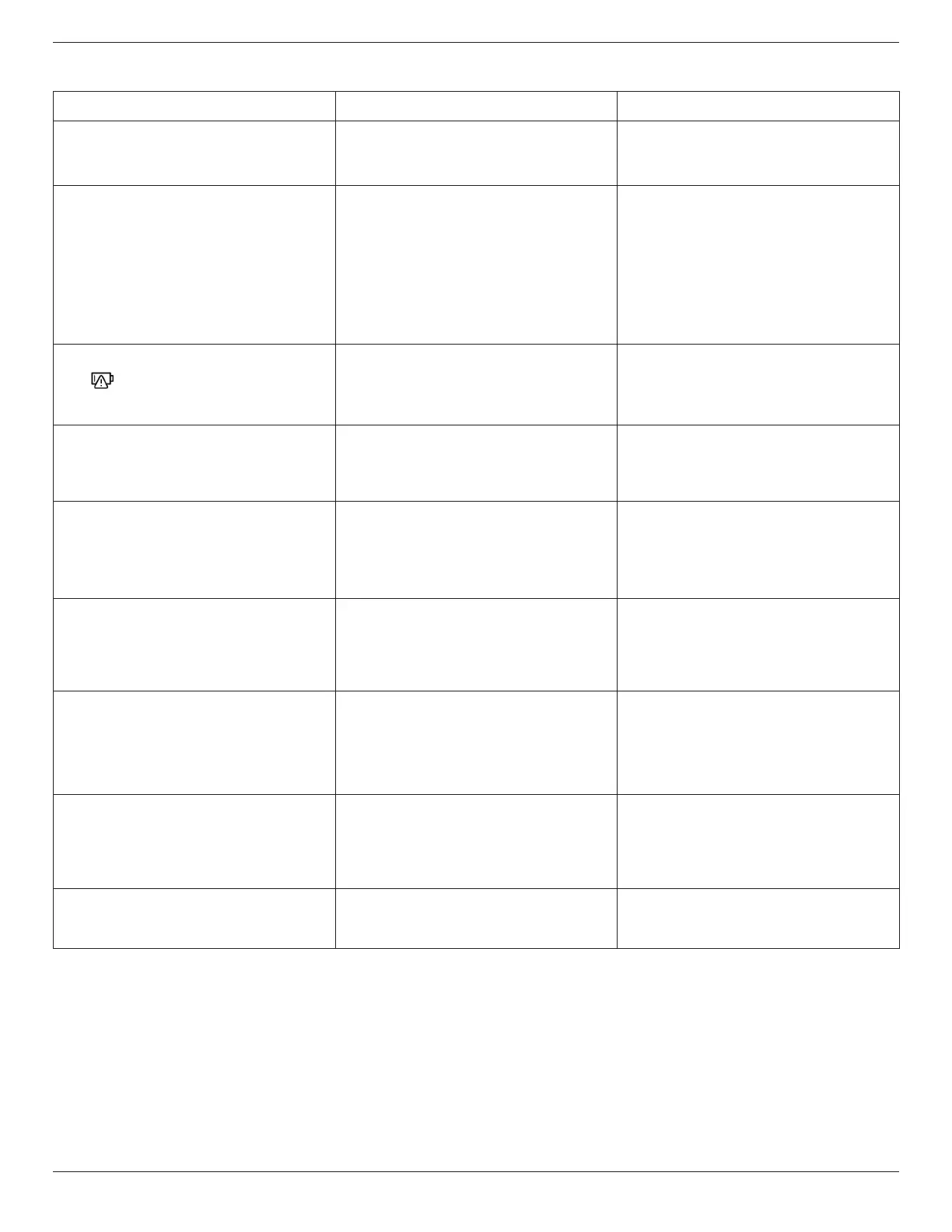
Abnormal picture.
Battery drain out
Shutdown
0%
The battery may be dead. Replace four fully charged batteries or plug in
the power cord.
A prompt will display after booting:
Please plug-in flash drive and reboot
Flash drive file path: /Pictures/
There is no picture in the device or the picture
format is not supported.
Recopy pictures.
When copying pictures from a USB ash disk or
SD card, the screen will display the prompt:
Please fix the following errors, reinsert flash drive and reboot:
- "0. jpg" : Image does not exist.
The picture in cong.xml does not exist or the
picture format is not supported.
Conrm that the picture name in cong.xml is
correct (including the le extension), and copy
the picture again.
During the carousel, the screen displays the
prompt:
Pictures/2.jpg
Image file does not exist.
The picture does not exist or the picture format
is not supported.
Conrm that the picture format is correct, and
copy the picture again.
During the carousel, the screen displays the
prompt:
Pictures/2.jpg
Display area is outside of the EPD panel.
The starting x and y positions of the picture
in cong.xml are greater than or equal to the
screen pixel size.
Adjust the x and y positions of the picture in
cong.xml to be smaller than the screen pixel
size.
During the carousel, the screen displays the
prompt:
There are some problems with the images.
Please make sure the images are all correct and copy again.
All pictures in the device are damaged or the
format is not supported.
Recopy pictures.
The displayed picture does not ll the entire
screen.
The picture resolution is dierent from the
screen pixel size.
Adjust the picture resolution to be the same
as the screen pixel size, and copy the picture
again.





 To Next Page