6
2. Setting up the monitor
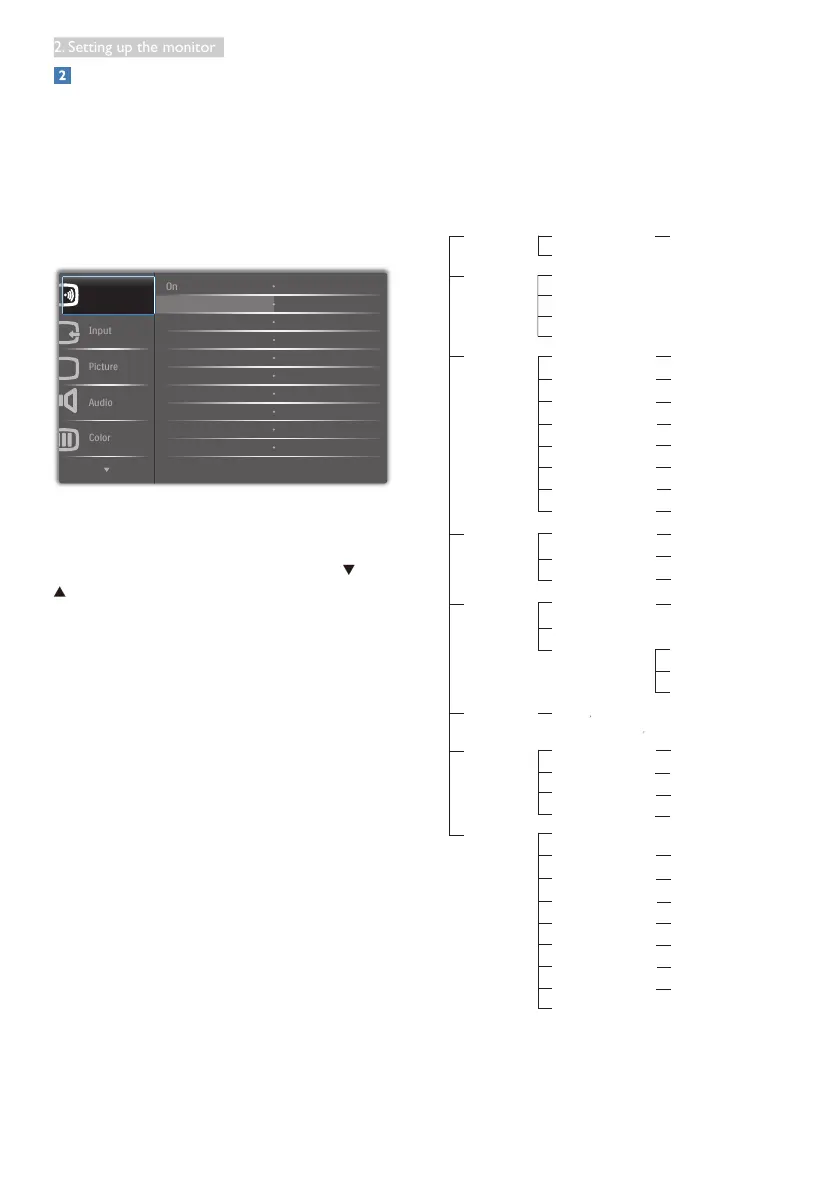
Description of the On Screen Display
What is On-Screen Display (OSD)?
On-Screen Display (OSD) is a feature in all
Philips monitors. It allows an end user to adjust
screen performance or select functions of
the monitors directly through an on-screen
instruction window. A user friendly on screen
display interface is shown as below:
Basic and simple instruction on the control
keys
In the OSD shown above, you can press
buttons at the front bezel of the monitor
to move the cursor, and press OK button to
conrm the choice or change.
The OSD Menu
Below is an overall view of the structure of
the On-Screen Display. You can use this as a
reference when you want to work your way
around the different adjustments later on.
Picture
OSD Settings
Setup
Language
Color
Input
PowerSensor
Audio
Horizontal
Vertical
Transparency
OSD Time Out
Auto
V.Position
Phase
Clock
Resolution Notification
Reset
Information
Color Temperature
sRGB
User Define
On
Off
H.Position
Power LED
VGA
DVI
HDMI
DisplayPort
SmartResponse
Picture Format
SmartContrast
Gamma
Pixel Orbiting
Over Scan
Contrast
Brightness
Stand-Alone
Mute
DP Audio
English Español, Français, Deutsch, Italiano,
Português,
Русский
简体中文
0~100
0~100
Off, 1, 2, 3, 4
5 s, 10 s, 20 s, 30 s, 60 s
On, Off
Yes, No
0~100
0~100
0~100
5000K, 6500K, 7500K,
8200K, 9300K, 11500K
Red: 0~100
Green: 0~100
Blue: 0~100
0~100
0, 1, 2, 3, 4
0, 1, 2, 3, 4
0~100
On, Off
On, Off
On, Off
On, Off
DP, Audio In
Off, Fast, Faster, Fastest
On, Off
1.8, 2.0, 2.2, 2.4, 2.6
0~100
Wide screen, 4:3


 To Next Page