5
2. Setting up the monitor
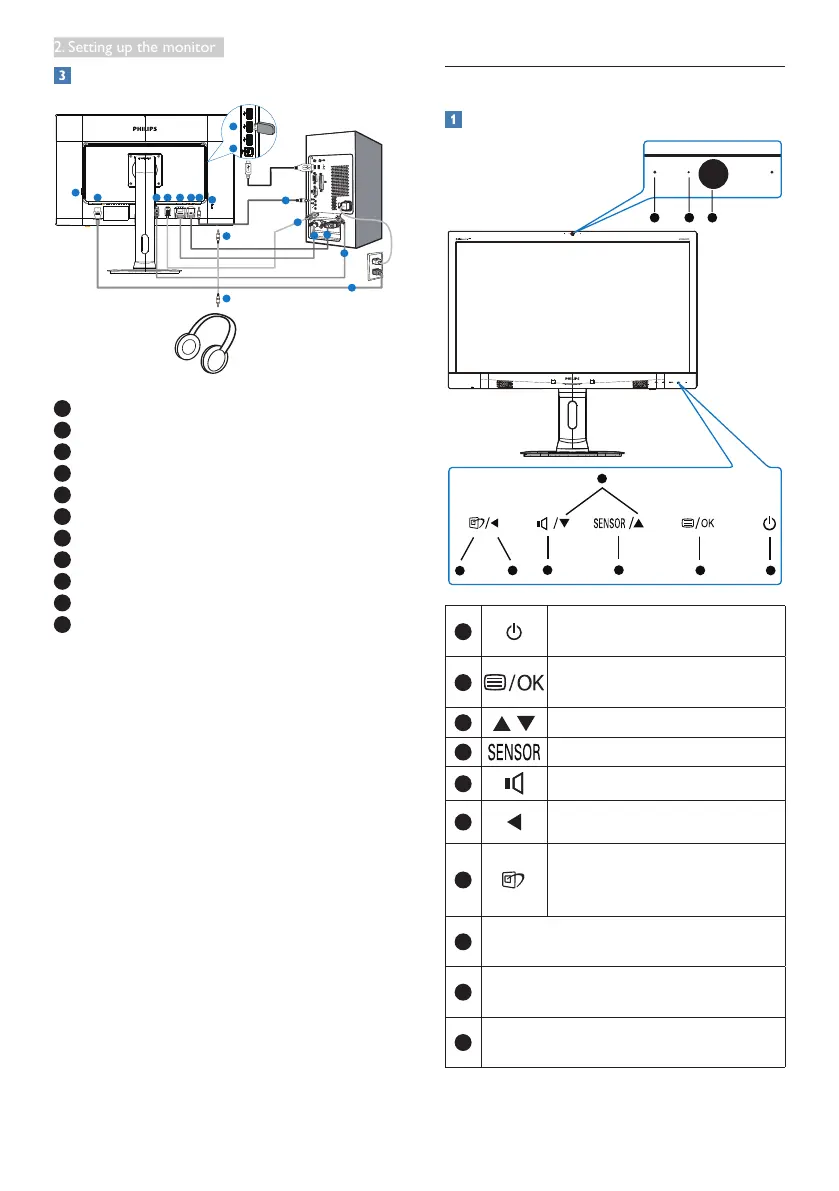
Connecting to your PC
1
AC power switch
2
AC power input
3
DisplayPort input
4
HDMI input
5
DVI input
6
VGA input
7
Audio input
8
Kensington anti-theft lock
9
Earphone jack
10
USB downstream
11
USB uptream
Connect to PC
1. Connect the power cord to the back of
the monitor rmly.
2. Turn off your computer and unplug its
power cable.
3. Connect the monitor signal cable to the
video connector on the back of your
computer.
4. Connect the PC audio cable to the audio
connector on the back of your computer.
5. Plug the power cord of your computer and
your monitor into a nearby outlet.
6. Connect the USB upstream port on
the monitor and the USB port on your
computer with a USB cable.
The USB downstream port is now ready
for any USB device to plug in.
7. Turn on your computer and monitor. If the
monitor displays an image, installation is
complete.
2.2 Operating the monitor
Description of the control buttons
5 4
3
2
1
7
6
10 9 8
1
Switch monitor’s power ON and
OFF.
2
Access the OSD menu
.
Conrm the OSD adjustment.
3
Adjust the OSD menu.
4
PowerSensor.
5
Adjust volume of the display.
6
Return to previous OSD level.
7
SmartImage
hot key
. There are 6
modes to select: Ofce, Photo,
Movie, Game, Economy, Off.
8
2.0 Megapixel Webcam
(Only available on 271P4QPJK model)
9
Webcam activity light
(Only available on 271P4QPJK model)
10
Microphone
(Only available on 271P4QPJK model)


 To Next Page