Audio to video synchronisation (sync)
If the sound does not match the video on screen, you
can set a delay on most Home Theatre Systems with
a disc player to match the sound with the video.
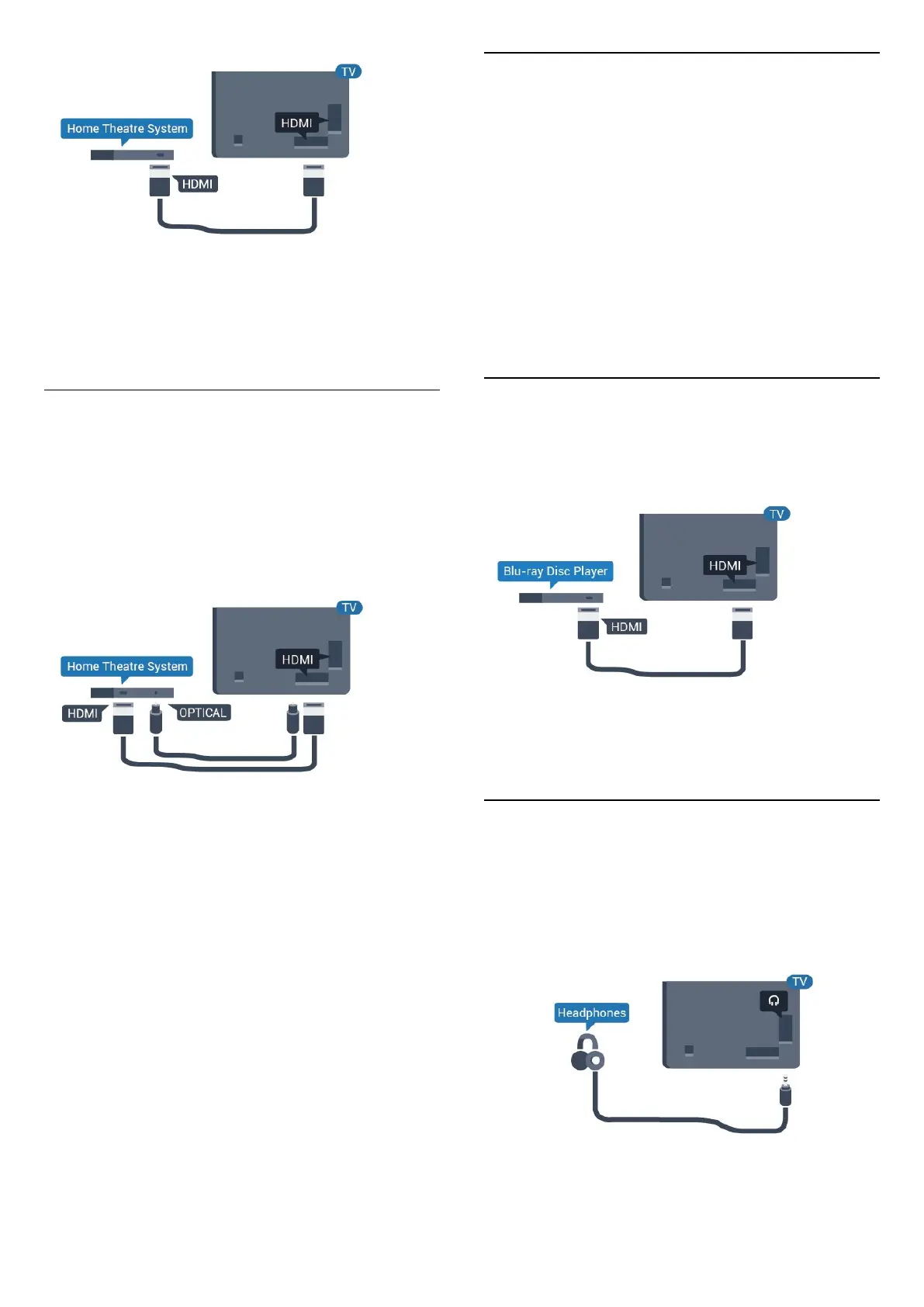
Connect with HDMI
Use an HDMI cable to connect a Home Theatre
System (HTS) to the TV. You can connect a Philips
Soundbar or an HTS with a built-in disc player.
If the Home Theatre System has no HDMI ARC
connection, add an optical audio cable (Toslink) to
send the sound of the TV picture to the Home Theatre
System.
Audio to video synchronisation (sync)
If the sound does not match the video on screen, you
can set a delay on most Home Theatre Systems with
a disc player to match the sound with the video.
6.5
Smartphones and Tablets
To connect a smartphone or tablet to the TV, you can
use a wireless or wired connection.
Wireless
For a wireless connection, on your smartphone or
tablet download the Philips TV Remote App from
your favourite app store.
Wired
For a wired connection, use the HDMI 1 MHL
connection on the back of the TV.
6.6
Blu-ray Disc Player
Use a High speed HDMI cable to connect the Blu-
ray Disc player to the TV.
If the Blu-ray Disc player has EasyLink HDMI CEC,
you can operate the player with the TV remote
control.
6.7
Headphones
You can connect a set of headphones to
the connection on the back of the TV. The
connection is a mini-jack 3.5mm. You can adjust the
volume of the headphones separately.
16



 To Next Page