EN
13
Each time you've made a selection, press the green key to
confirm your selection.
1. Select Settings assistant and press the cursor right.
> By means of several split screens/full screens you are
prompted to select your preferred picture, sound and
ambilight settings to finally arrive at a complete setting
which satisfies you.
See First time installation, Step 3: Settings assistant:
select your TV settings, p. 10.
2. Press the green colour key to return to the TV menu again.
A. Change settings in an easy-to-use manner with the
Settings assistant
Use of the TV menu settings
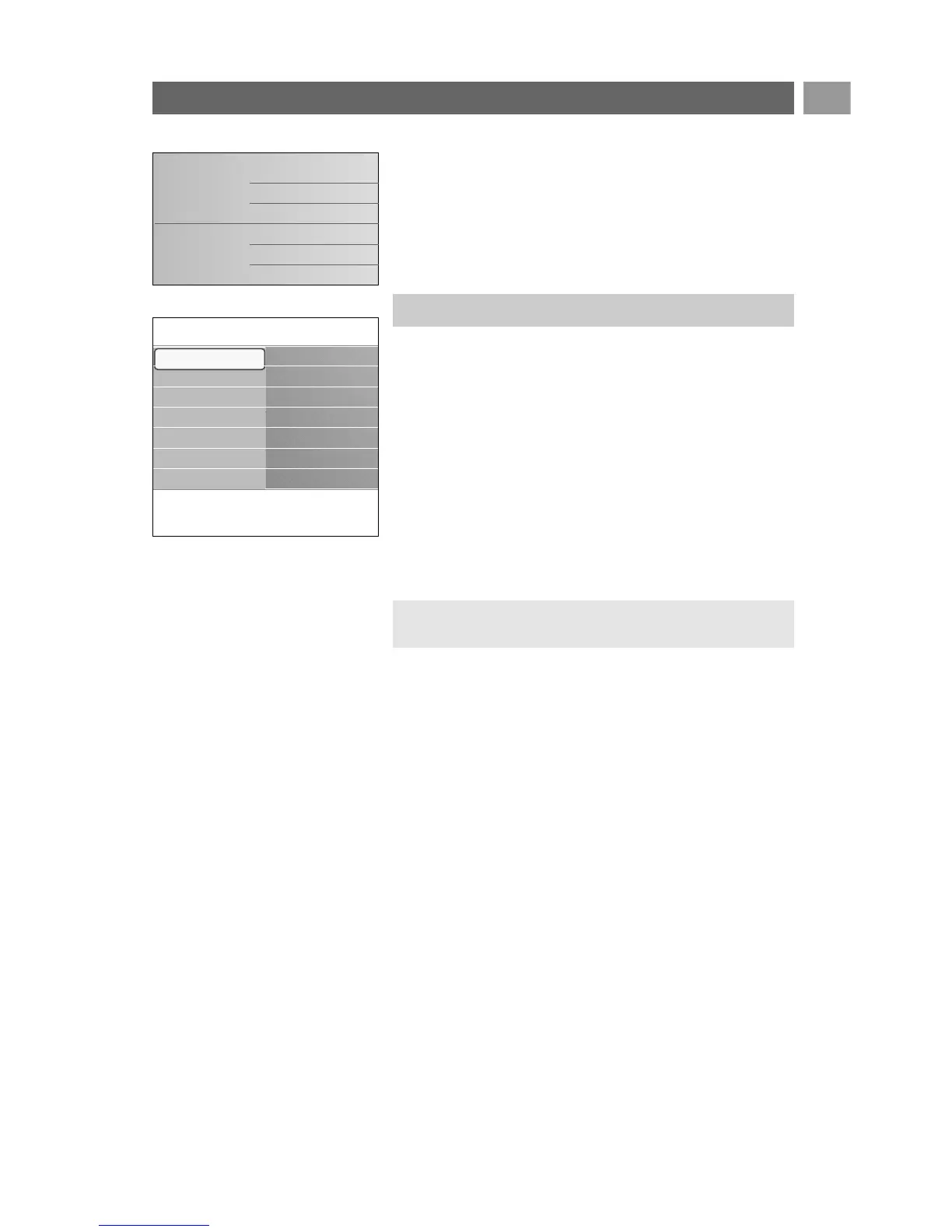
1. Press the MENU/BROWSE key on the remote control.
> The main menu appears on the screen.
2. Select TV menu and press the cursor right.
> The TV menu is displayed.
3. Select TV settings and press the cursor right.
> The TV settings menu is moved to the left.
4. Press the
MENU/BROWSE key to exit the menu.
To make it easier to change the settings of the TV, there are
3 ways of doing it.
Adjust viewing and listening settings
The TV menu allows you to access and change settings and
preferences in case you want to change the First time
installation settings and/or you want to control the settings of
special TV functions, features and peripheral equipment
.
Television
Multimedia
TV menu
TV channels
Programme guide
Info
TV menu
TV settings
Settings assistant
Reset to standard
Picture
Sound
Ambilight
TV settings
Features
Installation
Exit





 To Next Page