
 Need help?
Do you have a question about the Philips 32PFL3404/77 and is the answer not in the manual?
Lists all items included in the television package for initial setup.
Step-by-step instructions for safely attaching the TV stand to the unit.
Guide to connecting power, antenna, and performing initial language and location setup.
Details on various input ports like HDMI, Component, and VGA for multimedia devices.
Illustrates connections for Blu-ray, DVD players, and laptops via HDMI, component, and VGA.
Guides on connecting audio systems and external video sources like DVD recorders.
Explains remote control buttons for source selection and navigating TV menus.
Information on accessing product support and user manuals via the website.
Contains copyright, trademarks, and disclaimers regarding product specifications.
This document is a quick start guide for a Philips television, providing essential information for setup and initial use. It covers unboxing, assembly, connecting to various input sources, and basic remote control functions.
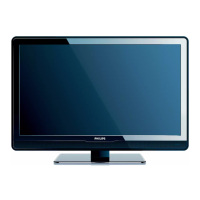
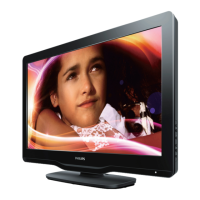
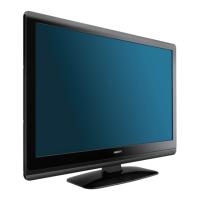
The Philips television is designed to display video content from a variety of sources, including broadcast television, DVD/Blu-ray players, gaming consoles, and personal computers. It serves as a central entertainment hub, offering multiple connectivity options to integrate with other audio-visual equipment. The television is capable of receiving and displaying standard and high-definition signals, providing a versatile viewing experience for different media types.
The guide begins with instructions for safely unboxing the television. It emphasizes the importance of handling the TV with care, suggesting that two people lift it to avoid damage. The initial setup involves attaching the stand to the television. This process typically requires aligning the stand with the designated mounting points on the TV's back or bottom, securing it with screws. The guide illustrates the use of a screwdriver and two screws for this step, ensuring a stable base for the television.
Once assembled, the next step is to connect the television to a power source using the provided power cable. The guide shows a standard two-prong plug for this purpose. For receiving broadcast television signals, an antenna or cable connection is required. The guide illustrates connecting a coaxial cable to the "TV ANTENNA" input, which is a 75 Ω F-type connector. This allows the TV to tune into available channels.
After connecting power and the antenna, the television can be turned on. The remote control, which requires two AAA batteries (included), is used for navigation. The initial setup process typically involves selecting a language from a list, such as English, Español, or Português. This ensures that all on-screen menus and prompts are displayed in the user's preferred language.
Following language selection, the user is prompted to choose the TV's location, with options like "Home" or "Shop." Selecting "Home" usually optimizes settings for a typical home viewing environment, while "Shop" might activate demo modes or brighter display settings suitable for retail displays.
The final step in the initial setup is channel installation. The guide indicates that this procedure will take a few minutes. By selecting "Start," the television will automatically scan for and store available broadcast channels, making them accessible for viewing.
The remote control is a key interface for interacting with the television. It features standard buttons for power, menu navigation (including arrow keys and an "OK" button), volume control (+/-), channel selection (CH +/-), and numerical input for direct channel access. Dedicated buttons for "BROWSE," "OPTIONS," "BACK," and "INFO" provide quick access to various TV functions and information. Source selection is crucial for switching between different connected devices.
The television offers a wide array of input options to connect various external devices:
HDMI (High-Definition Multimedia Interface): The guide highlights multiple HDMI inputs (HDMI 1, HDMI 2, Side HDMI). HDMI is ideal for connecting high-definition devices such as Blu-ray players, gaming consoles (e.g., PlayStation, Xbox), and set-top boxes. It transmits both video and audio signals digitally, ensuring high quality. The guide shows connecting a Blu-ray Disc player via HDMI.
YPbPr (Component Video) & Audio L/R: This input (labeled CVI-1, CVI-2) is used for connecting devices that output component video signals, such as DVD players or older gaming consoles. It consists of three video cables (Y, Pb, Pr) for color information and two audio cables (L, R) for stereo sound. The guide illustrates connecting a DVD player using YPbPr and L/R audio cables.
VGA/PC & PC AUDIO IN: This input is designed for connecting a personal computer. The VGA cable transmits video signals, while a separate 3.5mm audio cable connects to the "PC AUDIO IN" jack for sound. This allows the television to function as a large computer monitor.
DVI (Digital Visual Interface) & PC AUDIO IN: Similar to VGA, DVI is used for connecting computers, but it transmits digital video signals. Since DVI typically does not carry audio, a separate 3.5mm audio cable is required for sound, connected to the "PC AUDIO IN" jack. The guide shows connecting a laptop via DVI and a separate audio cable.
AV IN (Composite Video) & Audio L/R: This input (labeled AV 1) is for connecting older devices that output composite video signals. It uses a single yellow RCA cable for video and red/white RCA cables for stereo audio. This is commonly used for VCRs, older camcorders, or some gaming consoles.
AV OUT (Composite Video) & Audio L/R: This output allows the television's audio and video signals to be sent to another device, such as a VCR for recording or an external audio system.
Audio In/Out: The guide also shows connections for external audio systems, including "AUDIO IN" and "AUDIO OUT" ports, typically using RCA cables, to integrate the TV with home theater receivers or soundbars.
The remote control includes a "SOURCE" button or a menu option that allows users to switch between the various connected inputs (TV, AV1, Side AV, CVI1, CVI2, HDMI1, Side HDMI, VGA). This enables seamless switching between watching broadcast TV, a movie from a Blu-ray player, or using the TV as a computer monitor.
While the quick start guide primarily focuses on initial setup and usage, it implicitly suggests certain maintenance practices:
Battery Replacement: The remote control requires two AAA batteries. Regular replacement ensures continuous functionality of the remote. The guide illustrates how to open the battery compartment and insert the batteries correctly.
Cable Management: Although not explicitly stated as maintenance, the clear illustrations of cable connections encourage organized cable management, which can prevent tangles, reduce wear and tear on cables and ports, and improve the aesthetic of the setup.
Product Registration and Support: The guide directs users to "www.philips.com/welcome" to register their product and get support. This is a crucial maintenance feature as it provides access to further documentation, troubleshooting guides, software updates, and customer service, which are essential for resolving issues and ensuring the long-term optimal performance of the television. The "i" icon and the "www.philips.com/support" link further emphasize the availability of comprehensive support resources.
Cleaning: While not detailed in this quick start guide, general maintenance for televisions typically includes gently cleaning the screen and exterior surfaces with appropriate cleaning solutions and soft cloths to prevent dust buildup and smudges, which can affect viewing quality.
In summary, this Philips television is a versatile display unit with extensive connectivity options, designed for ease of setup and use in a home entertainment environment. The quick start guide provides a clear, visual roadmap for getting the television up and running, from unboxing to channel installation and connecting various external devices.
 General
| Resolution | 1366 x 768 pixels |
|---|---|
| Display resolution | 1366 x 768 pixels |
| Display Type | LCD |
| Response time | 8 ms |
| Comb filter | 3D |
| Number of speakers | 2 |
| Component video (YPbPr/YCbCr) in | 1 |
| SCART ports quantity | 1 |
| S-Video inputs quantity | 1 |
| Digital audio coaxial out | 1 |
| Headphone outputs | 1 |
| Common interface Plus (CI+) | No |
| Teletext function | Yes |
| Weight | 11 kg |
| VESA mounting interfaces | 200 x 100 mm |
| Screen Size | 32 inches |
| Display diagonal | 32 inches |
| HD type | HD Ready |
| Audio system | Stereo |
| HDMI ports quantity | 2 |
| Tuner type | Analog and Digital |
| Analog signal format system | NTSC, PAL, SECAM |
| Digital signal format system | DVB-C, DVB-T |




 To Next Page

