13
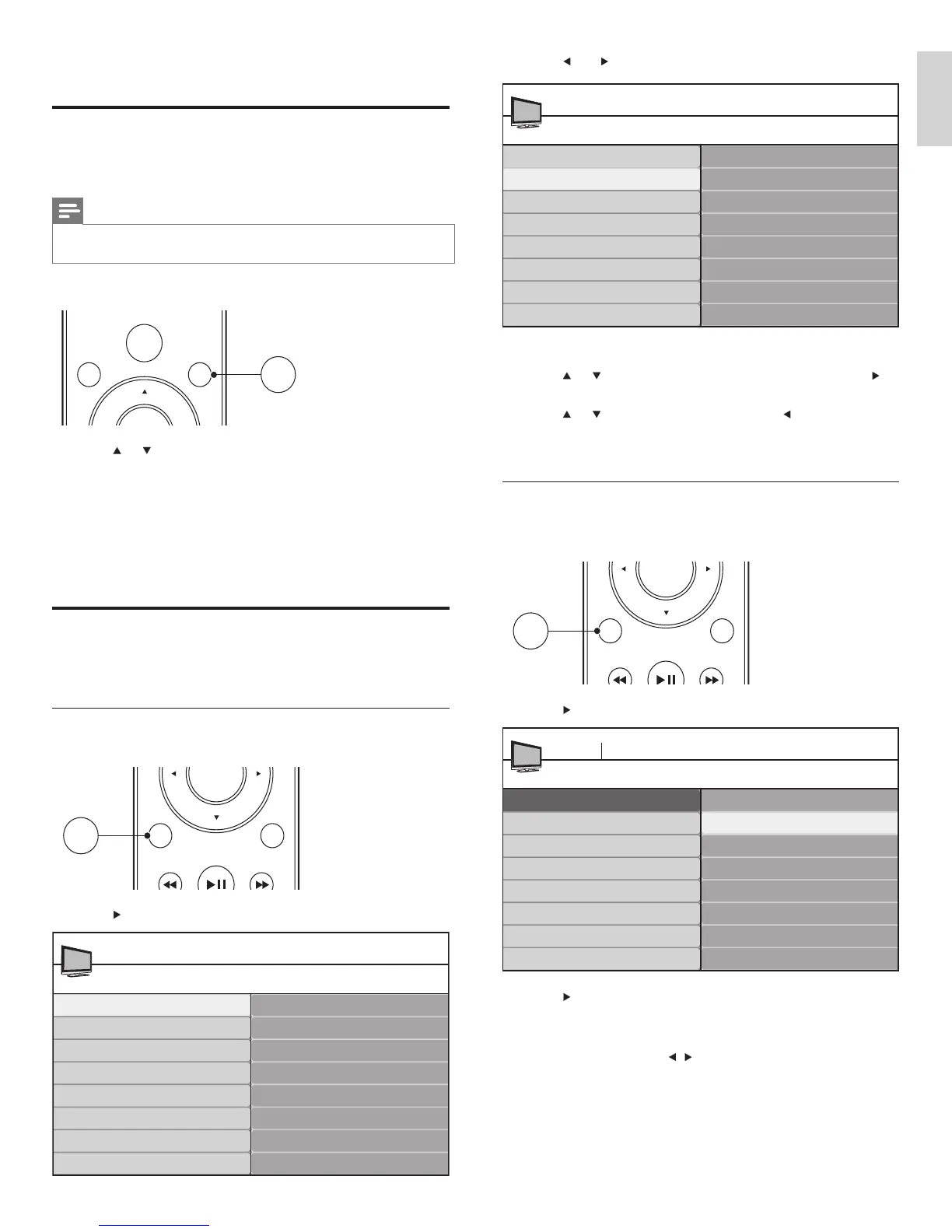
3 Press and to select the [Picture] menu.
4 Press or to select one of the picture settings, and press to
enter the setting.
5 Press or to adjust the setting, and press or OK to confi rm
the change.
6 Press MENU/EXIT to exit.
Change picture settings by using the setting assistant
The settings wizard helps you to confi gure your picture settings.
1 Press MENU/EXIT on the remote control.
2 Press to enter the [Settings assistant] menu.
3 Press to highlight [Start now] , and press OK to start the
[Settings assistant] .
» You are guided through a choice of picture display options.
4 Press the color buttons, , , and OK to make your selections
and store your setup.
Picture
Contrast
Brightness
Color
Tint
Sharpness
Color temperature
Dynamic contrast
Digital Natural Motion*
TV Settings
TV menu
Settings assistant
Picture
Sound
*Available in selected models
EXIT
MENU
OK
EXIT
INFO
MENU
Settings assistant
Start now
TV menu Installation
TV settings
Settings assistant
Picture
Sound
6 Use more of your TV
Use the quick access menu
The quick access menu gives direct access to some often-needed menu
items.
Note
•
When digital channels are installed and broadcast, the relevant digital options are
displayed in the quick access menu.
1 Press OPTIONS on the remote control.
2 Press or and then OK to access one of the following menus:
• Audio language, for digital channels only, where multiple
audio languages are broadcast.
• Closed captions (see ‘View closed captions (subtitles)’ on
page 19 ) .
• Picture format (see ‘Summary of picture formats’ on page 14 ) .
• Equalizer (see ‘Summary of sound settings’ on page 15 ) .
• Clock (see ‘Set the clock’ on page 15 ) .
Change picture and sound settings
Change picture and sound settings to suit your preferences. You can
apply pre-defi ned settings or change settings manually.
Change picture settings
1 Press MENU/EXIT on the remote control.
2 Press to enter the [TV settings] menu.
SOURCE
OPTIONSAUTO
MODE
OPTIONS
EXIT
MENU
OK
EXIT
INFO
MENU
TV settings
Settings assistant
Picture
Sound
TV menu
TV settings
Features
Installation
English
EN




 To Next Page