8
2.2 Operating the monitor
1
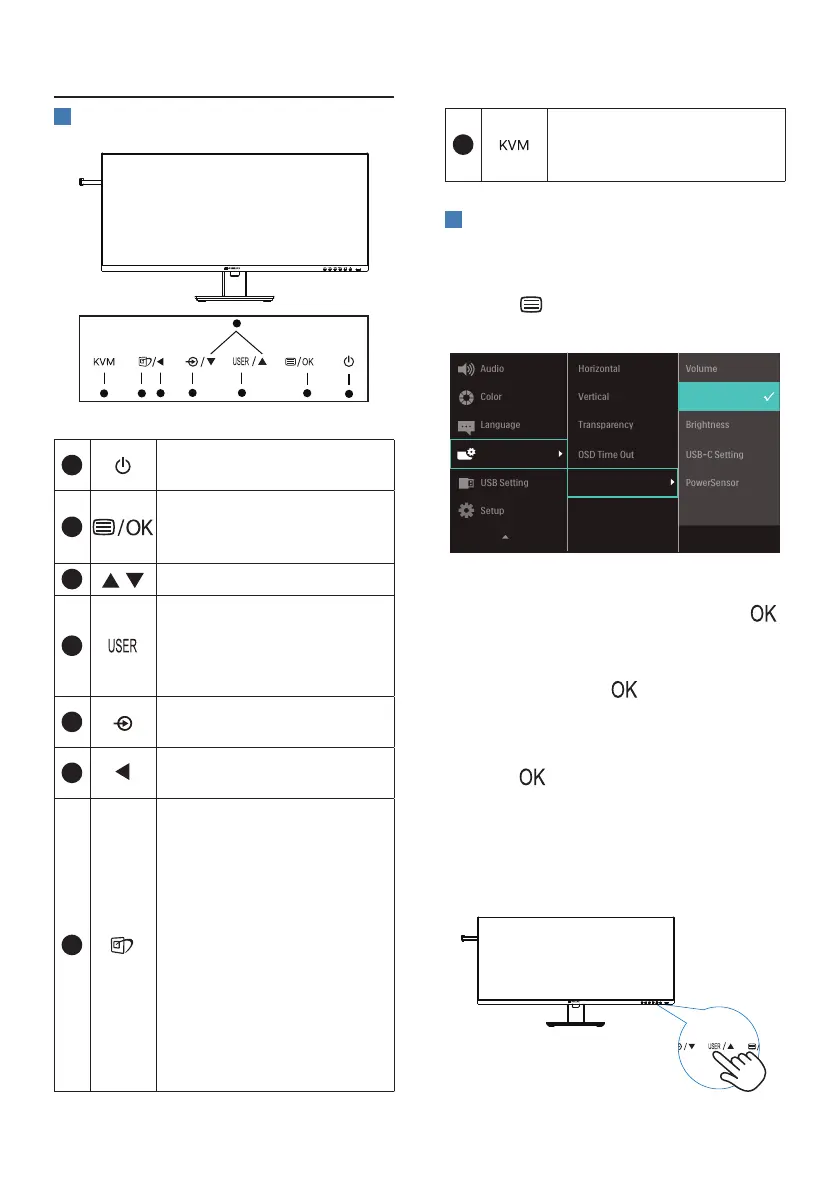
Description of the control buttons
5 4
3
2
1
7
6
8
1
Switch monitor’s power ON
or OFF.
2
Access the OSD menu
.
Conrm the OSD
adjustment.
3
Adjust the OSD menu.
4
User preference key.
Customize your own
preference function from
OSD to become the “user
key”.
5
Change the signal input
source.
6
Return to previous OSD
level.
7
SmartImage hot key. There
are multiple modes to
select: EasyRead, Oce,
Photo, Movie, Game,
Economy, LowBlue Mode,
SmartUniformity, O.
When the monitor receives
HDR signal, SmartImage
will show HDR menu. There
are multiple selections: HDR
Premium, HDR Movie, HDR
Photo, DisplayHDR 400,
HDR Basic, O.
8
KVM hot key. There are
multiple modes to select:
Auto, USB C, USB up.
2
Customize your own “USER” key
This hot key allows you to setup your
favorite function key.
1. Press button on the front bezel
to enter OSD Menu Screen.
2. Press ▲ or ▼ button to select main
menu [OSD Settings], then press
button.
3. Press ▲ or ▼ button to select [User
Key], then press button.
4. Press ▲ or ▼ button to select your
preferred function.
5. Press button to conrm your
selection.
Now you can press the hotkey directly
on the front bezel. Only your pre-
selected function will appear for quick
access.








 To Next Page