EasyManua.ls Logo

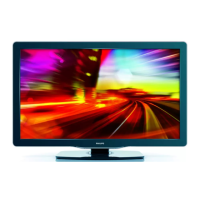
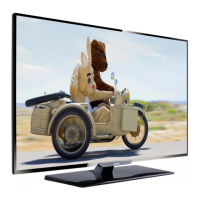
Philips 40PFA4509 - User Manual

Philips 40PFA4509
30 pages
Print Icon
To Next Page IconTo Next Page
Loading...
32PHA4509
40PFA4509
50PFA4509
Register your product and get support at
www.philips.com/welcome
EN
User manual

Other manuals for Philips 40PFA4509

Questions and Answers

  • J
    Julian StephensonSep 4, 2025
    Why are channels missing from my Philips TV channel list?
    • T
      Tammy VillanuevaSep 4, 2025
      If previously installed channels do not appear in the channel list on your Philips TV, check that the correct channel list is selected.
  • A
    April MitchellSep 18, 2025
    Why is the picture position incorrect on my Philips TV?
    • M
      Misty MannSep 18, 2025
      If the picture position is incorrect on your Philips TV, picture signals from some devices may not fit the screen correctly. Please check the signal output of the device.
  • M
    Michelle ZimmermanSep 16, 2025
    How do I change the language on my Philips TV?
    • D
      Daniel GonzalesSep 16, 2025
      To change the TV menu to your preferred language on your Philips TV, navigate to the settings menu and select 'Language'. From there, choose your desired language from the list of available options.
  • M
    Michael CraigSep 14, 2025
    How to stabilize computer display on Philips TV?
    • S
      Steven BushSep 14, 2025
      If the computer display on your Philips TV is not stable, check that your PC uses the supported resolution and refresh rate. Also, set the TV picture format to unscaled.
  • R
    Renee CarterSep 13, 2025
    Why is sound coming from one speaker only on my Philips TV?
    • A
      Amber SmallSep 13, 2025
      If the pictures are showing but sound comes from one speaker only on your Philips TV, verify that the sound balance is set to the centre.
  • V
    vincentesparzaSep 12, 2025
    Why doesn't my Philips TV save picture settings?
    • J
      Justin PenaSep 12, 2025
      If your Philips TV did not save your picture settings, check that the TV location is set to the home setting. This mode offers you the flexibility to change and save settings.
  • P
    Patricia Simpson DVMSep 9, 2025
    Why are my HDMI devices not working with my Philips TV?
    • T
      Terry SmithSep 9, 2025
      If you are experiencing problems with HDMI devices connected to your Philips TV, HDCP (High-bandwidth Digital Content Protection) support can delay the time taken for a TV to display content from a HDMI device. If the TV does not recognise the HDMI device and no picture is displayed, try switching the signal source to another device before switching it back again. If there are intermittent sound disruptions, check that the output settings from the HDMI device are correct. If you are using a HDMI to DVI adapter or cable, check if the audio cable that comes with the product is connected to AUDIO (only for mini jacks).
  • T
    Tina HillSep 7, 2025
    What does it mean when the standby light on my Philips TV is red and blinking?
    • E
      Eddie MckinneySep 7, 2025
      If the standby light on your Philips TV is red and blinking, disconnect the power cable from the power outlet. Wait for the TV to cool down before reconnecting the power cable. If the light continues to blink, please contact Philips Customer Care Centre.
  • B
    Bryan ClarkeSep 5, 2025
    How to improve Philips TV antenna reception?
    • E
      elizabethbenjaminSep 5, 2025
      If you are experiencing poor TV reception from the antenna connection on your Philips TV, ensure the antenna is properly connected to the TV. Loudspeakers, unearthed audio devices, neon lights, high buildings, and other large objects can influence reception quality, so try changing the antenna direction or moving devices away from the TV. If the reception on one particular channel is poor, fine-tune that channel.
  • J
    Justin RobinsonAug 20, 2025
    How to fix Philips TV that cannot be switched on?
    • G
      Gary BaldwinAug 21, 2025
      If your Philips TV cannot be switched on, first, disconnect the power cable from the power outlet and wait one minute before reconnecting it. Also, ensure that the power cable is securely connected.

Philips 40PFA4509 Specifications

General IconGeneral
Screen Size40 inches
Resolution1920 x 1080 pixels
Display TypeLCD
HDMI Ports2
USB Ports1
Refresh Rate60 Hz
Backlight TypeLED
Smart TVNo
Built-in Wi-FiNo
Digital TV StandardDVB-T

Related product manuals