43BDL4650D/50BDL4650D/55BDL4650D
46
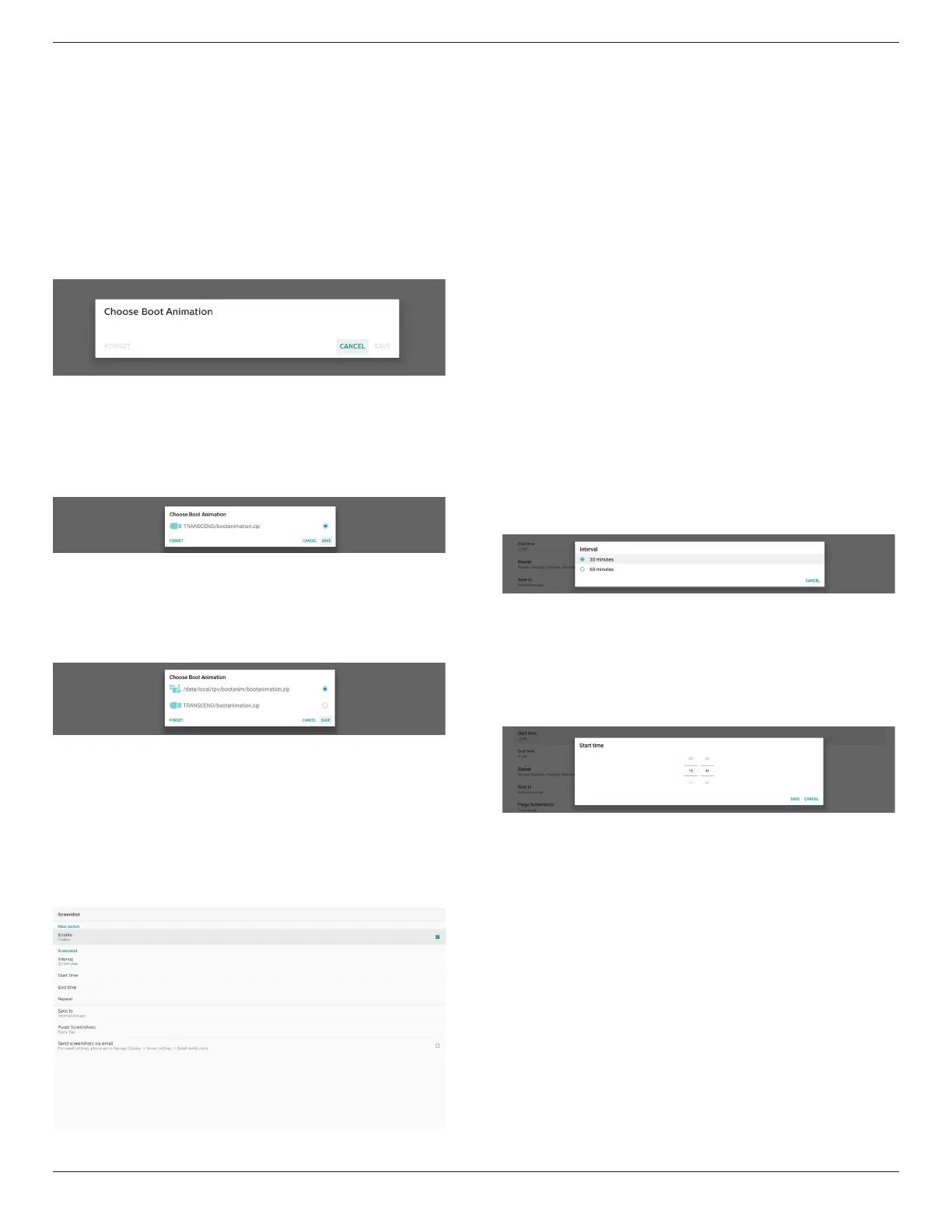
Cancel and close the dialog box.
3. SAVE
Copy the selected le to /data/local/bootanimation/.
After doing this, user can remove their external storage
(USB). System uses the boot animation le under /data/
local/bootanimation.
If the system does not found any bootanimation.zip le
under external storage (USB) and /data, the le list will be
empty. The “SAVE” and “FORGET” buttons will be grayed out,
user should check the content saved on the USB memory.
Click “CANCEL” button to close the dialog box, and plug in
the USB memory again.
If /data/local/bootanimation/ folder is empty, it means that
“bootanimation.zip” has not been saved by the user before.
Default Philips logo appears during system boot up.
When “bootanimation.zip” is found in the external
storage, a dialog box displaying the list of les will appear.
If the le “bootanimation.zip “ can be found in the folder
“/data/local/bootanimation/”, the pop-up dialog box will
show that le as the rst option. It simply means that user
has previously copied (saved) the le “bootanimation.
zip” and that the system will boot up with boot animation
from /data/local/bootanimation/bootanimation.zip.
Boot animation le can be replaced by using the “SAVE”
button.
Screenshot
Settings -> Signage Display -> General Settings -> Screenshot
To capture the screenshots from the imported content,
click “Enable” to enable the auto screenshot function. If
the screenshot options are grayed out, it means that the
screenshot function has not be enabled yet.
After enabling this feature, you can set the interval time
between each screenshot, as well as the destination folder
where the captured screen will be saved. The option “Save
to” noties you that the screenshot images will be saved to
the internal storage and they cannot be changed manually.
NOTE:
1. The screenshot images will be deleted automatically
under the following conditions:
(1). When the start time of the screenshot feature is set to
0 seconds.
(2). Starting the screenshot at 40 seconds of minute.
(3). If you decide to purge the screenshot photos every
week, the data of deleting the photos will be changed
to the day that you apply the setting of screenshot
feature.For example, if you set the purging day to
Monday of every week, then changed other settings
in screenshot feature on Friday, the purging day will
be changed to Friday (the day of the system’s current
time).
2. Sleep (system suspend) and screenshot feature:
The screenshot feature is suspended when the system
enters sleep mode. The function of mailing out the
screenshot is consequently suspended. The screenshot-
related features will be restarted when the system enters
active mode.
(1). Interval
Set the interval time between each screenshot. The
available options are 30 and 60 minutes.
(2). Start Time
Set the start time of a day to begin the screenshot
function.
Make sure that you click the “Save” button before leaving
the dialog box, or your settings will not be saved.
The start time must be lesser than the end time. A toast
message will appear notifying you if it is an invalid value.








 To Next Page