Enter text with the remote control keypad
Use the navigation keys to position the cursor in the text. Press b
(Back) to delete a character.
Use the remote control keypad as you do for SMS/text messaging to
enter a character. Use the 1 key to select a special character. Select
Clear to delete a character.
Select Done to end Rename.
Enter text with the on-screen keyboard
To open the on-screen keyboard on top of the text entry menu,
press OK when the cursor in the text blinks.
On the keyboard, use the navigation keys to position the highlight on
a character and press OK to enter it. To delete a character, press b
(Back) or highlight ! and press OK.
To switch from uppercase to lowercase or to a set of special
characters, press W (Next) or X (Previous).
To edit a character within a line of text, position the cursor on this
character and use the z and Z keys at both ends of the on-
screen spacebar.
To close the on-screen keyboard, highlight Done and press OK.
Hide channel
You can hide a channel in the Channel list. When looking through
channels, a hidden channel will be skipped.
1 In the Channel list, highlight the channel you want to hide.
2 Press o (Options) and select Hide channel. The channel is hidden
as soon as you close the Channel list.
Show hidden channels
You can recall all hidden channels and unhide them again.
1 In the Channel list, press o (Options) and select Show hidden
channels. The Channel list now shows all channels again.
2 Press o (Options) and select Unhide all to unhide the previously
hidden channels.
Or, if you want to leave the previously hidden channels hidden,
press o (Options) and select Exit.
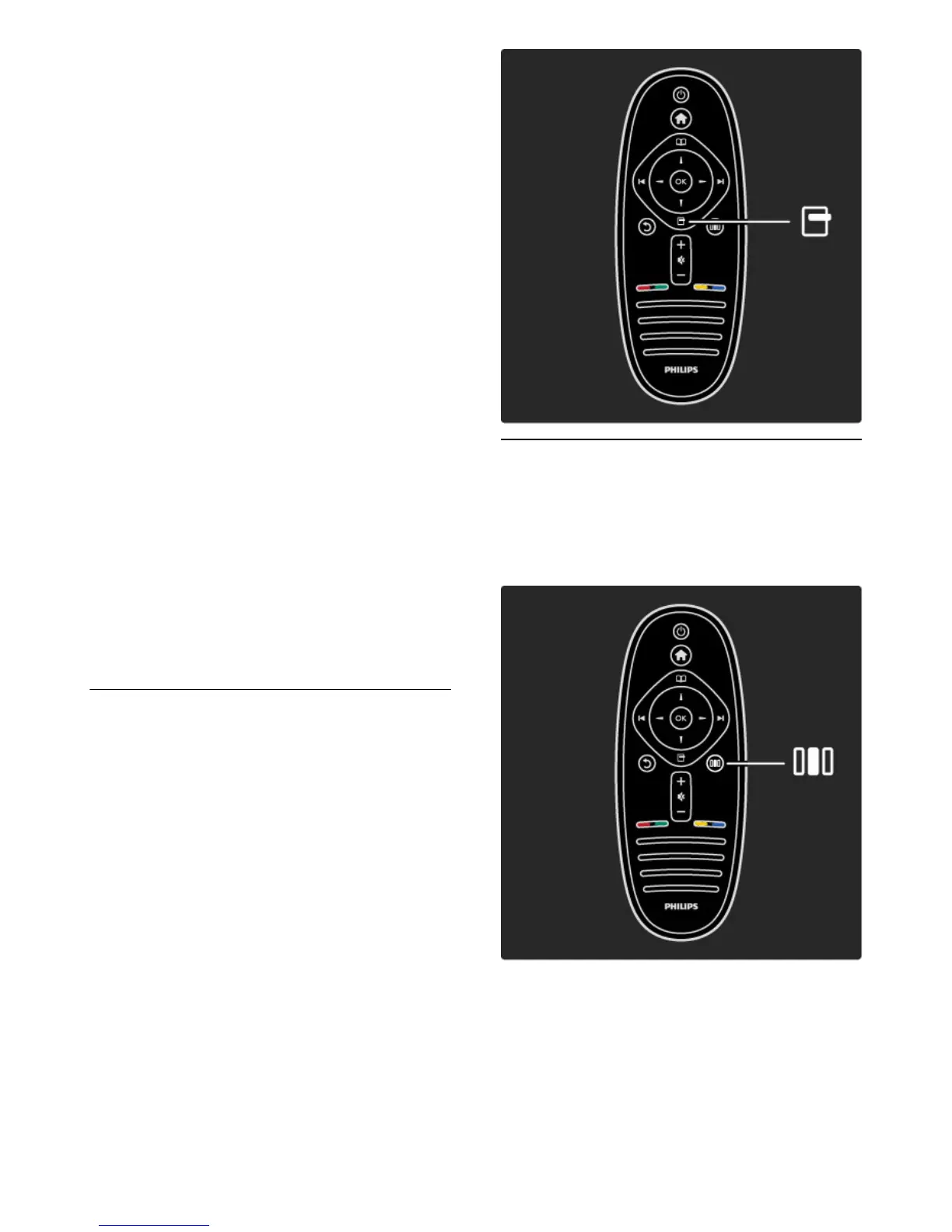
o Options
The Options menu gives settings related to what is shown on screen.
Depending on what is shown, the Options menu holds different settings.
Press o (Options) at any time to see which options are available.
To close the Options menu, press o again.
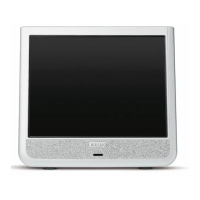
s Adjust
With the Adjust menu, you can adjust picture, sound and Ambilight
settings quickly.
Press s to open the Adjust menu.
Select your choice with the navigation keys and press OK.
To close the Adjust menu, press s again.
Benefits
In the Adjust menu you can quickly lower or speed up the Ambilight
dynamics, adjust the Picture format or shift the picture up a little to
view the subtitles and select a preset setting for picture or for sound
according to what you are watching. If a Home Theatre System,
connected with EasyLink, is forwarding its sound presets, you can
select these too.







 To Next Page