65BDL4650D/75BDL4650D/86BDL4650D
34
10. After selecting the desired le, press “Play” key to play
the media le immediately.
11. If you create a playlist with all image les, you will be
asked to add a background music to the slideshow before
saving.
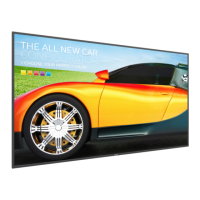
12. Select “Settings” on the main page, there are 5 options
available: “Repeat Mode”, “Slideshow Eect”, “Eect
Duration”, “Software Decode” and “USB Autoplay”.
Repeat mode: set the repeat mode.
Slideshow Eect: photo slideshow eect.
Eect Duration: duration of photo eect.
Software Decode: no black screen between video play.
USB Autoplay: Plug in the USB device and it will play the
les from USB root path automatically.
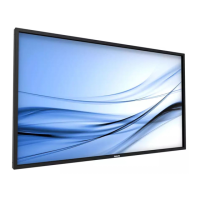
13. Media Player import text le
Step 1. Create media player text le.
- File name : mpplaylistX.txt, “X” means playlist
number(1,2,3,4,5,6,7).
Ex. mpplaylist1.txt, mpplaylist2.txt
- Content :
Note: If the playlist contains video and music les, the screen
becomes black when playing music le.
Step 2. Copy “mpplaylistX.txt” to “philips” folder of
internal storage. You may use FTP to do this.
- File path : /storage/emulated/legacy/philips (for
DL, PL)
Ex. /storage/emulated/legacy/philips/mpplaylist1.
txt
Step 3. Prepare media les to “photo”, “video” and “music”
folder under “philips” folder, internal storage only.
- Ex. /storage/emulated/legacy/philips/photo/xxx.
jpg
/storage/emulated/legacy/philips/video/yyy.
mp4
/storage/emulated/legacy/philips/photo/zzz.
mp3
Step 4. Start media player app, it will automatically
import media player text le.
Note: Once the playlist le (text) is imported, if user changes
playlist via remote control, this change will not be
reected in the playlist text le.




 To Next Page