Headphones
You can connect a set of headphones to the
headphone connector on the back of the TV. The
connection is a mini-jack 3.5mm. You can adjust the
volume of the headphones separately.
To adjust the volume…
1 - Press MENU > TV
options > Settings > Device
Preferences > Accessibility and press OK.
2 - Select Visually impaired and press OK.
3 - Switch on the headphone.
4 - Select Volume and use Navigation keys left
or right to adjust.
5 - Press Back, repeatedly if necessary, to close the
menu.
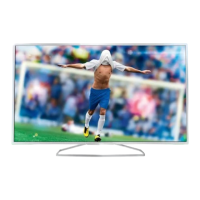
For 32PHx6915
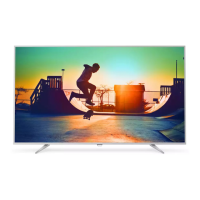
For 43PFx6915
7.5
USB Hard Drive
What You Need
If you connect a USB Hard Drive, you can pause or
record digital TV broadcasts. The TV broadcast must
be a digital broadcast (DVB broadcasts or similar).
Minimum Disk Space
• To Pause
To pause a broadcast, you need a USB 2.0
compatible Hard Drive with a minimum of 4GB disk
space.
• To Record
To pause and record a broadcast, you need a
minimum of 250GB disk space.
Installation
Before you can pause or record a broadcast, you
must connect and format a USB Hard Drive.
Formatting removes all files from the USB Hard Drive.
1 - Connect the USB Hard Drive to one of
the USB connections on the TV. Do not connect
another USB device to the other USB ports when
formatting.
2 - Switch on the USB Hard Drive and the TV.
3 - When the TV is tuned to a digital TV channel,
press Pause. Trying to pause will start the formatting.
Follow the instructions on screen.
When the USB Hard Drive is formatted, leave it
connected permanently.
Note: The maximum supported hard drive partition
size is 2 TB.
For 32PHx6915
For 43PFx6915
Warning
The USB Hard Drive is formatted exclusively for this
TV, you cannot use the stored recordings on another
21



 To Next Page
 Loading...