Once a wireless gamepad is paired, you can use it.
When a wireless speaker is paired, you can select it to
play the TV sound. When a device is paired, you do
not need to pair it again unless you remove the
device.
To pair a wireless speaker with the TV…
1 - Switch on the wireless speaker and place it within
range of the TV.
2 - Press , select All Settings and press OK.
3 - Select Wireless and Networks and
press (right) to enter the menu.
4 - Select Bluetooth > Search Bluetooth Device.
5 - Select Start and press OK. Follow the
instuctions on screen. You will pair the device with the
TV and the TV will store the connection. You might
need to unpair a paired device first if the maximum
number of paired devices was reached.
6 - Select the type of device (headphone,
subwoofer, …).
7 - Press (left) repeatedly if necessary, to close
the menu.
* Your TV doesn't support Bluetooth subwoofer
and Bluetooth speakers if they are not Bluetooth LE
compatible.
** HDMI connection is required for sound bar, speaker
and other audio device if they are not Bluetooth LE
compatible.
Select a Device
Once a wireless Bluetooth speaker is paired, you can
select it to play the TV sound.
To select a speaker to play the TV sound…
1 - Press , select Speakers and press OK.
2 - Select the loudspeaker system you want.
3 - Press (left) repeatedly if necessary, to close
the menu.
Remove a Device
You can connect or disconnect a wireless Bluetooth
device. When a Bluetooth device is connected, you
can use the gamepad or hear the TV sound through
the wireless speaker. You can also remove a wireless
Bluetooth device. If you remove a Bluetooth device,
the device will be unpaired.
To remove or disconnect a wireless device…
1 - Press , select All Settings and press OK.
2 - Select Wireless and Networks.
3 - Select Bluetooth > Remove Device.
4 - In the list, select the wireless device.
5 - Select Disconnect or Remove.
6 - Select OK.
7 - Press (left) repeatedly if necessary, to close
the menu.
6.11
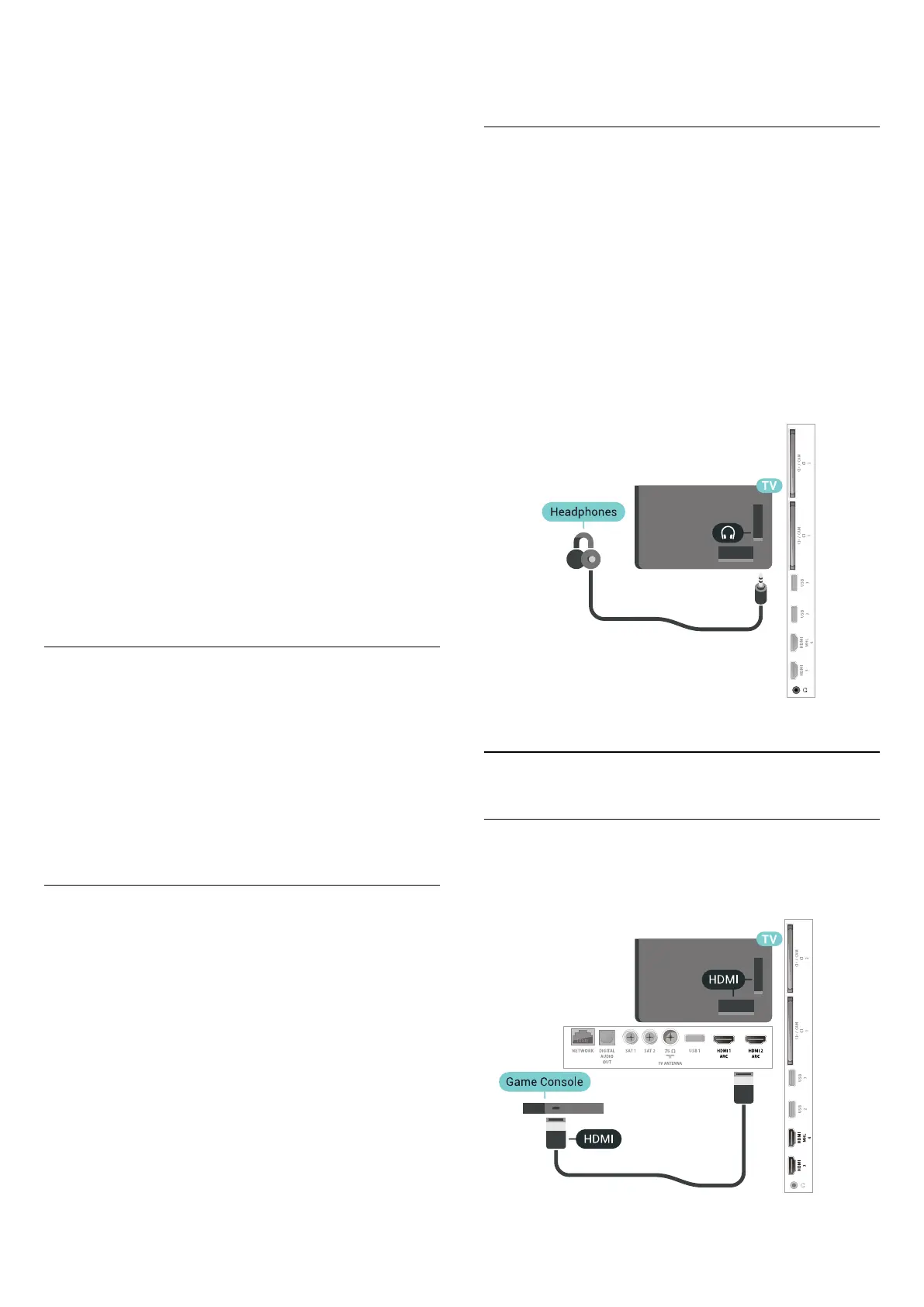
Headphones
You can connect a set of headphones to
the connection on the back of the TV. The
connection is a mini-jack 3.5mm. You can adjust the
volume of the headphones separately.
To adjust the volume…
1 - Press , select Headphone Volume.
2 - Press the arrows (up) or (down) to adjust
the value.
3 - Press (left) repeatedly if necessary, to close
the menu.
6.12
Game Console
HDMI
For best quality, connect the game console with a
High speed HDMI cable to the TV.
32






 To Next Page