Note
• To use an Internet browser other than Apple Safari
on your PC/Mac, remember to go to the Wi-Fi router
conguration page and write down the IP address of
your AD7000W. See the user manual of your Wi-Fi
router for how to nd the IP addresses of devices
connected to the Wi-Fi router.
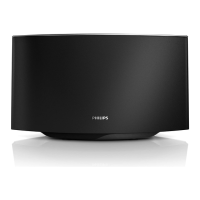
1 Power on AD7000W (see ‘Turn
AD7000W on’ on page 12).
» It takes about 35 seconds for the unit
to boot up. During boot-up, the WI-FI
SETUP indicator on the back of the
unit blinks green quickly.
» After boot-up, you can hear a beep
and the WI-FI SETUP indicator
turns to green steadily. AD7000W is
connected to the last congured Wi-Fi
network automatically.
2 Make sure that AD7000W and your PC/
Mac are connected to the same Wi-Fi
router.
3 Open Apple Safari on your PC/Mac, then
select ‘Philips_Fidelio XXX’ from the
Bonjour pull-down list.
• Or open any other Internet browser
on your PC/Mac, then type in the IP
address of AD7000W (available on
the Wi-Fi router conguration page)
at the address bar.
» The AD7000W conguration
web page is displayed.
6 Update
firmware
Note
• You can only update the rmware from a PC/Mac.
Downloadtheupdatele
1 On your PC/Mac, go to www.philips.com/
support.
2 Enter the model number to nd the latest
rmware upgrade le available.
3 Save the upgrade le to your hard drive.
Update from the
congurationpage
Warning
• Always connect your AD7000W to AC power for
rmware upgrade. Never power off your AD7000W
during rmware upgrade.


 To Next Page
 Loading...