12
English
5 Press SELECT to conrm.
6 Follow the instructions on the screen to
complete upgrade.
Note
If you select • [Software upgrade] without
downloading the latest software or connecting
to PC via USB port, you need power off and
restart the radio.
If upgrade is interrupted by accident, you must
•
power off the radio and reinstall the software,
otherwise your radio cannot work normally.
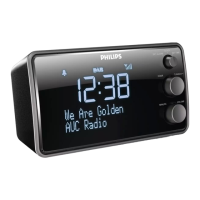
Set alarm timer
1
Make sure that you have set the clock
correctly.
2 In standby mode, rotate SET ALARM/
CLOCK/SET TIME to the SET ALARM
position.
The alarm icon blinks. »
3 Rotate HOUR to set the hour.
4 Rotate MINUTE to set the minute.
5 Rotate the SET ALARM/CLOCK/SET
TIME to the CLOCK position to conrm.
Adjust alarm setting
Note
You need to set date before selecting alarm •
mode.
1 Press RADIO ON/OFF to enter standby
mode, if necessary.
2 Press INFO/MENU for over 3 seconds.
» [Alarm Wizard] is displayed.
3 Press / repeatedly to select:
• [Source Buzzer]: Select buzzer as
alarm sound.
• [Source DAB]: Select last listened
DAB+ radio as alarm sound.
• [Source FM]: Select last listened FM
radio as alarm sound.
Options Sub-
menu
Description
[Time out] [OFF] The backlight is
always on.
[10 sec] The backlight turns
off 10 seconds after
operation.
[30 sec] The backlight turns
off 30 seconds after
operation.
[60 sec] The backlight turns
off 60 seconds after
operation.
[120 sec] The backlight turns
off 120 seconds after
operation.
[On level] [Auto] The backlight
is automatically
adjusted.
[High] The backlight is
bright.
[Medium] The backlight is at
medium level.
[Low] The backlight is dim.
4 To exit, press BACK.
Update software (if available)
Software upgrade for your radio may be
available in future. If you register your product
at Philips website (www.philips.com/welcome)
with a valid email address, you may receive
software update notication. Or you can
visit Philips website constantly to check if the
updating information is provided.
To update software of your radio, follow these
steps strictly:
1 Read software update instructions on
Philips website carefully.
2 Download the latest software to your
PC, then connect it to your radio via USB
port.
3 In FM/DAB+ mode, enter system setting
menu.
4 Press / repeatedly until [Software
Upgrade] (software upgrade) is displayed.
EN


 To Next Page