11
2. Setting up the monitor
3. Toggle to the up or down to select
[PIP / PBP Mode], then toggle to the
right.
4. Toggle to the up or down to select
[Off], [PIP], [PBP 2Win], or [PBP
4Win], then toggle to the right.
5. Now you can move backward to set
the [Off], [PIP], [PBP 2Win], or [PBP
4Win].
6. Toggle to the right to confirm your
selection.
MultiView in OSD menu
• PIP / PBP Mode: There are five
modes for MultiView:[Off], [PIP],
[PBP 2Win], and [PBP 4Win].
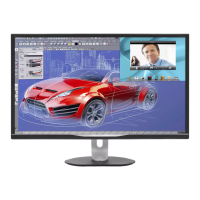
[PIP]: Picture in Picture
Open up a sub-window
side-by-side of other
signal source.
A
(main)
When the sub source is
not detected:
A (main)
[PBP 2Win]: Picture by Picture
Open up a sub-window
side-by-side of other
signal sources.
BA (main)
When the sub source is
not detected.
A (main)
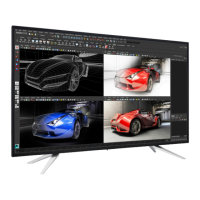
[PBP 4Win]: Picture by Picture
Open up three sub-
windows of other signal
sources.
C
DB
A (main)
When the sub sources
are not detected.
A (main)
Note
The black strip shows on the top and
the bottom of the screen for the correct
aspect ratio when in the PBP mode.
• PIP Size: When PIP is activated,
there are three sub-window sizes to
choose: [Small], [Middle], [Large].
B
A
(main)
Small
Middle
Large
• PIP Position: When PIP is activated,
there are four sub-window positions
to choose.
Top-Right Bottom-Right
A
(main)
A (main)
B
Top-Left Bottom-Left
A
(main)
A (main)
• Swap: The main picture source and
the sub picture source swapped on
the display.




 To Next Page