4-1
Software check and upgrade
Preparation to upgrade software
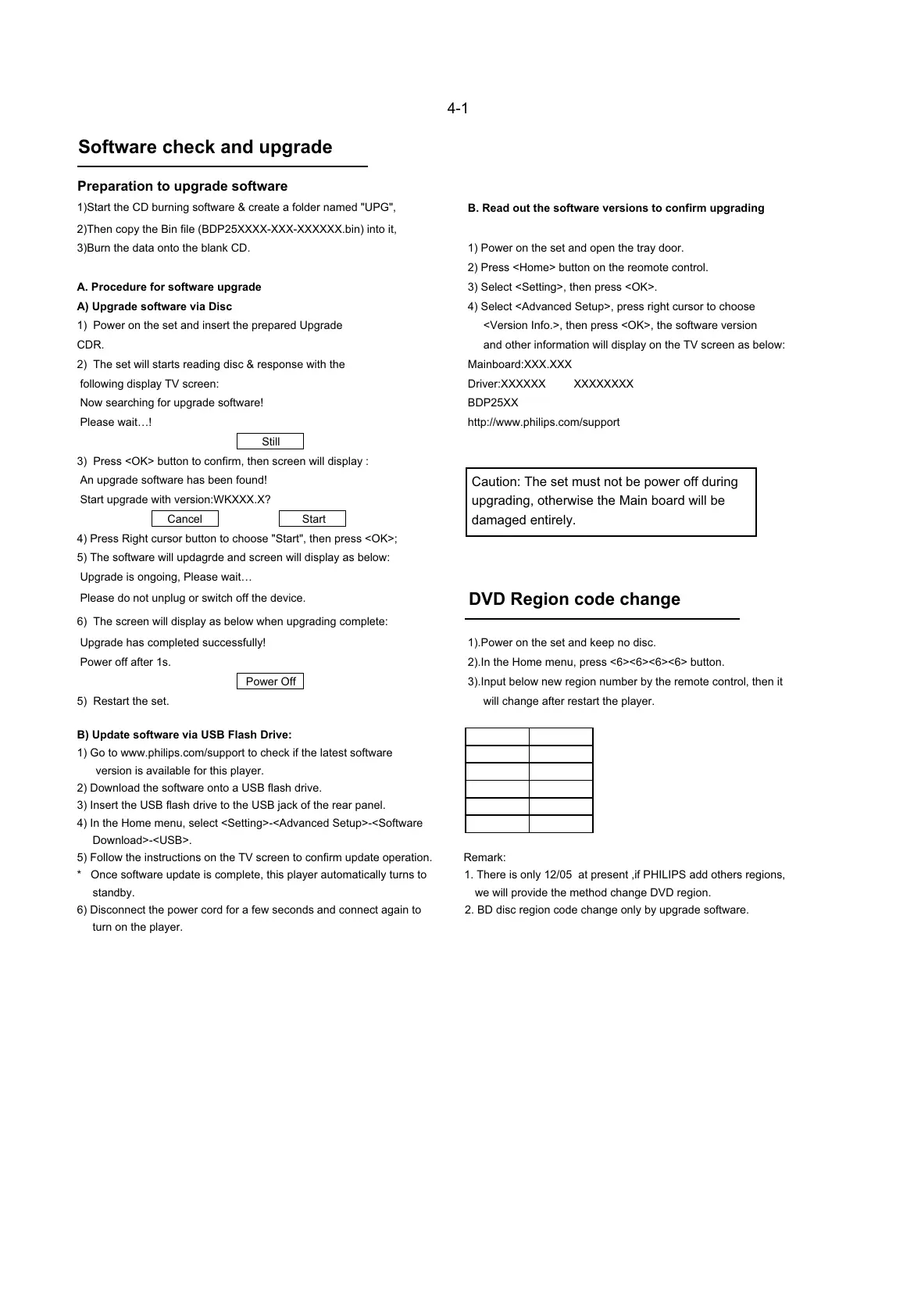
1)Start the CD burning software & create a folder named "UPG",
B. Read out the software versions to confirm upgrading
2)Then copy the Bin file (BDP25XXXX-XXX-XXXXXX.bin) into it,
3)Burn the data onto the blank CD. 1) Power on the set and open the tray door.
2) Press <Home> button on the reomote control.
A. Procedure for software upgrade
3) Select <Setting>, then press <OK>.
A) Upgrade software via Disc
4) Select <Advanced Setup>, press right cursor to choose
1) Power on the set and insert the prepared Upgrade <Version Info.>, then press <OK>, the software version
CDR. and other information will display on the TV screen as below:
2) The set will starts reading disc & response with the Mainboard:XXX.XXX
following display TV screen: Driver:XXXXXX XXXXXXXX
Now searching for upgrade software! BDP25XX
Please wait…! http://www.philips.com/support
Still
3) Press <OK> button to confirm, then screen will display :
An upgrade software has been found!
Caution: The set must not be power off during
Start upgrade with version:WKXXX.X?
upgrading, otherwise the Main board will be
Cancel Start
damaged entirely.
4) Press Right cursor button to choose "Start", then press <OK>;
5) The software will updagrde and screen will display as below:
Upgrade is ongoing, Please wait…
Please do not unplug or switch off the device.
DVD Region code change
6) The screen will display as below when upgrading complete:
Upgrade has completed successfully! 1).Power on the set and keep no disc.
Power off after 1s. 2).In the Home menu, press <6><6><6><6> button.
Power Off 3).Input below new region number by the remote control, then it
5) Restart the set. will change after restart the player.
B) Update software via USB Flash Drive:
1) Go to www.philips.com/support to check if the latest software
version is available for this player.
2) Download the software onto a USB flash drive.
3) Insert the USB flash drive to the USB jack of the rear panel.
4) In the Home menu, select <Setting>-<Advanced Setup>-<Software
Download>-<USB>.
5) Follow the instructions on the TV screen to confirm update operation. Remark:
* Once software update is complete, this player automatically turns to 1. There is only 12/05 at present ,if PHILIPS add others regions,
standby. we will provide the method change DVD region.
6) Disconnect the power cord for a few seconds and connect again to 2. BD disc region code change only by upgrade software.
turn on the player.


 To Next Page
 Loading...