12
The 12 hour or 24 hour format is »
displayed.
2 Press / to select 12 hour or 24 hour
format.
3 Press PROG/CLOCK.
The hour digits are displayed and begin »
to blink.
4 Press / to set the hour.
5 Press PROG/CLOCK.
The minute digits are displayed and »
begin to blink.
6 Press / to set the minute.
7 Press PROG/CLOCK to confirm.
Turn on
1
Press .
The unit switches to the last selected »
source.
Switch to standby
1 Press to switch the unit to standby
mode.
The backlight on the display panel is »
reduced.
The clock (if set) appears on the »
display panel.
Tip
In standby mode, press and hold • PRESET for
more than 2 seconds to turn on/off the light
effect.
Note
If no button is pressed over 15 minutes in •
Standby mode, this apparatus goes to Eco
Power Standby mode automatically and the
backlight on the display turns off.
Prepare the remote control
Caution
Risk of explosion! Keep batteries away from •
heat, sunshine or fire. Never discard batteries
in fire.
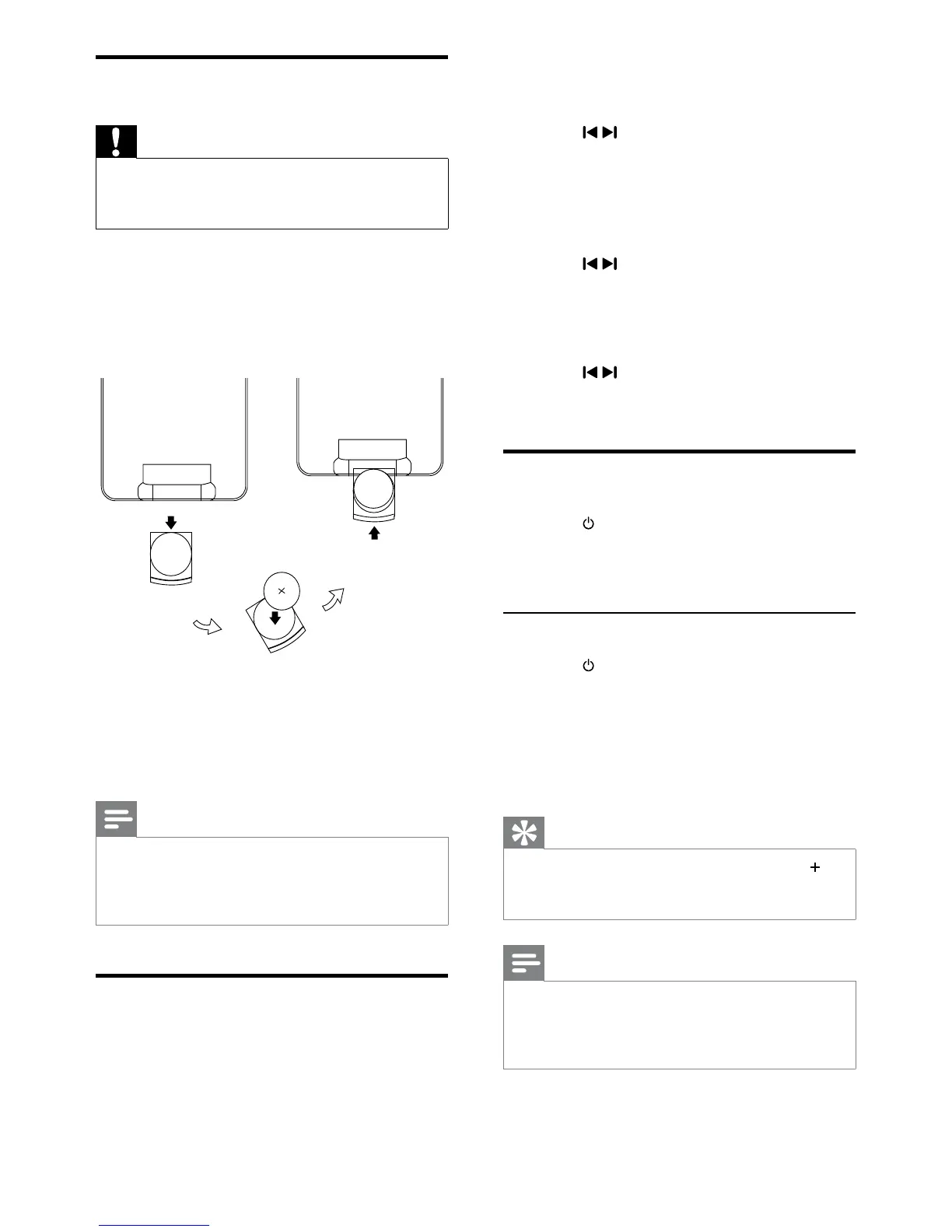
For first-time use:
1 Remove the protective tab to activate the
remote control battery.
To replace the remote control batteries:
1 Open the battery compartment.
2 Insert one lithium CR2025 battery with
correct polarity (+/-) as indicated.
3 Close the battery compartment.
Note
Before you press any function button on the •
remote control, first select the correct source
with the remote control instead of the main
unit.
Set clock
1
In standby mode, press PROG/CLOCK
on the remote control to activate the
clock setting mode.
EN



 To Next Page