www.philips.com/faqs/dect
18
7 Personalizing your phone
Your phone comes with a selection of settings that you can change to personalize the way it works.
Personalizing your phone will be done in the various menu items. At any time, you can press the EXIT key to exit
the current menu or cancel the confirmation. If you press and hold the EXIT key, the phone will simply abort all
programming and return to standby.
Personalizing your phone’s display
Giving your phone a name
You can give your phone a different name. If you have more than one handset, you can give each handset its own name.
The handset name can be up to 8 characters long and it can be composed of A-Z, 0-9, and space.
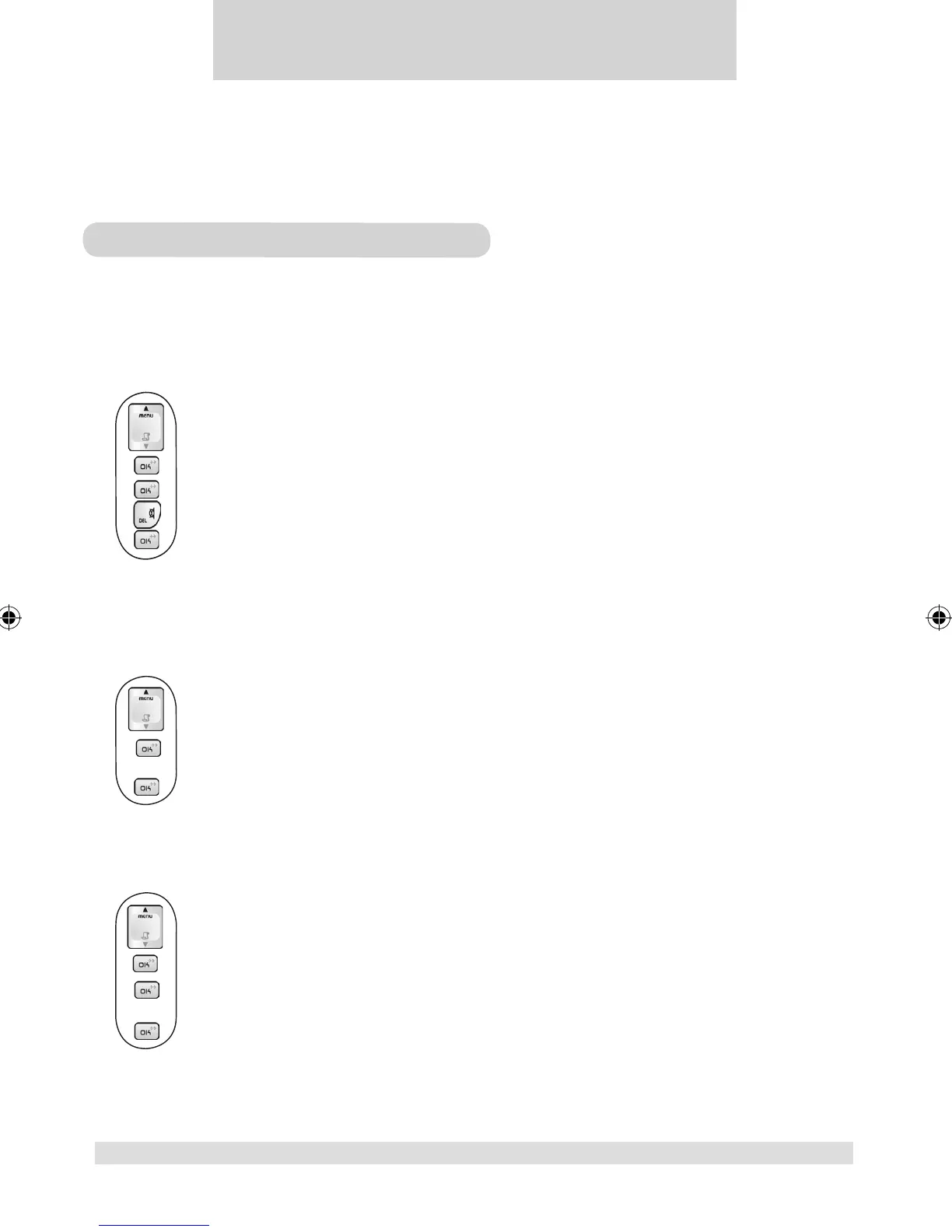
1. Press the MENU key.
2. Select SETTINGS and press the OK key.
3. Select HS NAME and press the OK key. The current handset name is displayed.
4. Edit the handset name. Press DELETE key if you want to delete the current name and use the
number keys to enter a new name.
5. Press the OK key to confirm.
Setting your phone’s language
Your phone comes with several languages. When you change your phone’s language, the menus and prompts will be
displayed in the chosen language.
1. Press the MENU key.
2. Select LANGUAGE and press the OK key. The current language is displayed.
3. Select the desired language.
4. Press the OK key to confirm.
Turning the backlight on/off
Your phone screen will be lit when the phone is being used.
1. Press the MENU key.
2. Select SETTINGS and press the OK key.
3. Select BACKLIT and press the OK key. The current setting is displayed.
4. Select ON or OFF.
5. Press the OK key to confirm.
personalizing your phone


 To Next Page