Socket is not working
Try another appliance in the same socket. If that appliance is also not working, the issue might
be with the socket. Try a different outlet to fully charge your Philips Sonicare toothbrush. You
might need to reset a GFCI outlet.
Interferences
Metal surfaces or other chargers may interfere with your charger. Make sure that the charger is
not placed on a metal surface or near other chargers. Place the charger in a different position
and try again.
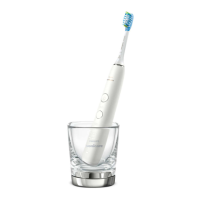
Toothbrush is placed incorrectly in the charging glass or on the charging pad
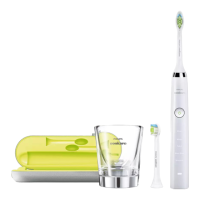
If your toothbrush comes with a charging glass or wireless charging pad, make sure that the
bottom of your toothbrush is touching the centre of the charging glass or charging pad.
For toothbrushes compatible with the Sonicare App
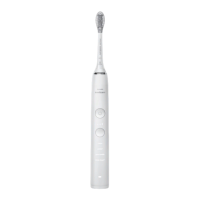
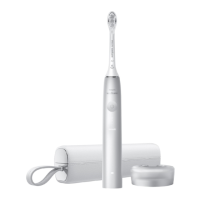
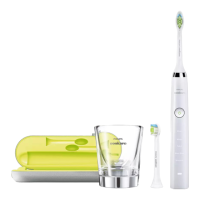
The Sonicare app is only compatible with the following connected toothbrushes:
1. Philips Sonicare DiamondClean Smart
2. Philips Sonicare Flexcare Platinum Connected
3. ExpertClean
4. DiamondClean 9000
5. Philips Sonicare for Kids (Only compatible with the Sonicare Kids App)
These toothbrushes get software updates when connected to the app. This happens through
firmware updates. Some of these updates improve charging capability.
Follow these steps to check if you have the latest firmware installed on your toothbrush
handle:
Update (or download) the latest version of the Philips Sonicare app from the App Store or
Google Play.
Open the Philips Sonicare app
Tap on the menu icon in the top-left corner
Go to 'My Products'
Select your toothbrush
Select 'Handle update' to see if any updates are available
If you have updates available, please update the firmware of your handle by following the
instructions from the Philips Sonicare app.






 To Next Page