21
16:9
4:3
Normal/LB
4:3
Normal/PS
Setup Menu
Video Setup menu
There are items included in VIDEO SETUP menu
as TV TYPE, VIDEO OUTPUT, TV DISPLAY,
CLOSE CATION, TV MODE, SMART PICTURE,
COLOR SETTING.
1 Press SYSTEM MENU to enter its menu.
2 Highlight VIDEO SETUP by pressing the 34 keys.
3 Press OK.
TV Type
Before viewing the DVD or VCD, ensure that the
PAL or NTSC setting of the system matches your
TV set.
1 Press the 34 keys to highlight TV TYPE in the
VIDEO SETUP menu.
2
Enter its submenu by pressing the 2 key.
3 Move the cursor by pressing the 34 keys to
highlight one option.
4 Press OK.
5 Press the 1 key to return to the VIDEO SETUP
menu.
NOTE: Choosing NTSC item indicates that the
player will output by NTSC system, Similarly, you
can get PAL system by choosing the PAL item. And
the item MULTI means video output is depending
on the format of DVD or VCD discs.
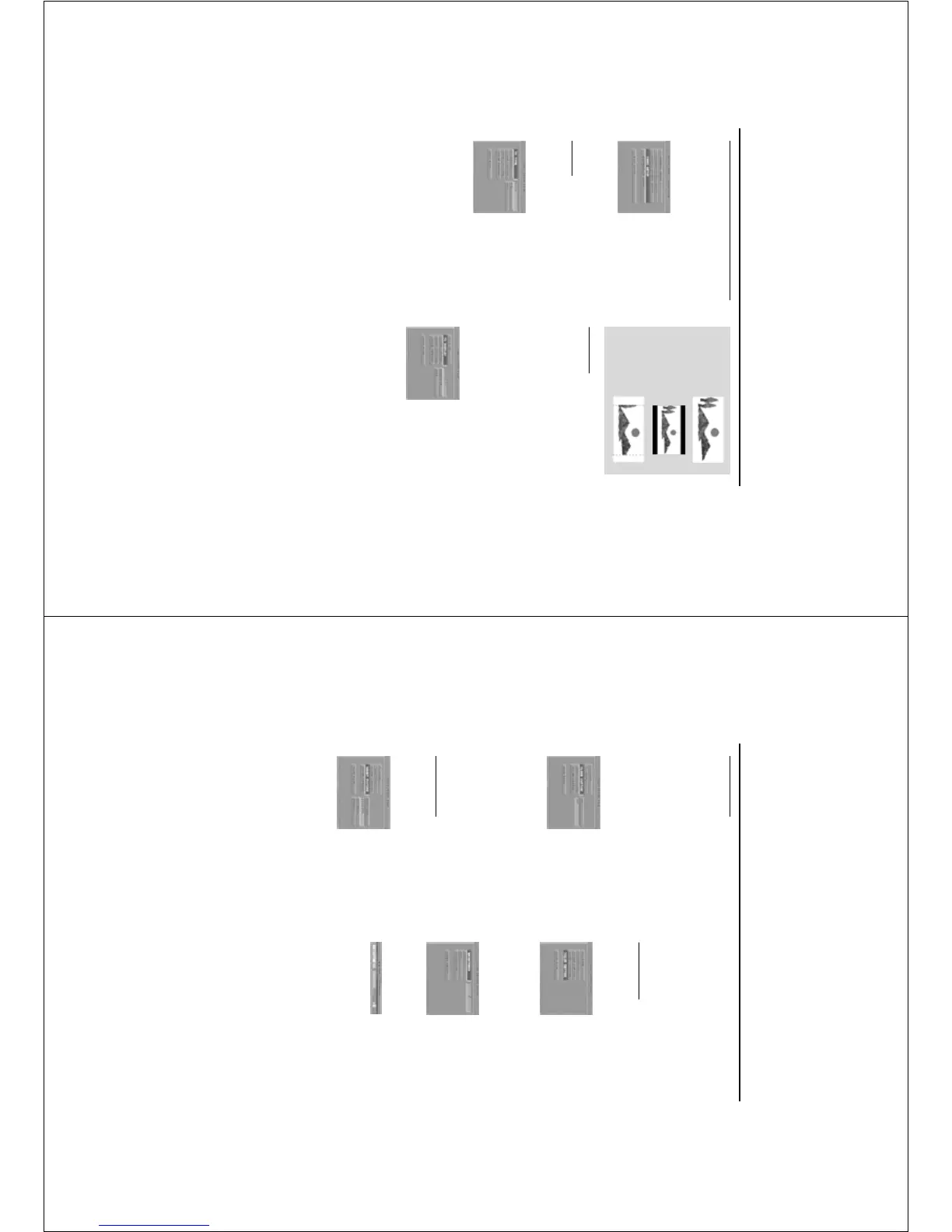
TV Display
Select the aspect ratio of the TV to be connected.
16:9 ➜ when you connect a wide-screen TV to
the DVD player.
4:3 NORMAL LB ➜ when you connect a
normal TV to the DVD player. Displays a wide
picture with bands displayed on the upper and
lower portions of the TV screen.
4:3 NORMAL PS ➜ when you connect a
normal TV to the DVD player. Displays the wide
picture on the whole TV screen with a portion
automatically cut off.
Setup the item as follows,
1 Press the 34 keys to highlight the TV DISPLAY
item in the VIDEO SETUP menu.
2
Enter its submenu by pressing the 2 key.
3 Move the cursor by pressing the 34 keys to
highlight the selected item.
4 Press OK.
5 Press the 1 key to return to the VIDEO SETUP
menu.
Note: If the DVD discs are not recorded the
information of WIDE-SCREEN (16:9) or 4:3
NORMAL PS, the DVD player can not convert
properly.
22
Setup Menu
Close Caption
Close captions are captions that are hidden in the
video signal, invisible without a special decoder.
The differences between subtitles and captions
are that subtitles are intended for hearing
audiences and captions for deaf audiences.
Subtitles rarely show all of the audio. For example,
captions show sound effects (e.g., "phone ringing"
and "footsteps"), while subtitles don't.
Before you choose this function, please ensure
that the disc contains captions information and
your TV set also have the function.
1 Press the 34 keys to highlight CLOSE
CAPTION in the VIDEO SETUP menu.
2
Enter its submenu by pressing the 2 key.
3 Move the cursor by pressing the 34 keys to
highlight one option.
➜ ON: Enable ClOSE CAPTION.
➜ OFF: Disable CLOSE CAPTION.
4 Press OK.
5 Press the 1 key to return to the VIDEO SETUP
menu.
Smart Picture
In this menu, you can choose one picture setting
from a fixed set of ideal predefined picture
setting.
1 Press the 34 keys to highlight SMART PICTURE
in the VIDEO SETUP menu.
2
Press the 2 key to highlight the item of the
submenu.
3 Press the 34 keys to choose an item.
➜ BRIGHTNESS: make the TV screen brighter.
➜ STANDARD: select a standard picture setting.
➜ SOFTNESS: make the TV screen softer.
➜ PERSONAL: achieve the color effect set in
the COLOR SETTING menu.
4 Press OK.
5
Press 1 key to return to the VIDEO SETUP menu.
Color Setting
In this menu, you can personalize your picture
color by adjusting brightness, contrast, hue and
saturation.
1 Press the 34 keys to highlight COLOR
SETTING in the VIDEO SETUP menu.
2 Press OK to open its submenu.
Brightness
1 Press the 34 keys to highlight BRIGHTNESS in
the COLOR SETTING menu.
2
Press the 2 key to open the level bar.
➜ Display on the bottom of the screen.
3 Press the 2 1 keys to increase and decrease the
brightness level.
4 Press the 34 or OK key to return to the
COLOR SETTING menu.



 To Next Page