23
Contrast
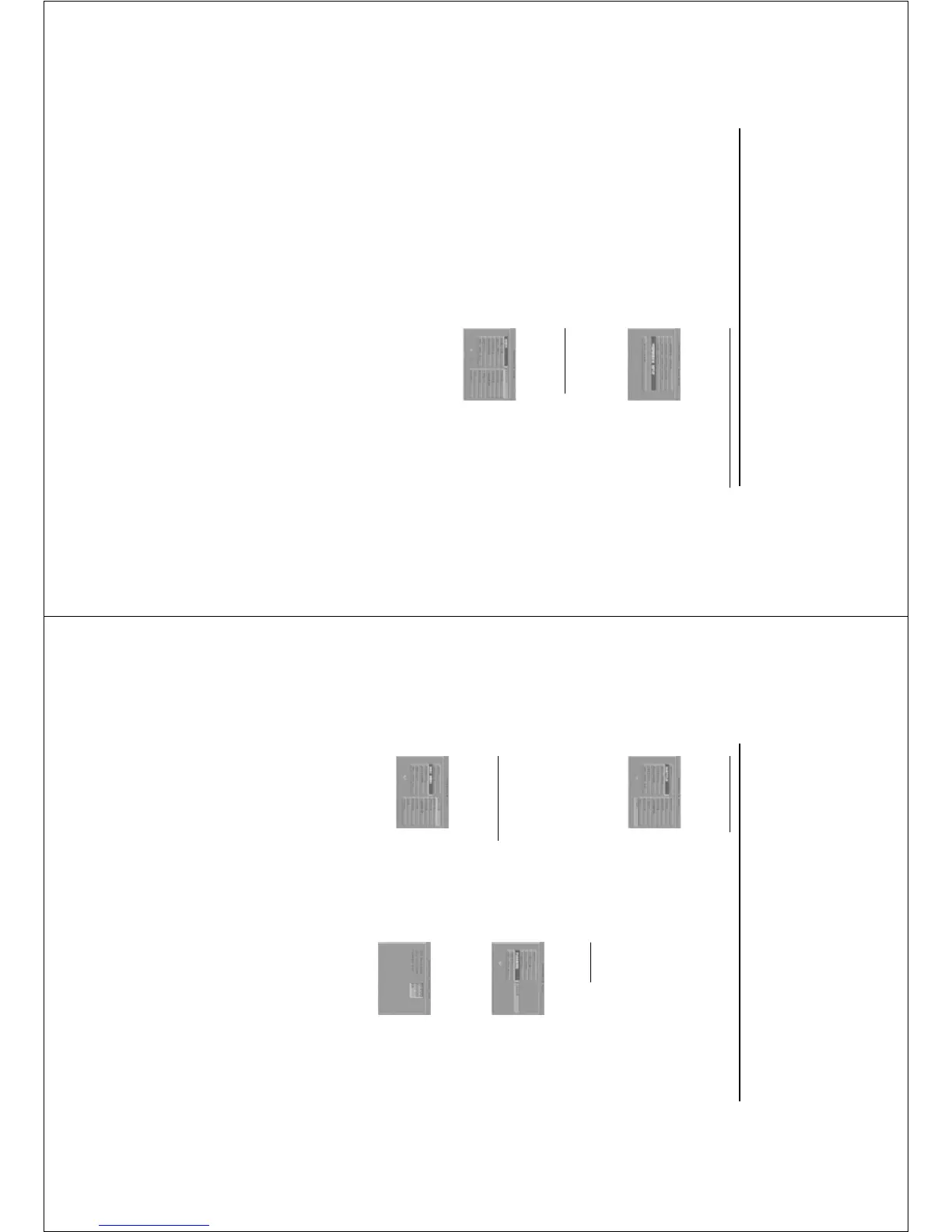
1 Press the 34 keys to highlight CONTRAST in
the COLOR SETTING menu.
2
Press the 2 key to open the level bar.
➜ Display on the bottom of the screen.
3 Press the 2 1 keys to increase and decrease the
contrast level.
4 Press the 34 or OK key to return to the
COLOR SETTING menu.
Hue
1 Press the 34 keys to highlight HUE in the
COLOR SETTING menu.
2
Press the 2 key to open the level bar.
➜ Display on the bottom of the screen.
3 Press the 2 1 keys to increase and decrease the
hue level.
4 Press the 34 or OK key to return to the
COLOR SETTING menu.
Saturation
1 Press the 34 keys to highlight SATURATION in
the COLOR SETTING menu.
2
Press the 2 key to open the level bar.
➜ Display on the bottom of the screen.
3 Press the 2 1 keys to increase and decrease the
saturation level.
4 Press the 34 or OK key to return to the
COLOR SETTING menu.
Setup Menu
Preference Setup menu
There are items included in PREFERENCE menu
as AUDIO, SUBTITLE, DISC MENU, PARENTAL,
PASSWORD, DEFAULT and MP3/JPEG NAV.
1 Press the STOP key twice.
2 Press SYSTEM MENU to enter its menu.
3 Highlight the PREFERENCE SETUP by pressing
the 34 keys.
4 Press OK to confirm your selection.
Audio language
DVD discs are available for multiple audio
languages. Use this item to choose your preferred
default audio language.
1 Press the 34 keys to highlight AUDIO.
2 Enter its submenu by pressing the 2 key.
3 Move the cursor by pressing the 34 keys to
highlight the selected item.
➜ If you want to choose other languages, please
refer to the instructions in the next page.
4 Press OK.
5 Press the 1 key to return to the PREFERENCE
menu.
NOTE: Your DVD disc may not include the audio
language which you set in the AUDIO menu. If so,
the player will use other audio language instead.
24
If you choose OTHERS in AUDIO,
SUBTITLE or DISC MENU menu,
You can select other languages. Please do as
follows,
1 Move the cursor by pressing the 34 keys to
highlight OTHERS.
2 Press OK.
➜ The DVD player will prompt to enter a
language code (Four digits).
3 Input a language code by pressing numerical keys.
➜ Please look up your expected language code
in LANGUAGE CODE.
4 Press OK.
Password
This item is used for the parental control and disc
lock. Enter your six digits password when a hint is
displayed on the screen.
1 Press the 34 keys to highlight the PASSWORD
item.
2 Enter its submenu by pressing the 2 key.
3 Press OK key to open the PASSWORD
CHANGE page.
4 Enter the current 6 digits code.
➜ In your first time to set the password, the
DVD player will skip this step and ask you to
input a new password directly.
5 If successful, the player will prompt for a new one.
6 After that, enter the new password again to
reconfirm.
7 Press the OK key to return to the PREFERENCE
menu.
➜ The new 6 digits code will take effect.
NOTE:
1. You can change the setup of parental control
and load a locked disc with a valid password.
2. If you forget the password, you can input the
super password 842100 to load it.
Setup Menu
Subtitle language
DVD discs are available for multi-subtitle
languages. This item is used to choose default
subtitle language.
1 Press the 34 keys to highlight SUBTITLE.
2 Enter its submenu by pressing the 2 key.
3 Move the cursor by pressing the 34 keys to
highlight the selected item.
➜ If you want to choose other languages, please
refer to the following instructions.
4 Press OK.
5 Press 1 key to return to the PREFERENCE menu.
NOTE: Your DVD disc may not include the subtitle
which you set in the SUBTITLE menu. If so, the
player will use other subtitle language instead.
Disc Menu language
DVD discs are available for multiple disc menu
languages. This item is used to choose default disc
menu language.
1 Press the 34 keys to highlight DISC MENU.
2 Enter its submenu by pressing the 2 key.
3 Move the cursor by pressing the 34 keys to
highlight the selected item.
➜ If you want to choose other languages, please
refer to the following instructions.
4 Press OK.
5 Press 1 key to return to the PREFERENCE menu.
NOTE: If your DVD disc doesn’t include disc menu
language you have set, the player will use other
recorded language instead.



 To Next Page