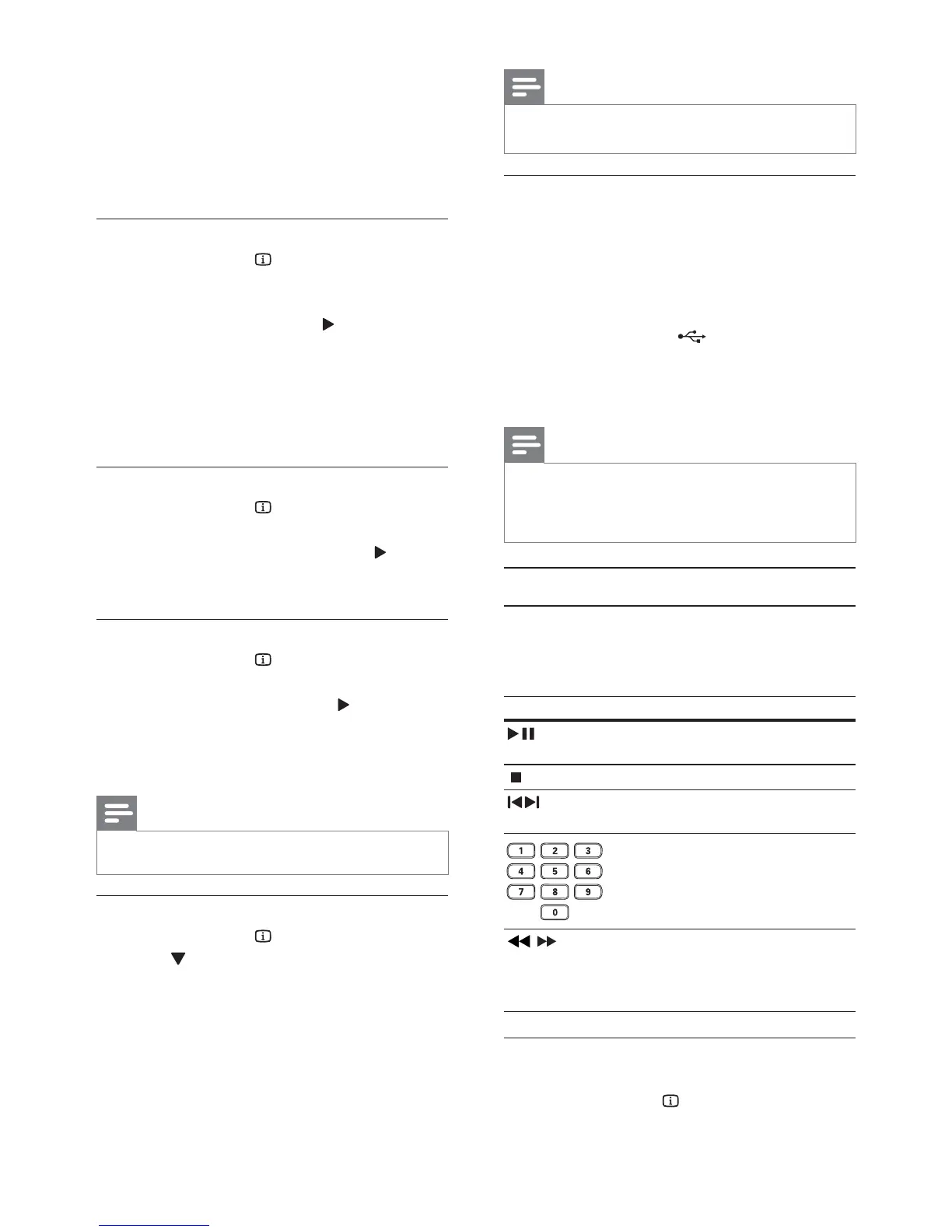
10
Note
The marked section for repeat play is only possible •
within a track/title.
Play DivX
®
(Ultra) video
DivX
®
(Ultra) video is a digital media format
that retains high quality despite a high rate of
compression. You can enjoy DivX
®
(Ultra) video on
this DivX (Ultra) certified product.
1 Insert a disc or USB flash drive that contains
the DivX (Ultra) videos.
For USB, press •
.
A contents menu is displayed. »
2 Select a title to play, then press OK.
You may select subtitle/audio language.•
Note
You can only play DivX (Ultra) video that is rented •
or purchased with the DivX registration code of this
product (see “Adjust Settings” > “General setup” >
[DivX(R) VOD Code]).
Play music
Control a track
1
Play a track.
2 Use the remote control to control the play.
Button Action
Start, pause or resume
disc play.
Stop disc play.
,
Skip to a previous/next
track.
Select an item to play.
,
Searches fast-backward
or fast-forward. Press
repeatedly to change the
search speed.
Quick skip play
This feature is only available for audio CDs.
1 During play, press INFO repeatedly to
select an option.
3 Select a preview option, and then press OK.
A thumbnails preview screen is displayed. »
To go to the next/previous preview •
screen, select [Prev] or [Next], and then
press OK.
To start play, press • OK at the selected
thumbnail picture.
Skip play to a specific time
1
During play, press INFO.
The disc status menu is displayed. »
2 Select an option for the current elapsed
playing time, and then press
.
• [TT Time] (title time)
• [CH Time] (chapter time)
• [Disc Time]
• [Track Time]
3 Press the Numeric buttons to enter the time
to skip to, then press OK.
Display play time
1
During play, press INFO.
The disc status menu is displayed. »
2 Select [Time Disp.], and then press .
The display options vary from disc type. »
3 Select an option, and then press OK.
View DVD play from different angles
1
During play, press INFO.
The disc status menu is displayed. »
2 Select [Angle], and then press .
3 Press the Numeric buttons to change the
angle.
Play changes to the selected angle. »
Note
Applicable only to discs contain multi-angle scenes. •
Repeat play for a specific section
1
During play, press INFO.
2 Press to select [REPEAT AB].
3 Press OK to set the start point.
4 Press OK to set the end point.
Repeat play starts. »
To cancel repeat play, press » OK again.
EN


 To Next Page