14
7 Adjust settings
Note
If the setup option is grayed out, it means the setting •
cannot be changed at the current state.
General setup
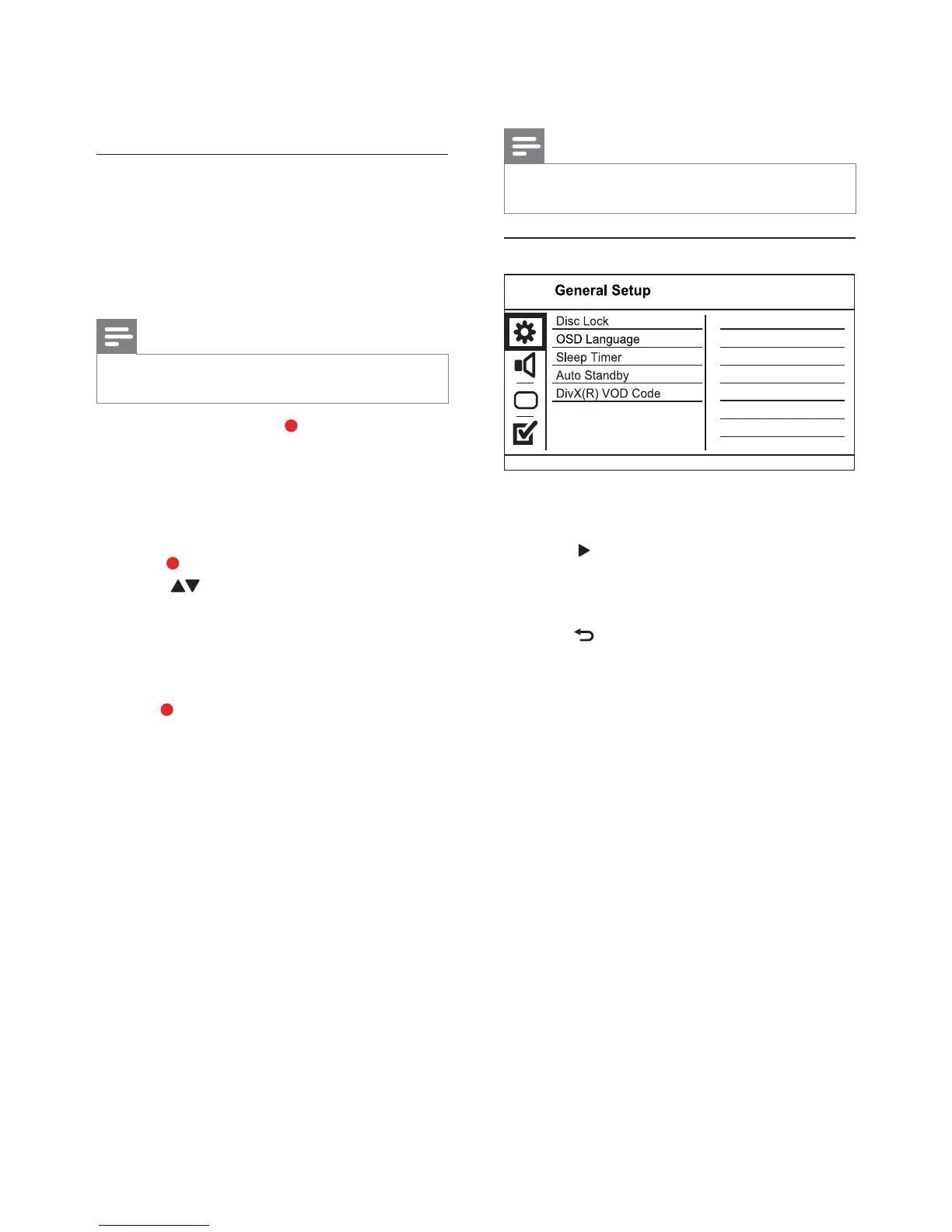
1 Press SETUP.
» [General Setup] menu is displayed.
2 Press to enter the submenu.
3 Select an option, and then press OK.
4 Select a setting, and then press OK.
To return to the previous menu, press •
BACK.
To exit the menu, press • SETUP.
[Disc Lock]
Set the play restriction for a disc which is loaded in
the disc compartment (maximum 20 discs can be
locked).
• [Lock] - Restrict the access to the current
disc. At the next time when you want to play
this disc or unlock it, you need to enter the
password.
• [Unlock] - Play all discs.
[OSD Language]
Select a language for on-screen menu.
[Sleep Timer]
Switch automatically to standby at the preset time.
• [Off] - Disable sleep mode.
• [15 Mins], [30 Mins], [45 Mins], [60 Mins] -
Select the countdown time for this product to
switch to standby.
[Auto Standby]
Turn on/off the auto standby mode.
• [On] - Switch to standby after 15 minutes of
inactivity (for example, in pause or stop mode).
• [Off] - Disable the auto standby mode.
[Key Shift] - Adjust the pitch level that matches
your voice.
[Vocal] - Select various Karaoke audio modes, or
turn off original vocal.
Record Karaoke
You can record your singing into a USB flash drive.
Each time you can record one song, and all the
recorded songs are saved in .mp3 format.
At the first time when you record to a USB flash
drive, a folder named “PHILIPS” is automatically
created to save the recorded files.
Note
This product supports recording to MAS USB devices •
(MTP/NAS devices are excluded).
1 During Karaoke, press KOK RECORD to
display the record menu:
[Start at current time] - start recording
immediately.
[Start from beginning] - start recording from
the beginning of the current song.
To exit without recording, press again •
KOK RECORD.
2 Press to select an option, and press OK.
The recording begins, and a recording »
progress bar is displayed.
When the current song ends, the recording »
completes and stops.
During recording, you may press »
KOK RECORD and follow the on-
screen instructions to stop the recording.
EN



 To Next Page