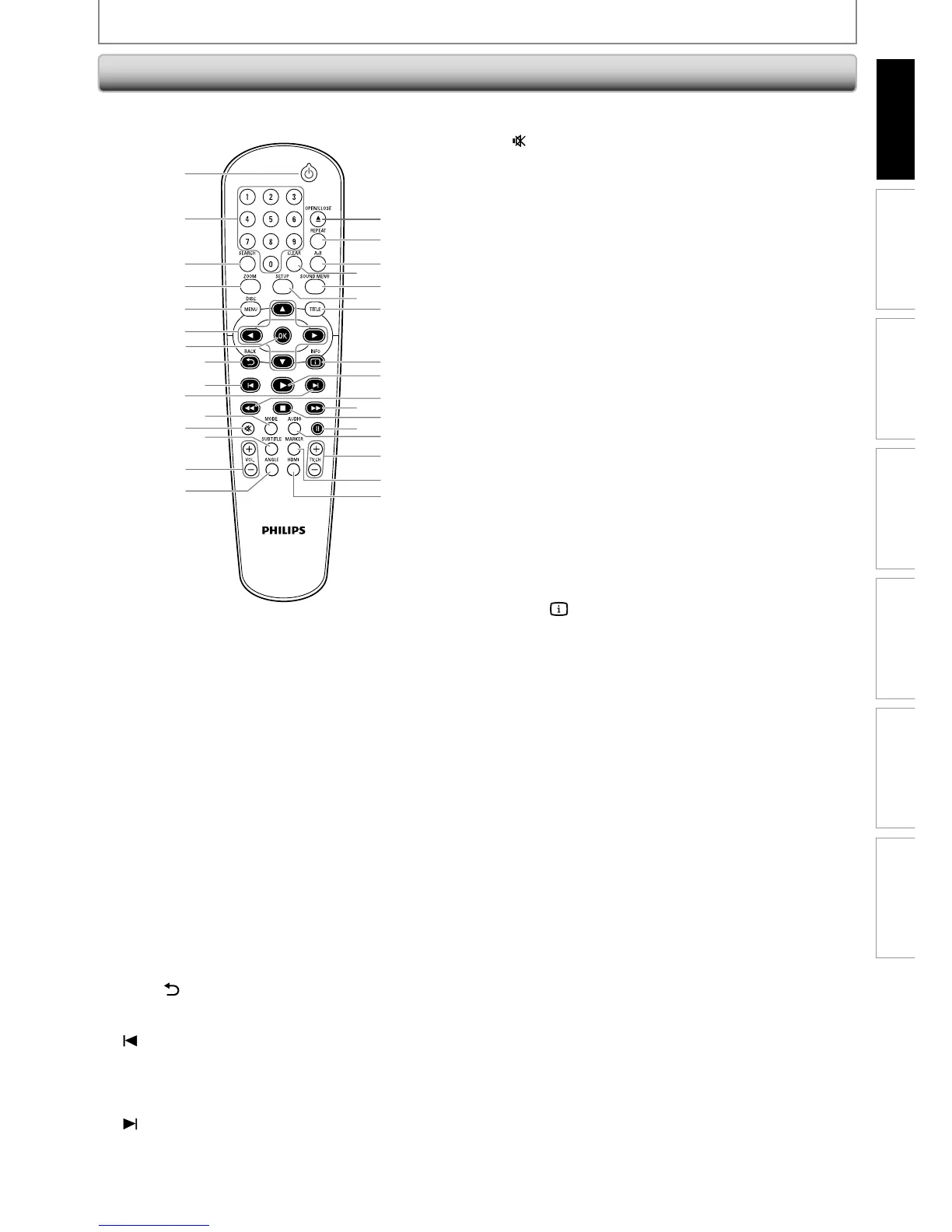
(standby-on) button
• Press to turn on the unit, or to turn the unit to the
standby mode. (To completely shut down the unit,
you must unplug the AC power cord.)
• If timer programmings have been set, press to set
the unit in timer-standby mode.
2. Number buttons
• Press to select a chapter or title during playback.
• Press to enter values in the input field.
3. SEARCH button
• To search chapter, title or time.
• To search tracks, time or folders.
4. ZOOM button
• Press to enlarge the picture on the TV screen.
5. DISC MENU button
• Press to display the disc menu.
6. K / L / { / B buttons
• Press to select items or settings.
7. OK button
• Press to confirm or select menu items.
8. BACK
button
• Press to return to the previously displayed menu or
screen function.
9.
(previous) button
• During playback, press once to return to the
beginning of the current chapter, track or file.
• During playback, press twice to return to the
previous chapter, track or file.
10.
(next) button
• During playback, press to skip to the next chapter,
track or file.
11. MODE button
• To arrange the playing order or play randomly.
12.
(mute) button
• Press to mute the TV volume (only applicable to
the PHILIPS brand TV).
13. SUBTITLE button
• Press to select subtitles on a disc.
14. VOL. +/
-
button
• Press to adjust the TV volume (only applicable to
the PHILIPS brand TV).
15. ANGLE button
• Press to select camera angles on a disc.
16. OPEN/CLOSE A button*
• Press to open or close the disc tray.
17. REPEAT button
• Press to toggle between various repeat modes.
18. A-B button
• Press to play back a defined section between point
A and B repeatedly.
19. CLEAR button
• To remove status number in program input.
• To clear the numbers entered incorrectly.
• To clear the marker settings.
• To cancel the point for A-B repeat.
20. SOUND MENU button
• Press to select a sound mode.
21. SETUP button
• Press to display the setup menu.
22. TITLE button
• Press to display the title menu.
23. INFO
button
• Press to display the information display.
24. B (play) button
• Press to start playback or resume playback.
25. E (reverse) button
• During playback, press to fast reverse the playback.
• When playback is in pause mode, press to slow
reverse the playback.
26. D (forward) button
• During playback, press to fast forward the
playback.
• When playback is in pause mode, press to slow
forward the playback.
27. C (stop) button
• Press to stop playback.
28. F (pause) button
• Press to pause playback.
• When playback is in pause mode, press repeatedly
to forward the playback step by step.
29. AUDIO button
• Press to select the audio channel (such as audio
languages) on a disc.
• To select “STEREO”, “L-ch” or “R-ch”.
30. TV. CH +/
-
button
• Press to change the channel up and down (only
applicable to the PHILIPS brand TV).
31. MARKER button
• During playback, press to display the marker setting.
32. HDMI button
• Press to set the HDMI output mode.
* The unit can also be turned on by pressing these buttons.
Remote Control



 To Next Page