11EN
4 Use your home
theater
This section helps you use the home theater to
play media from a wide range of sources.
Before you start
• Make the necessary connections described
in the Quick start guide and the user
manual.
• Switch the TV to the correct source for
the home theater.
1 Press (Home).
» The home menu is displayed.
2 Press the Navigation buttons and OK to
select the following:
• [DISC]: Start disc play.
• [USB]: Access the USB content
browser.
• [Setup]: Access menus to change video,
audio and other settings.
3 Press (Home) to exit.
Discs
Your home theater can play DVDs, VCDs, and
CDs. It can also play discs that you’ve made at
home, such as CD-R discs of photos and music.
1 Insert a disc into the home theater.
2 If the disc does not play automatically, press
or select [DISC] from the home menu.
3 Press the play buttons to control play (see
'Play buttons' on page 11).
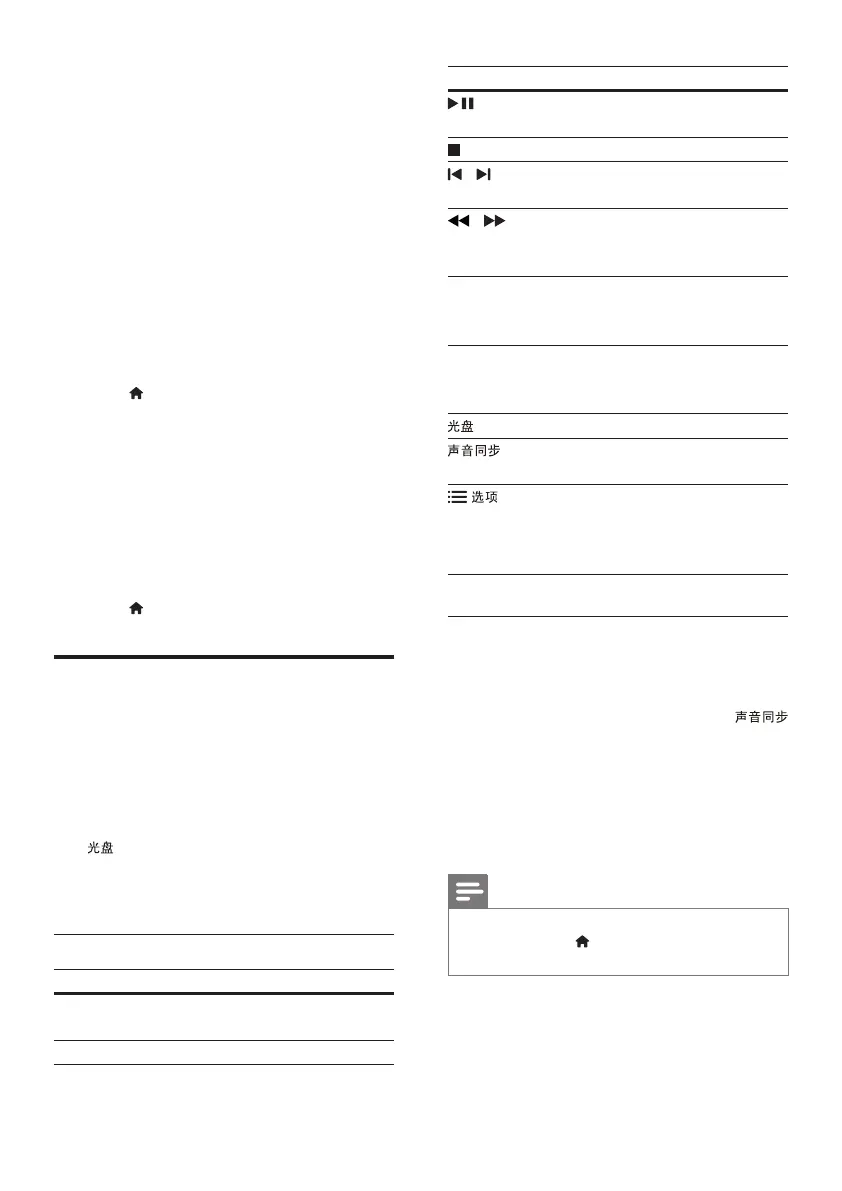
Play buttons
Button Action
Navigation
buttons
Navigate menus.
OK Conrm an entry.
Button Action
(Play/
Pause)
Start, pause or resume play.
Stop play.
/ Skip to the previous or next
track, chapter or le.
/ Fast backwards or fast forwards.
Press repeatedly to change the
search speed.
Navigation
buttons
(left/right)
Rotate the picture clockwise or
counter-clockwise.
Navigation
buttons (up/
down)
Flip the picture vertically or
horizontally.
Access or exit the disc menu.
Select an audio language or
channel.
Access more options when you
play your audio, video, or media
les (see 'Audio, video, and
picture options' on page 13).
Synchronize video and sound
If the audio and video are not synchronized,
delay the audio to match the video.
1 While playing video, press and hold
.
» Audio sync menu is displayed.
2 Press the Navigation buttons to
synchronize the audio with the video, and
then press OK.
Note
•
Picture and sound can be synchronized through the
setup menu, press
(Home), select [Setup] > [Audio]
> [Audio Sync].



 To Next Page