5EN
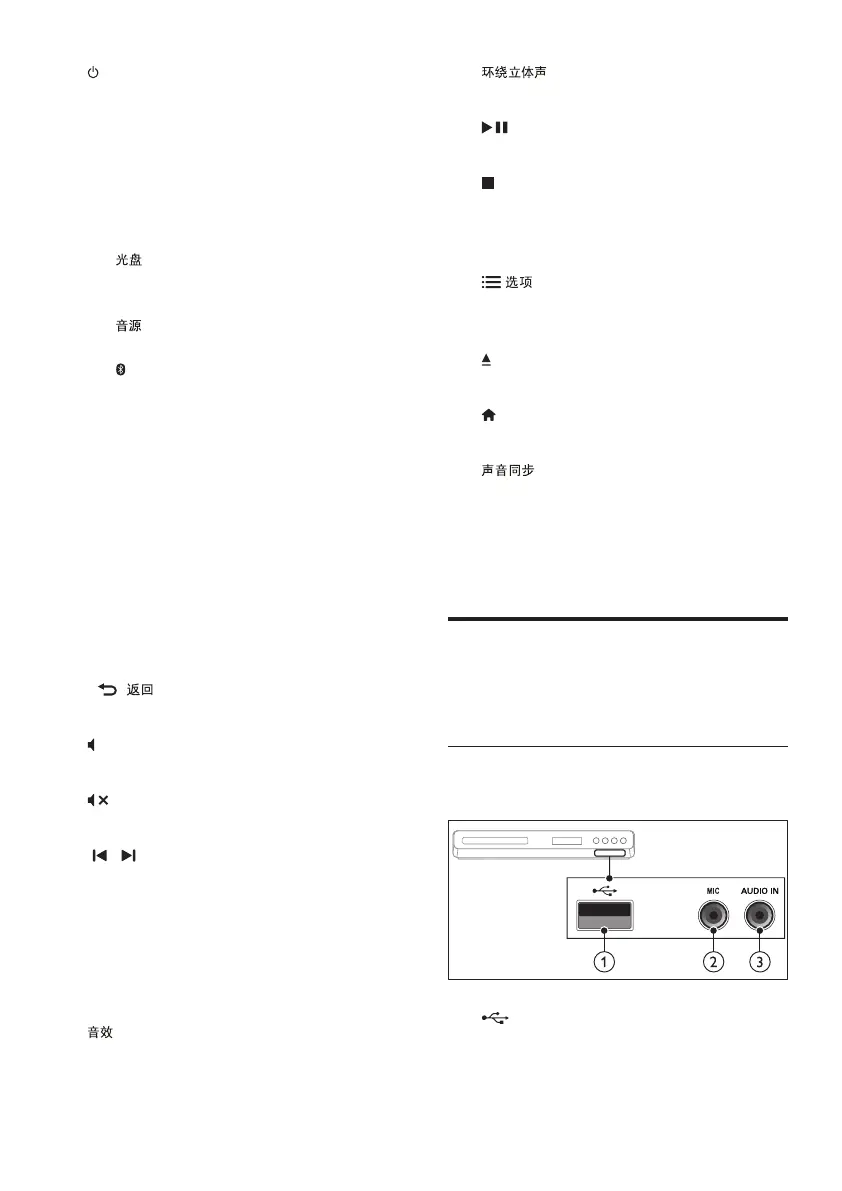
a (Standby-On)
• Switch the home theater on or to
standby.
• When EasyLink is enabled, press
and hold for at least three seconds
to switch all connected HDMI CEC
compliant devices to standby.
b Source buttons
•
: Switch to disc source.Access or
exit the disc menu when you play a
disc.
•
: Select an audio input source, or
radio.
•
: Switch to Bluetooth.
• USB: Switch to USB storage device.
c Navigation buttons
• Navigate menus.
• In video mode, press left or right to
fast backward or fast forward; press
up or down to slow forward or slow
backward (for DVD video only).
• In radio mode, press left or right to
search a radio station; press up or
down to ne tune a radio frequency.
d OK
Conrm an entry.
e
Return to a previous menu screen.
f
+/-
Increase or decrease volume.
g
(Mute)
Mute or restore volume.
h
/ (Previous/Next)
• Skip to the previous or next track,
chapter or le.
• In radio mode, select a preset radio
station.
i Numeric buttons
Select an item to play.
j
Select a sound mode.
k
Select surround sound or stereo sound.
l
(Play/Pause)
Start, pause or resume play.
m
(Stop)
Stop play.
Access more play options while playing a
disc or a USB storage device.
n
Access more play options while playing a
disc or a USB storage device.
o
/
Open or close the disc compartment.
p
(Home)
Access or exit the home menu.
q
• Select an audio language or channel.
• Press and hold to access audio delay
setting, then press Navigation buttons
to delay the audio to match the video.
Connectors
This section includes an overview of the
connectors available on your home theater.
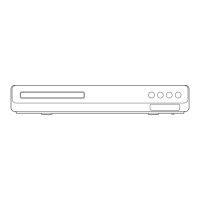
Front
Front connectors
a (USB)
Audio, video or picture input from a USB
storage device.



 To Next Page