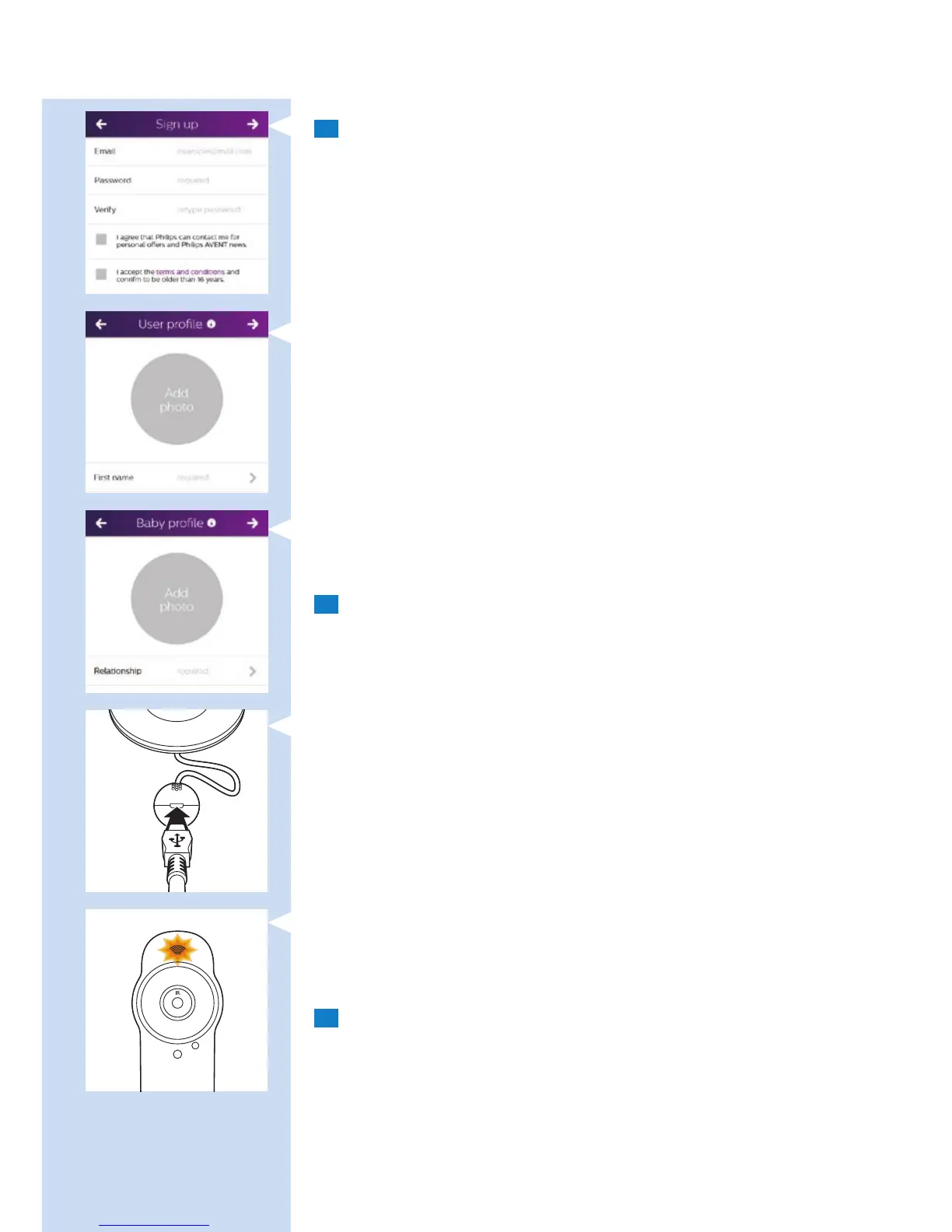
3 Follow the on-screen instructions to create a uGrow account.
1 Make sure that you use a working email address on which you can
always be reached.
2 Use a strong password (see ‘Security and privacy’).
3 When you receive the verication email, follow the instructions in this
email to continue setting up your uGrow Smart Baby Monitor.
4 Create your user prole.
A user prole is needed to identify yourself to invited guest users.
5 Create your baby’s prole.
A baby name is needed to identify your baby monitor in the app, especially
when multiple baby monitors are connected to your account.
4 Follow the on-screen instructions to connect the baby monitor to
the mains.
1 Insert the appliance plug into the appliance plug socket in the
temperature and humidity sensor unit and insert the adapter into
a wall socket.
2 The Wi status light starts to ash orange when the baby monitor is
switched on. Wait until the WiFi status stops ashing. When the WiFi
status light is solid orange, the baby monitor is ready to read the WiFi
QR code.
5 Link the baby monitor to your smart device.
1 Select the WiFi network you want to use. Please note that the baby
monitor only works on a 2.4 GHz WiFi network.
2 Enter the WiFi password.
ENGLISH6


 To Next Page