8 - English
Reassigning hot keys
In order to reassign hot keys to another
function, the driver software has to be installed.
The driver supports Windows
®
98 / 2000 /
ME / XP.
1 Remove any existing mouse drivers
completely.
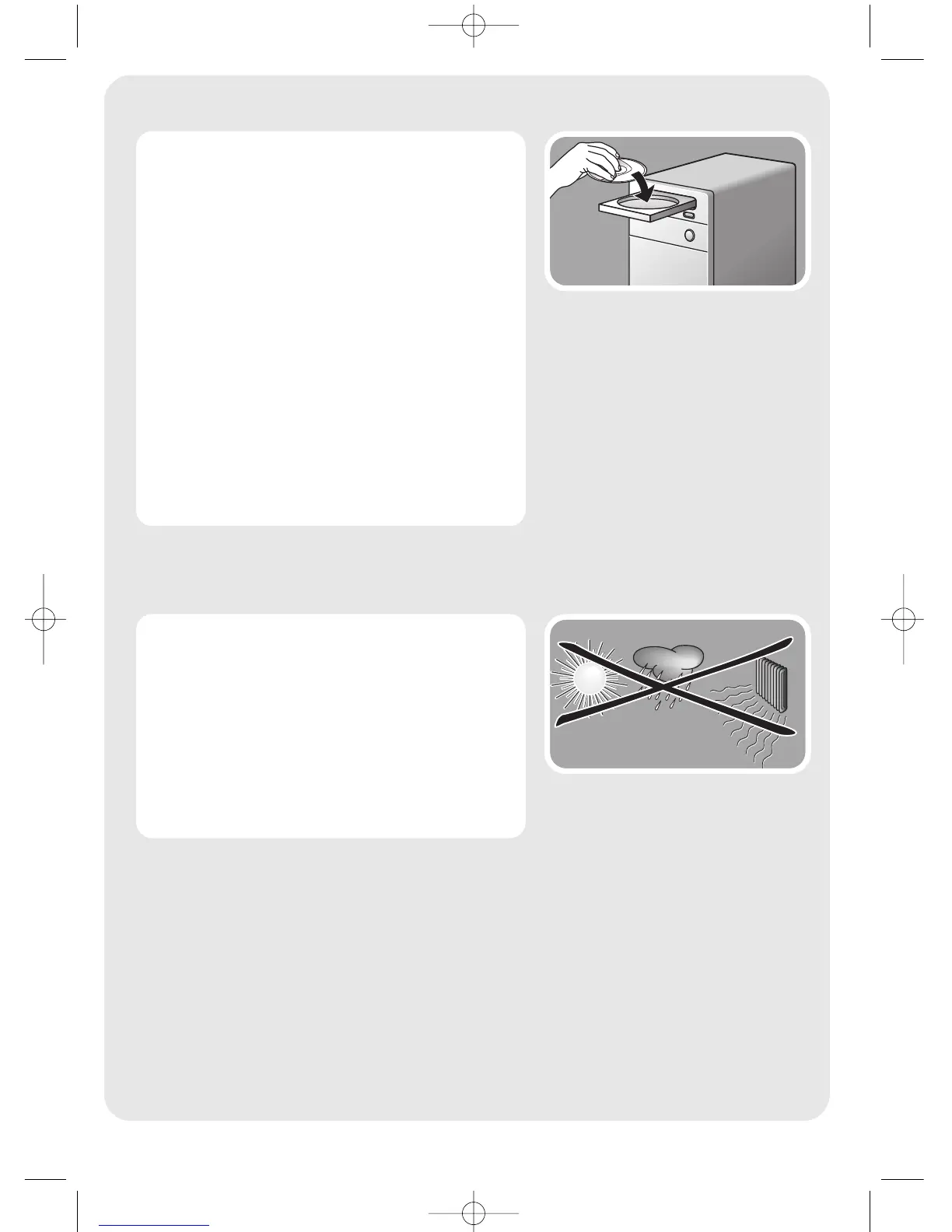
2 Insert the driver CD-ROM into the computer
CD / DVD drive.
3 Open the ‘Keyboard’ folder and double click
‘Setup.exe’ to complete installation.
4 Restart the computer.
> A ‘keyboard settings’ icon appears in the
Windows
®
task bar.
5 Double click the icon to reassign the hot
keys.
Tips for using your keyboard
• Avoid using the keyboard under following
condition:
• in direct sunlight;
• in extreme hot, cold, dusty or magnetic
environments;
• near fax machines,TV sets, radios,
mobile phones or wireless devices;
• If the keyboard does not work properly, make
sure the computer USB port is valid.



 To Next Page