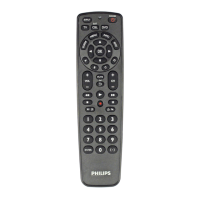
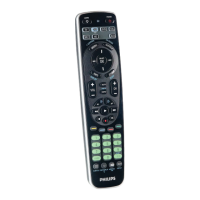
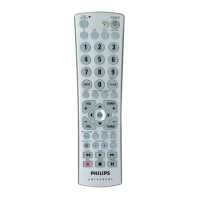
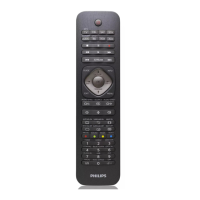
This document describes the Philips SRP5018 Universal Remote, a device designed to control up to three different devices.
Function Description:
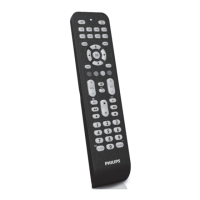
The Philips SRP5018 is a universal remote control that allows users to manage various electronic devices from a single unit. It supports a wide range of devices, including TVs (TV, DTV), Satellite receivers (Cable box, satellite receiver, IPTV, DVR, HDTV decoder, and TiVo), Media streaming devices (Apple TV, Roku, Sony, WD TV, Netgear), Blu-ray players, DVD players/recorders, Sound bars (sound bar, home theater, audio system), Game consoles, and Auxiliary equipment (media center PC, others). The remote features dedicated buttons for power on/off, device selection, playback controls (stop, pause, record, rewind, play, fast forward, previous track, next track), channel navigation (previous/next channel), volume control (up/down, mute), and digital input. It also includes specific buttons for HOME, SMART, EXIT, MENU, and TREBLE/BASS, offering comprehensive control over smart TV functions, sound preferences, and menu navigation. The remote supports both manual code entry and an auto-registration process for setting up devices.
Important Technical Specifications:
The SRP5018 is a universal remote, meaning it can control multiple devices using pre-programmed codes or through a learning function. While specific technical specifications like frequency range or battery life are not detailed, the manual indicates that it operates using infrared signals. It requires batteries (not included) for operation, and the memory retains user settings for 5 minutes when batteries are replaced. The device is designed to be user-friendly, with a clear layout of buttons for intuitive control.
Usage Features:
The remote offers several features to enhance usability:
- Device Selection: Users can select the device they wish to control using dedicated buttons (TV, SAT, MEDIA, BLU, DVD, S.BAR, GAME, AUX).
- Playback Controls: Standard playback functions like play, pause, stop, record, rewind, and fast forward are available, along with track navigation.
- Channel and Volume Control: Dedicated buttons for changing channels (CH+/CH-) and adjusting volume (volume up/down, mute) are present.
- Smart TV and Menu Navigation: Buttons like HOME, SMART, EXIT, and MENU provide quick access to smart TV features, app menus, and device settings.
- Sound Adjustment: The TREBLE/BASS button allows users to select sound preferences.
- Subtitle and Screen Format: The remote includes buttons for subtitle control and screen format adjustment.
- Teletext Functionality: Teletext on/off and red/green/yellow/blue context sensitivity buttons are available for devices supporting teletext.
- Digit Buttons: A full set of digit buttons (0-9) is provided for direct channel entry and other numerical inputs.
- Setup Methods:
- Set up by code selection: Users can manually enter a 5-digit code from a provided list to program the remote for a specific device. This involves switching on the device, pressing and holding the device selection button for 5 seconds until the red LED is on, looking up the 5-digit code for the brand, entering the code, and then operating the device to confirm the setup.
- Auto registration: This method allows the remote to automatically search for the correct code. The user switches on the device, presses and holds the device selection button for 5 seconds, points the remote at the device, and then presses and releases the power button to start the code search. The remote sends different infrared signals every 2 seconds, indicated by a blue flash. Once the device turns off, the user presses and releases the OK button to save the code. If the device responds correctly, the setup is complete. Auto registration can be reversed by pressing and releasing the power button once more during the process.
- Learning Commands: The remote supports a learning function, allowing it to learn commands from an original remote. This involves pressing and holding the device selection button, entering a learning code, placing the universal remote and the original remote facing each other, pressing the desired key on the universal remote, and then pressing the corresponding key on the original remote. The LED indicator provides feedback during the learning process.
- Clear Learned Commands: Users can clear all learned commands for a particular device or for the entire universal remote by entering specific learning codes.
Maintenance Features:
- Battery Replacement: The remote requires batteries (not included). The manual advises checking battery polarity carefully during insertion to prevent damage. It also warns against mixing different brands or types of batteries and against exposing batteries to heat, sunshine, or fire.
- Disposal of Old Product and Battery: The document provides guidelines for the environmentally responsible disposal of the product and batteries. The product is designed and manufactured with high-quality materials that can be recycled and reused. The crossed-out wheeled bin symbol indicates that the product and batteries should not be disposed of with normal household waste but should be taken to an appropriate collection point for electrical and electronic products and batteries. This ensures proper recycling and prevents negative consequences for the environment and human health.
- User Settings Retention: When replacing batteries, all user settings are retained in the remote's memory for 5 minutes, providing a convenient window for battery exchange without losing configurations.
- Troubleshooting and Support: The manual includes a "Frequently asked questions" section to address common issues, such as the remote not working at all, incorrect setup, or only some buttons responding. It directs users to www.philips.com/support for further assistance and to find contact details for customer service.

 Need help?
 General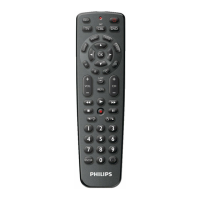

 To Next Page