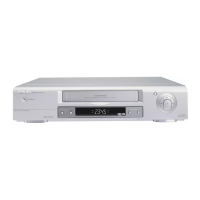
Child lock
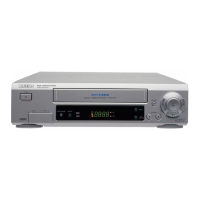
1 With the video recorder switched on, press the
CHILD LOCK u button on the remote control for a few
seconds until { appears in the video recorder display.
Keep the remote control in a safe place.
2 When you want to switch off the child lock, press the
CHILD LOCK u button again for a few seconds.
{ disappears from the video recorder display.
Note: If a button is pressed with activated child lock,
{ flashes in the display for a few seconds.
* Programmed recordings are made despite the child lock
and cannot be interrupted.
On Screen Display (OSD)
You can switch the On Screen Display (OSD) on or off.
1 Switch on the TV set. Press the AUTOINSTALL button on
the video recorder.
2 With the P q or P r button, select ’OSD’. Confirm with
the OK button.
3 With the P q button, select ’ON’ or ’OFF’. Confirm with
the OK button.
Note: With the OK button you can superimpose the actual
operating mode on the TV screen.
Channel number or frequency display
You can switch between the display for ’channel number’ or
’frequency’ for manual channel search.
1 Press the AUTOINSTALL button.
2 With the P q or P r button, select
’CHANNEL/FREQUENCY’. Confirm with the OK button.
3 With the P q button. select ’CHANNEL’ or ’FREQUENCY’.
Confirm with the OK button.
Manual channel search
In certain cases the ’Automatic channel search’ may not be
able to find all of the TV channels (e.g. coded TV channels).
In that case, use this manual method to set the TV channels.
1 Switch on the TV set. Press the AUTOINSTALL button on
the video recorder.
2 With the P q ot P r button, select ’MANUAL SEARCH’.
Confirm with the OK button.
3 Hold the P q button until you have found the right TV
channel. A changing channel number or frequency will
appear on the TV screen.
4 Confirm with the OK button.
5 With the P q or P r button or the digit buttons 0-9 ,
select the programme number that you wish to give to this
TV channel (e.g.: ’P 01’).
6 Confirm with the OK button.
If you want to allocate more TV channels, repeat steps 3
to 6 until all TV channels have been stored.
7 To end, press the STANDBY m button.
16



 To Next Page